
可视化设计器:无需写代码即可创建 UI
了解如何使用 PocketCode 的拖放式可视化设计器构建界面,并导出 HTML/CSS,Pro 版还可导出 React、Vue 和 Svelte。
可视化设计器:通过拖放构建界面
可视化设计器是 PocketCode 中最强大的功能之一。它让你以可视化的方式创建用户界面,并生成你可以打开和编辑的 HTML 和 CSS,Pro 版还支持导出 React、Vue 和 Svelte。
为什么要用可视化设计器?
在手机屏幕上设计 UI 可能很有挑战性。在小屏幕上手动编写布局代码既慢又容易出错。可视化设计器用一个直观的拖放界面解决了这个问题。
优势
- 速度: 用几分钟完成设计,而不是几小时
- 可视化: 实时看到结果
- 真实的代码: 导出你可以阅读和编辑的 HTML 和 CSS
- 多目标: HTML/CSS 和 SVG,Pro 版还有 React、Vue 和 Svelte
开始使用
打开设计器
- 从底部栏(平板上是侧边栏)打开 工具 面板,点击 Designer。你也可以使用命令面板或首页的快捷操作
- 点击 手动设计 获得一块空白画布(名称、尺寸,以及页面流或自由画布),或打开 我的设计 并使用 从模板创建
- 随时导出:HTML、CSS、SVG、ZIP 或
.pcd免费,React、Vue、Svelte 需要 Pro
在 我的设计 中你还可以导入 .pcd 文件、Figma JSON 文件或 HTML(只支持部分标签:div、section、标题、p、a、button、img、input)。无法直接从编辑器把 .html 文件打开到设计器中:请在 我的设计 中导入。
基本界面
设计器分为几部分:
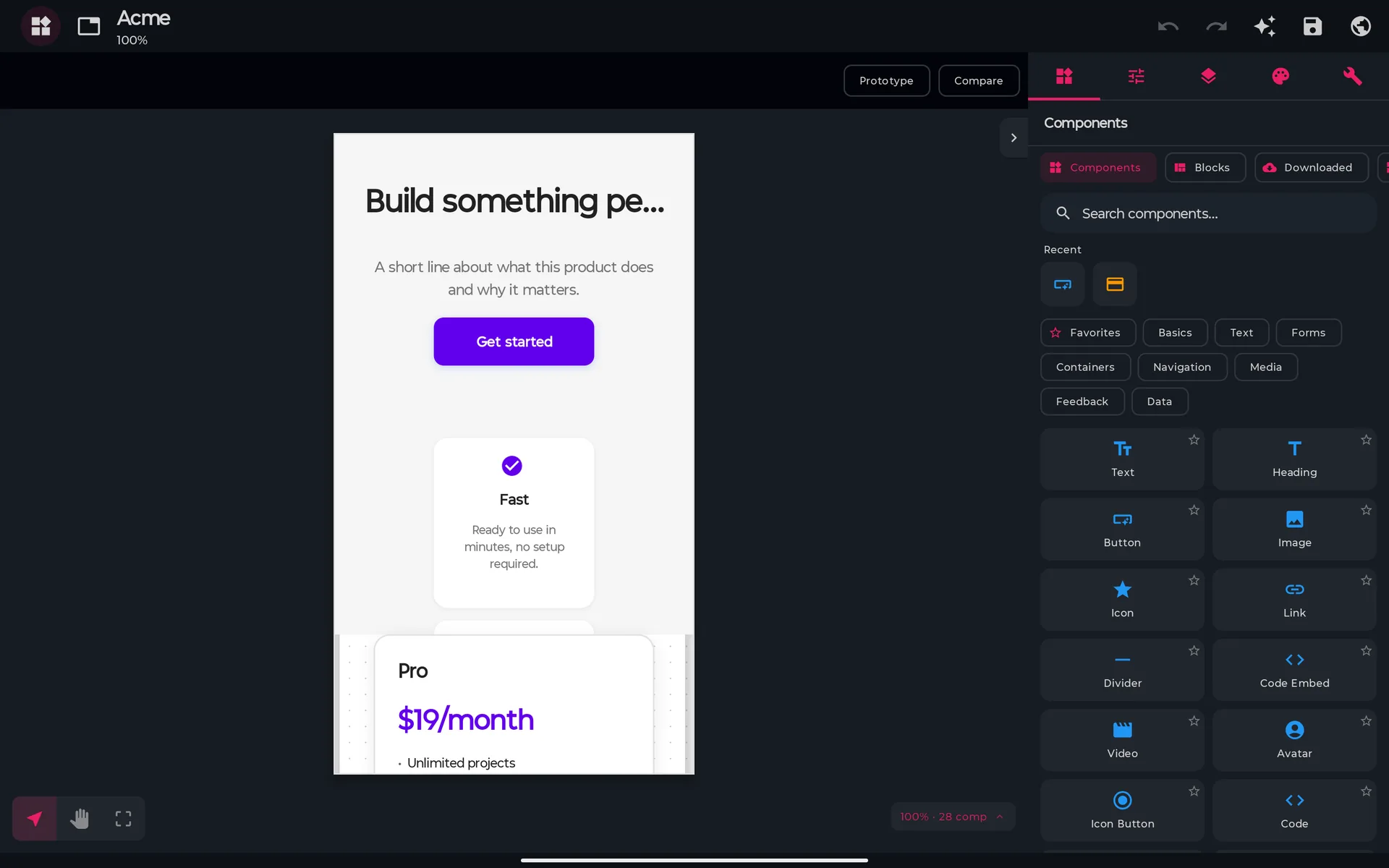
- 侧边面板 —— 组件、属性、图层、主题和工具,共五个标签
- 画布 —— 你的设计区域,含画板与参考线
在平板上,侧边面板停靠在画布旁边,因此不会遮住正在编辑的内容;在手机上,底部栏(页面、组件、样式、图层、工具)会在需要时把它们以浮层打开,主题位于工具之下。
可用组件
组件面板涵盖49 种组件类型,分为八个分区:基础、文本、表单、容器、导航、媒体、反馈和数据。以下是部分选择:
容器
| 组件 | 描述 |
|---|---|
| Row | 水平排列的元素 |
| Column | 垂直排列的元素 |
| Box | 通用容器 |
| Grid | CSS Grid 布局 |
| Scroll View | 可滚动区域 |
| Card | 信息卡片 |
| List | 条目列表 |
表单
| 组件 | 描述 |
|---|---|
| Text Field | 文本输入框 |
| Text Area | 多行文本 |
| Switch | 开/关切换 |
| Slider | 数值选择器 |
| Dropdown | 下拉菜单 |
| Checkbox | 复选框 |
| Radio | 单选项 |
基础、文本与媒体
| 组件 | 描述 |
|---|---|
| Button | 带变体的按钮 |
| Link | 文字链接 |
| Text | 带样式的文本 |
| Heading | 带级别的标题 |
| Image | 图片 |
| Divider | 视觉分隔线 |
| Icon | 内置图标 |
导航
| 组件 | 描述 |
|---|---|
| Navbar | 顶部导航栏 |
| Tab Bar | 标签导航 |
| Bottom Nav | 底部导航 |
| Breadcrumb | 层级导航 |
实践教程:登录界面
让我们一步步创建一个完整的登录界面:
步骤 1:基本结构
把一个 Column 拖到画布上并设置:
- 对齐:居中
- 内边距(Padding):24px
- 背景:#0a0a0a
步骤 2:添加 Logo
在该列内,拖入一个 Image:
- 尺寸:120x120
- 圆角(Border-radius):full(圆形)
- 下外边距(Margin-bottom):32px
步骤 3:文本输入框
添加两个 Text Field 组件:
邮箱:
- 占位文本:“邮箱”
- 类型:email
- 宽度:Fill
密码:
- 占位文本:“密码”
- 类型:password
- 宽度:Fill
步骤 4:登录按钮
拖入一个 Button:
- 文本:“登录”
- 样式:primary
- 全宽:开启
- 圆角(Border-radius):12px
步骤 5:额外链接
添加 Text 和 Link 组件:
- “忘记密码?”(链接样式)
- “还没有账号?注册”(淡色文本 + 链接)
生成的代码
设计器会把布局导出为标记加上它所需的 CSS。下面的片段展示的是 React 和 Vue 输出的大致结构,并非确切文本:
// React 输出(仅示意结构):一个文件,CSS 内嵌其中
import React from "react";

const styles = `
  /* 为你的组件生成的 CSS */
`;

export default function LoginScreen() {
	return (
		<div className="design-container">
			<style>{styles}</style>
			{/* 你的组件,以带生成类名的普通元素呈现 */}
		</div>
	);
}
<!-- Vue 输出(仅示意结构) -->
<template>
  <div class="design-container">
    <!-- 你的组件 -->
  </div>
</template>

<script>
export default { name: "LoginScreen" };
</script>

<style scoped>
/* 为你的组件生成的 CSS */
</style>
框架导出的只是标记和样式:状态、事件处理和路由需要之后在代码中添加。
高级功能
响应式设计
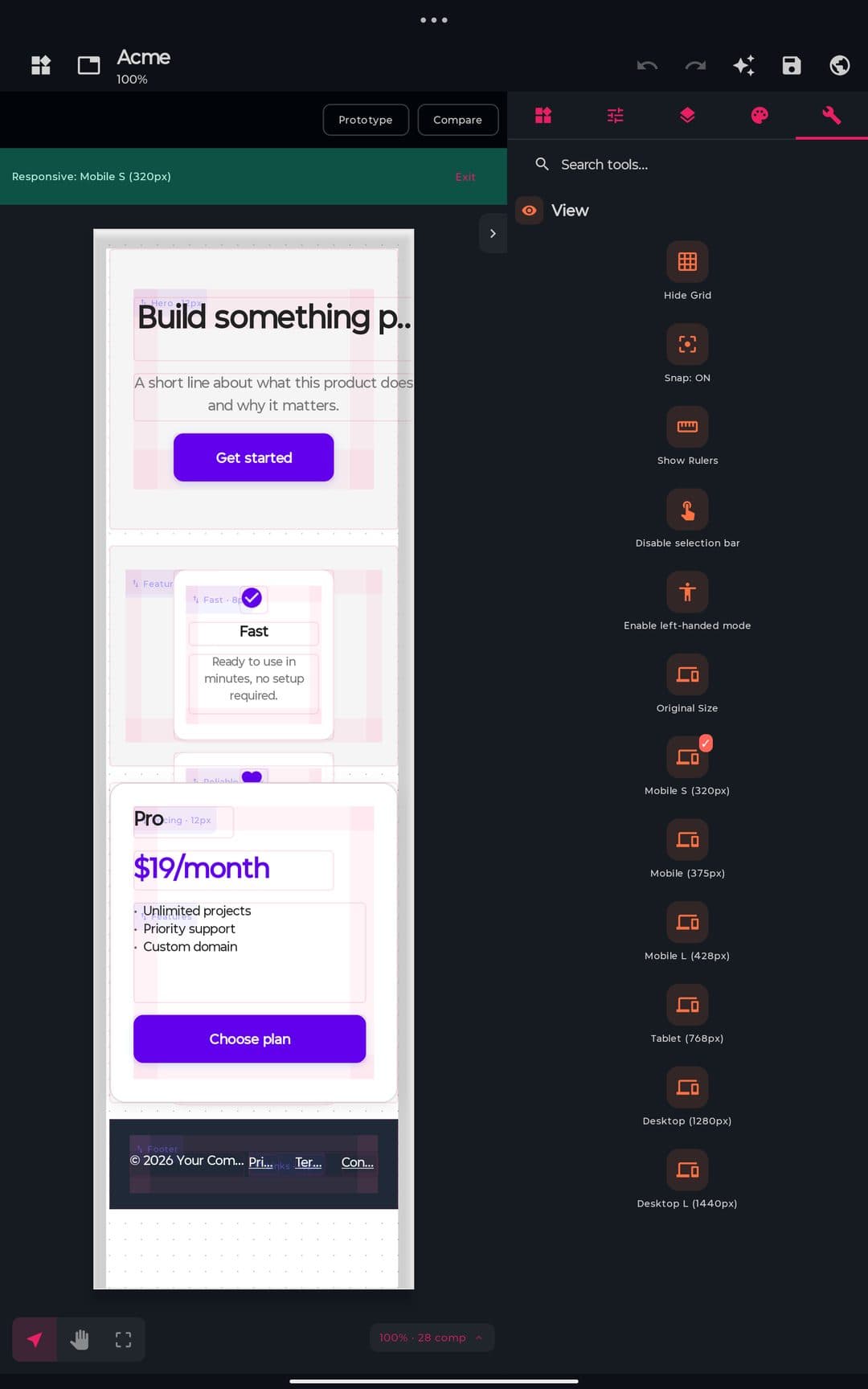
设计器有两种布局模式。页面流(新建手动设计时的默认模式)按顺序堆叠各个块,导出真正的响应式 HTML;自由画布把每个元素放在你放下的位置,模板和导入的设计都从这里开始。导出之前,设计器会提示你把自由画布设计转换为页面流。
- 预览宽度: Original 加六种宽度(Mobile S 320、Mobile 375、Mobile L 428、Tablet 768、Desktop 1280、Desktop L 1440)。Mobile S、Mobile L 和 Desktop L 需要 Pro
- 断点: 默认有 Tablet(最大 900 px)和 Mobile(最大 480 px),你可以免费编辑它们或添加自己的断点。每个断点下可以更改位置、尺寸、可见性和样式,并会导出为真正的
@media规则 - 尺寸: Fixed、Hug 或 Fill,并可设置最小值和最大值
状态与交互
每个组件有五种状态:Normal、Hover、Active、Focus 和 Disabled。你可以分别为它们设置样式,它们会导出为 :hover、:active、:focus 和 :disabled。Interactions 标签页可以添加简单的行为:
- 选中一个组件(例如 Button)
- 选择触发器:Tap、Hover、Scroll into view、Page load、After a delay 或 Form submit
- 选择动作:Navigate to page、Open overlay、Close overlay、Toggle visibility、Scroll to、Set state 或 Open URL
在 HTML 导出中,这些会变成一小段脚本,用于页面跳转、对话框和表单验证。React、Vue 和 Svelte 导出只有标记和样式,所以那里的行为(点击处理、路由、数据)需要在代码中添加。
可复用的部分
- 组件: 把选中的内容转换为组件,并从 我的组件 中复用。实例是副本:编辑原始组件后,点击 更新所有实例
- 设计系统: 定义令牌(颜色、间距、字体排印等)、文本样式以及浅色和深色主题
- 模板与区块: 从 5 个内置模板(Landing Page、Login Form、Dashboard、Portfolio、E-Commerce)之一开始,或添加 5 个现成区块之一。免费版最多可以用模板创建 3 个设计
手势支持
设计器为触控交互而设计:
- 在画布上双指缩放(双指也可以平移)
- 点按选中最内层的元素,再次点按可上升一层;双击容器可将其单独隔离,双击文本可编辑
- 长按已选中的元素打开上下文菜单,长按未选中的元素则开始多选
- 在手机上滑动切换各个面板
导出目标
设计器生成真实、可编辑的代码——全部基于 Web。共有八种导出格式:
| 目标 | 输出 |
|---|---|
| HTML | 干净、不依赖框架的标记 |
| CSS | 单独的样式表 |
| SVG | 画布的矢量导出 |
| ZIP | 包含资源的完整设计 |
.pcd | PocketCode 自己的设计文件 |
| React / JSX | 一个内嵌 CSS 的组件文件(Pro) |
| Vue | 单文件组件(Pro) |
| Svelte | .svelte 组件(Pro) |
你还可以把单个组件复制为 HTML 片段,而 PocketCode 项目(Pro)会把设计保存为代码项目,并计入你的项目数量上限。网页字体从 Google Fonts 加载,所以导出的 HTML 需要联网才能显示它们。
技巧与最佳实践
- 从结构开始: 先放容器,再放内容
- 使用页面流: 它导出响应式 HTML;尽可能避免固定尺寸
- 为组件命名: 生成的代码更易读
- 经常预览: 在不同屏幕尺寸上检查
- 逐步导出: 不要等到最后才检查代码
可视化设计器让你在同一台设备上完成设计和编程:勾勒一个界面,导出 HTML/CSS(Pro 版还可导出 React、Vue 和 Svelte),并在原地继续构建。今天就试试,加快你的开发速度!
设计器