
Diseñador Visual: crear interfaces sin escribir código
Aprende a usar el diseñador visual de arrastrar y soltar de PocketCode para construir interfaces de usuario y exportar código limpio de React, Vue, Svelte o HTML/CSS.
Diseñador Visual: construye interfaces arrastrando y soltando
El Diseñador Visual es una de las funciones más potentes de PocketCode. Te permite crear interfaces de usuario de forma visual y genera automáticamente código limpio y listo para producción.
¿Por qué un diseñador visual?
Diseñar interfaces en la pantalla de un móvil puede ser complicado. Escribir el código de maquetación a mano es lento y propenso a errores en pantallas pequeñas. El diseñador visual lo resuelve con una interfaz intuitiva de arrastrar y soltar.
Ventajas
- Rapidez: diseña en minutos, no en horas
- Visual: ve el resultado en tiempo real
- Código limpio: genera código siguiendo las buenas prácticas
- Multi-destino: React, Vue, Svelte, HTML/CSS y SVG
Primeros pasos
Abrir el diseñador
- En cualquier proyecto, toca el icono Design en la barra de pestañas
- Selecciona el destino de exportación (React, Vue, Svelte, HTML/CSS)
- Empieza con un lienzo en blanco o elige una plantilla
Interfaz básica
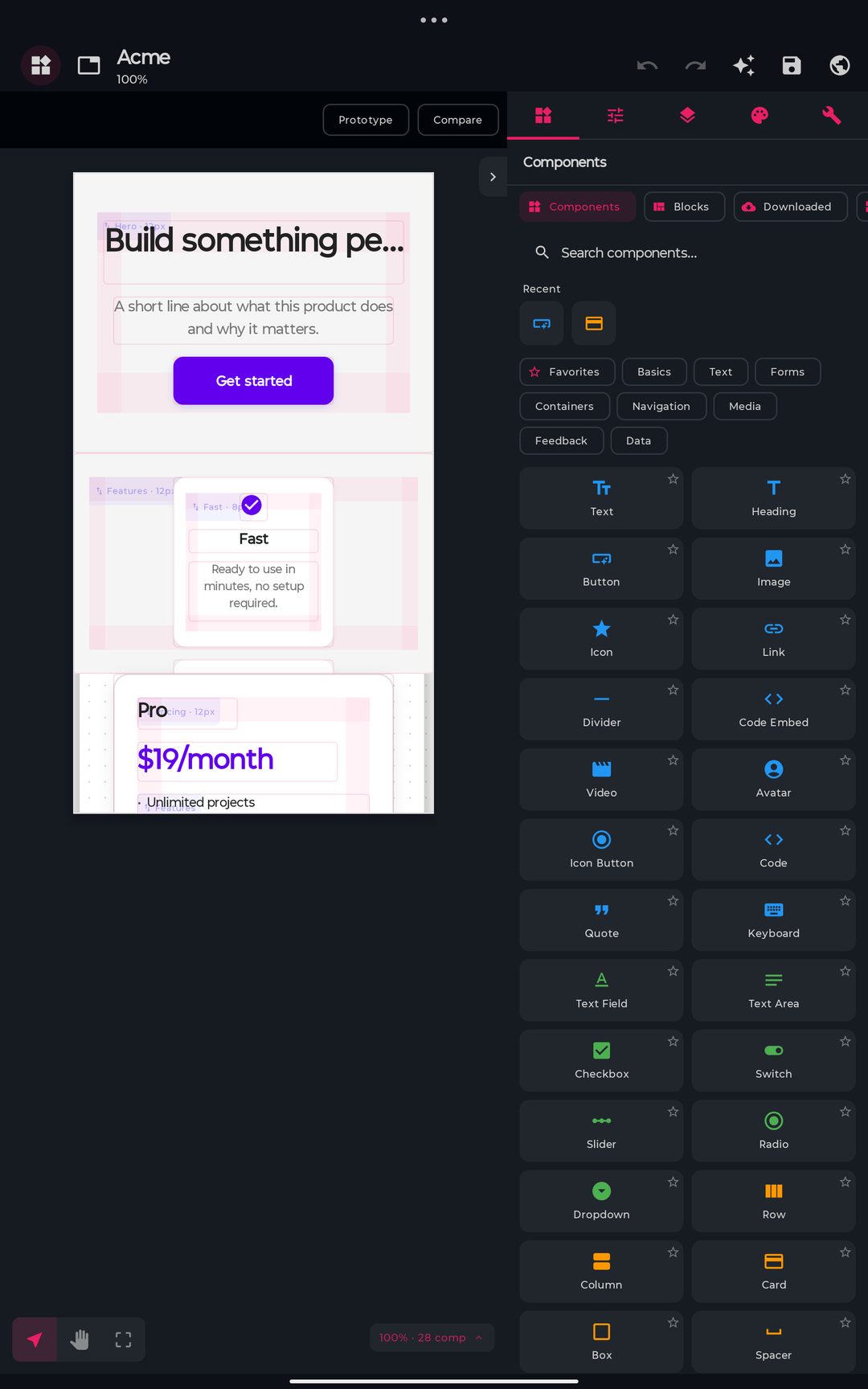
El diseñador se divide en:
- Panel lateral — componentes, propiedades, capas, tema y herramientas, en cinco pestañas
- Lienzo — tu área de diseño, con el artboard y las guías
En tablet el panel lateral va acoplado junto al lienzo, así que nunca tapa lo que estás tocando. En móvil aparece como hoja cuando lo necesitas.
Componentes disponibles
La paleta cubre 49 tipos de componentes. Una selección:
Layout
| Componente | Descripción |
|---|---|
| Container | Contenedor flexible |
| Row | Elementos horizontales |
| Column | Elementos verticales |
| Grid | Maquetación CSS Grid |
| Scroll | Área desplazable |
Input
| Componente | Descripción |
|---|---|
| Button | Botón con variantes |
| TextInput | Campo de texto |
| Toggle | Interruptor On/Off |
| Slider | Selector de valor |
| Dropdown | Menú desplegable |
| Checkbox | Casilla de verificación |
| RadioGroup | Opciones de radio |
Display
| Componente | Descripción |
|---|---|
| Text | Texto con estilos |
| Image | Imágenes/iconos |
| Card | Tarjeta de información |
| List | Lista dinámica |
| Badge | Insignia de notificación |
| Divider | Separador visual |
Navegación
| Componente | Descripción |
|---|---|
| NavBar | Barra de navegación superior |
| TabBar | Navegación por pestañas |
| BottomNav | Navegación inferior |
| Breadcrumb | Navegación jerárquica |
Tutorial práctico: pantalla de inicio de sesión
Vamos a crear una pantalla de inicio de sesión completa paso a paso:
Paso 1: estructura básica
Arrastra una Column al lienzo y configúrala:
- Alineación: centro
- Padding: 24px
- Fondo: #0a0a0a
Paso 2: añadir el logotipo
Dentro de la columna, arrastra una Image:
- Tamaño: 120x120
- Border-radius: full (círculo)
- Margin-bottom: 32px
Paso 3: campos de texto
Añade dos componentes TextInput:
Email:
- Placeholder: "Email"
- Type: email
- Icono: mail
- Ancho: 100%
Contraseña:
- Placeholder: "Password"
- Type: password
- Icono: lock
- Ancho: 100%
Paso 4: botón de inicio de sesión
Arrastra un Button:
- Texto: "Log In"
- Variante: primary
- Ancho: 100%
- Border-radius: 12px
Paso 5: enlaces adicionales
Añade componentes Text para:
- "Forgot your password?" (estilo enlace)
- "Don't have an account? Sign up" (texto atenuado + enlace)
Código generado
El diseñador produce automáticamente código limpio:
// Salida de React
export function LoginScreen() {
	const [email, setEmail] = useState("");
	const [password, setPassword] = useState("");

	return (
		<div className="flex flex-col items-center justify-center min-h-screen bg-neutral-950 p-6">
			<img src="/logo.png" alt="Logo" className="w-30 h-30 rounded-full mb-8" />

			<input
				type="email"
				placeholder="Email"
				value={email}
				onChange={(e) => setEmail(e.target.value)}
				className="w-full p-3 mb-4 bg-neutral-900 rounded-xl
                   border border-neutral-800 text-white"
			/>

			<input
				type="password"
				placeholder="Password"
				value={password}
				onChange={(e) => setPassword(e.target.value)}
				className="w-full p-3 mb-6 bg-neutral-900 rounded-xl
                   border border-neutral-800 text-white"
			/>

			<button
				className="w-full p-3 bg-blue-600 rounded-xl
                          text-white font-semibold hover:bg-blue-700"
			>
				Log In
			</button>

			<p className="mt-4 text-neutral-500 text-sm">
				Don't have an account? <span className="text-blue-400">Sign up</span>
			</p>
		</div>
	);
}
<!-- Salida de Vue -->
<script setup>
import { ref } from "vue";
const email = ref("");
const password = ref("");
</script>

<template>
  <div class="flex flex-col items-center justify-center min-h-screen bg-neutral-950 p-6">
    <img src="/logo.png" alt="Logo" class="w-30 h-30 rounded-full mb-8" />
    <input
      v-model="email"
      type="email"
      placeholder="Email"
      class="w-full p-3 mb-4 bg-neutral-900 rounded-xl border border-neutral-800 text-white"
    />
    <input
      v-model="password"
      type="password"
      placeholder="Password"
      class="w-full p-3 mb-6 bg-neutral-900 rounded-xl border border-neutral-800 text-white"
    />
    <button
      class="w-full p-3 bg-blue-600 rounded-xl text-white font-semibold hover:bg-blue-700"
    >
      Log In
    </button>
    <p class="mt-4 text-neutral-500 text-sm">
      Don't have an account? <span class="text-blue-400">Sign up</span>
    </p>
  </div>
</template>
Funciones avanzadas
Diseño responsive
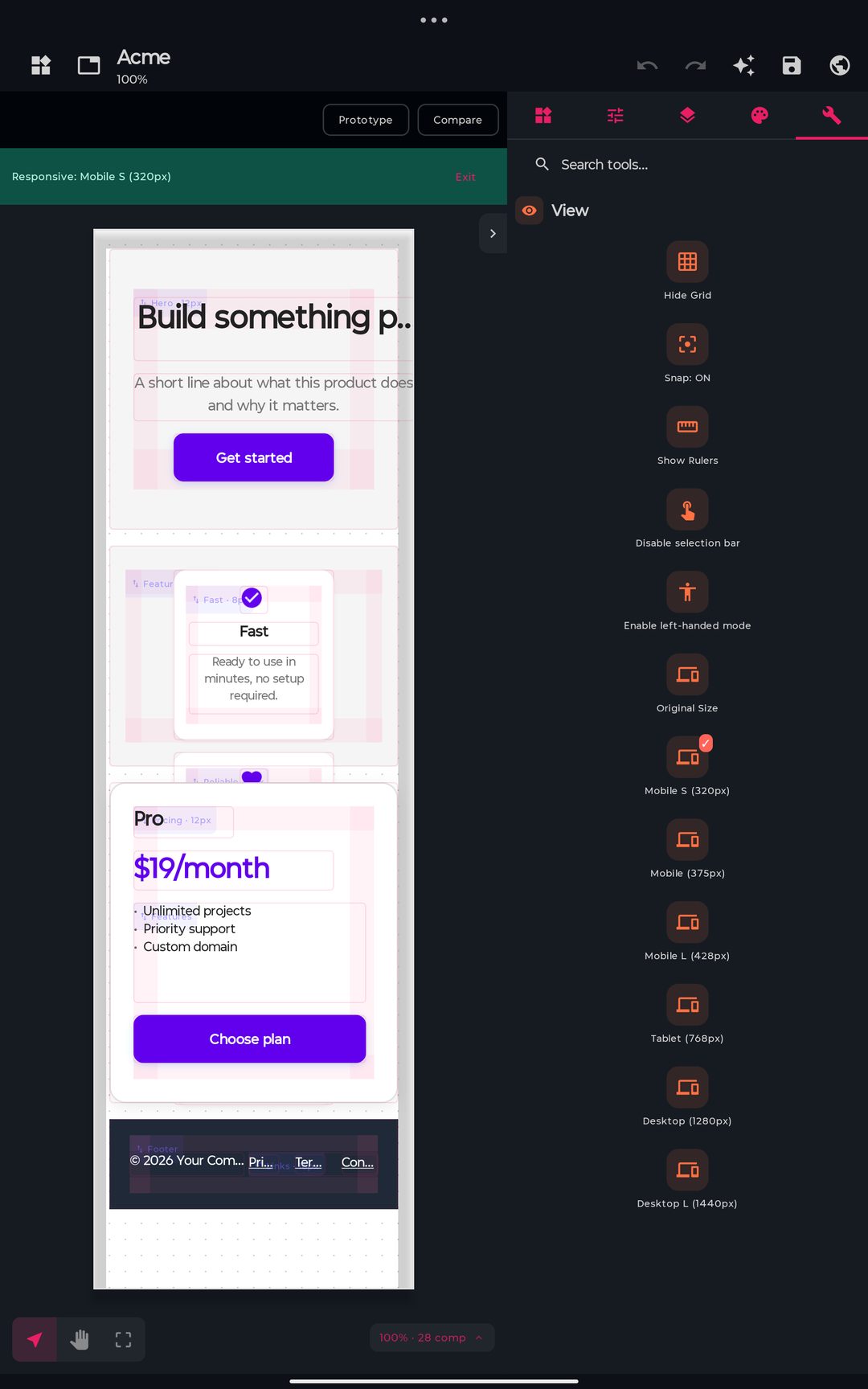
El diseñador gestiona la responsividad automáticamente:
- Auto-layout: los elementos se ajustan al tamaño de la pantalla
- Breakpoints: define distintas disposiciones para móvil/tablet
- Unidades relativas: usa
%,remyflexen lugar de píxeles fijos
Estados de interacción
El diseñador captura estados visuales, no comportamiento — emite HTML/CSS estático, así que no hay cableado de eventos ni navegación. Lo que puedes definir por componente:
- Selecciona un componente (por ejemplo, un Button)
- Da estilo a sus estados hover, active, focus y disabled de forma independiente
- Para los enlaces, define el destino
href
El comportamiento real (manejadores de clic, enrutado, datos) se añade después en el código, sobre el HTML/CSS/React/Vue/Svelte que el diseñador exporta.
Plantillas reutilizables
Guarda tus diseños como plantillas:
- Componentes personalizados: guarda combinaciones como componentes únicos
- Sistema de diseño: define colores, tipografía y espaciado
- Plantillas de pantalla: comparte layouts completos con el equipo
Soporte de gestos
El diseñador está pensado para la interacción táctil:
- Pellizca para hacer zoom en el lienzo
- Doble toque para seleccionar elementos anidados
- Mantén pulsado para menús contextuales
- Desliza para moverte entre paneles
Destinos de exportación
El diseñador genera código real y editable — todo basado en web:
| Destino | Salida |
|---|---|
| React / JSX | Componentes con hooks |
| Vue | Componentes de un solo archivo |
| Svelte | Componentes .svelte |
| HTML + CSS | Marcado limpio, sin frameworks |
| SVG | Exportación vectorial del lienzo |
Consejos y buenas prácticas
- Empieza por la estructura: coloca los contenedores antes que el contenido
- Usa auto-layout: evita los tamaños fijos siempre que puedas
- Nombra tus componentes: genera código más legible
- Previsualiza a menudo: comprueba en distintos tamaños de pantalla
- Exporta de forma incremental: no esperes al final para revisar el código
El diseñador visual te permite diseñar y programar desde el mismo dispositivo — esboza una pantalla, exporta código limpio de React, Vue, Svelte o HTML/CSS y sigue construyendo ahí mismo. ¡Pruébalo hoy y acelera tu desarrollo!
Diseñador
¿Listo para probar PocketCode?
Descarga la app y empieza a programar desde tu móvil.