
AI Chat
AI Chat PocketCode का पाँचवाँ page है। यह आपकी अपनी key या sign-in से आपके connect किए हुए provider (OpenAI, Claude, Gemini, GitHub Copilot या custom endpoint) से बात करता है, इसलिए PocketCode AI के लिए कोई शुल्क नहीं लेता। अगर आप अनुमति दें, तो agent आपका project पढ़ता और edit करता है, commands चलाता है और 79 तक tools इस्तेमाल करता है। 5 access levels तय करते हैं कि वह बिना पूछे कितना छू सकता है, और तीन engines तय करते हैं कि जवाब कौन देगा: Chat, Swarmcode और Cortex। Auto-Iteration एक विवरण से पूरा project बना देता है। chat, tools, approvals, artifacts, checkpoints और Auto-Iteration free हैं; Swarmcode, Cortex और agent के कुछ actions Pro हैं, और Swarmcode व Cortex दोनों के साथ एक free trial आता है: 2 Swarmcode runs और 3 Cortex missions।
यह क्या है और इसे कैसे खोलें
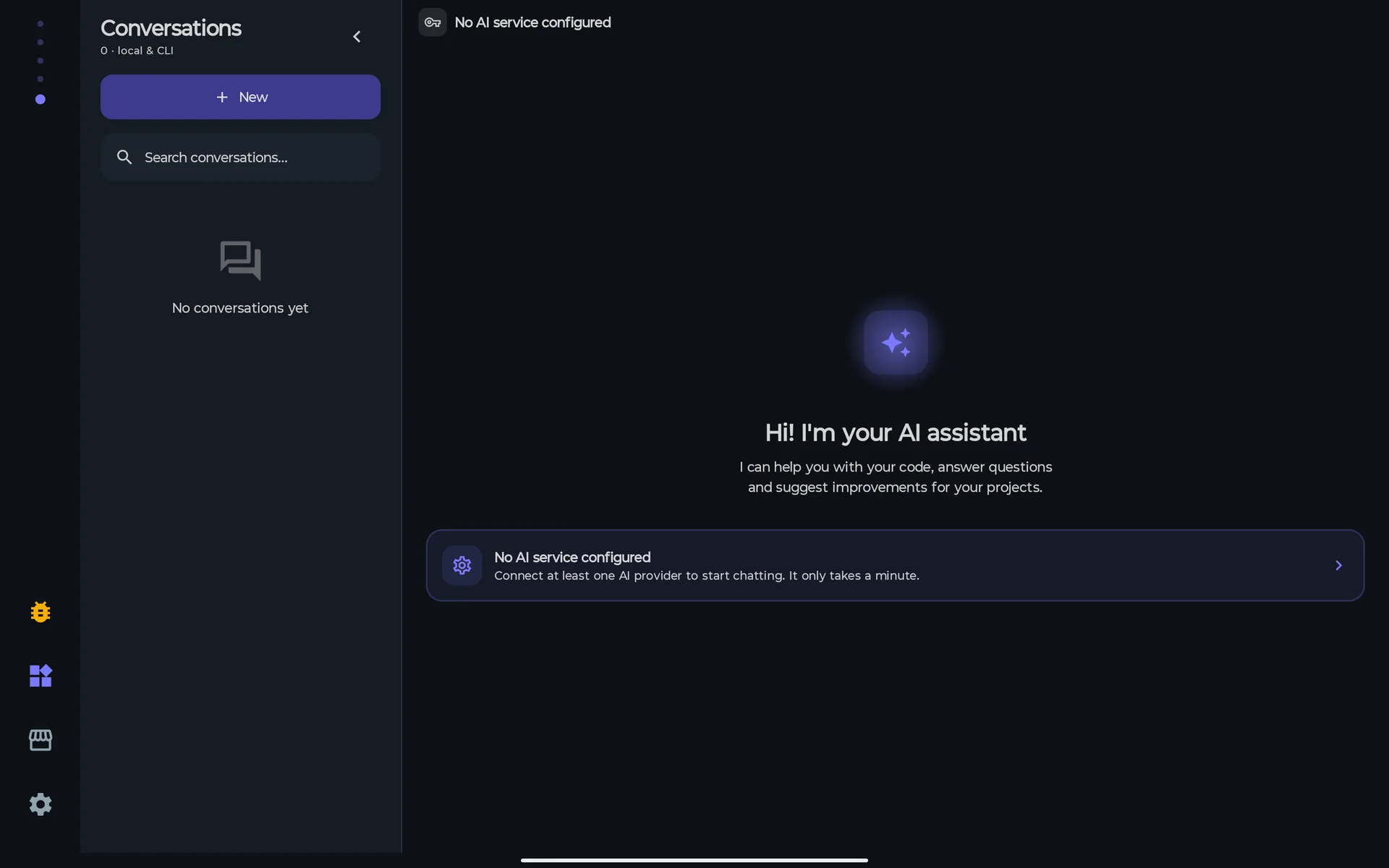
AI Chat कोई pop-up नहीं है: यह मुख्य pager का पाँचवाँ और आख़िरी page है, Home, Projects, Files और IDE page के बाद। यहाँ बताई हर चीज़ (conversations, artifacts, engines, Auto-Iteration) इसी से जुड़ी है।
इसे खोलने के तरीके
| आप कहाँ हैं | आप क्या करें | क्या होता है |
|---|---|---|
| मुख्य pager | पाँचवें page तक swipe करें। indicator में पाँच dots दिखते हैं और आख़िरी जला होता है। | AI Chat page। |
| Command palette | AI Chat command चलाएँ। | AI Chat page। |
| Home | Quick actions में AI Assistant quick action पर tap करें। | AI Chat page। |
| Code editor | Code select करें और Ask AI About Selection (Ctrl+I) चलाएँ। | editor बंद हो जाता है और chat खुलता है, file path और selection (4,000 characters तक, code block में) को अतिरिक्त context के रूप में लेकर। यह box में type नहीं होता: यह उस conversation के हर अगले turn के साथ जाता है और दूसरी conversation पर जाने या इसे delete करने पर हट जाता है। |
| Notification | पूरे हुए turn, आपका इंतज़ार कर रहे approval या किसी background task की notification पर tap करें। | chat उसी conversation या panel पर खुलता है जिसके बारे में notification है। notification कभी कुछ approve या reject नहीं करती। |
| Link | pocketcode://app/chat खोलें। | AI Chat page। pocketcode://app/chat/<text> इसे खोलता है और <text> को अतिरिक्त context की तरह लगाता है, जैसे editor करता है। |
पहले message से पहले
- आपको key या sign-in वाला कम से कम एक provider चाहिए। इसके बिना page पर No AI service configured दिखता है और Set up AI services मिलता है, जो आपको Settings की key sheet तक ले जाता है। AI providers page हर provider, key sheet और model list समझाता है।
- किसी provider को पहली बार भेजने पर एक dialog Send to <provider>? पूछता है। यह बताता है कि PocketCode आपका message और आपके attach किए code या files इंटरनेट से उस third-party provider को भेजता है, और कहता है कि ऐसे secrets या personal data न भेजें जिन्हें आप process नहीं करवाना चाहते। जवाब उस provider और उस account के लिए याद रखा जाता है।
- PocketCode AI के लिए कोई शुल्क नहीं लेता और इसमें credits नहीं हैं: आप अपने provider को भुगतान करते हैं, और request आपके device से सीधे उसके पास जाती है। chat में messages, conversations या tokens पर plan के हिसाब से कोई सीमा नहीं है।
आप नहीं कर सकते, और क्यों
- Home के recent-chats cards या किसी link से कोई ख़ास conversation खोलना: वे chat को उसी conversation पर खोलते हैं जो पहले से active है, और
pocketcode://app/chatमें कोई conversation id नहीं होती।अभी नहीं
Screen map
AI Chat की हर screen, sheet और card के लिए एक पंक्ति। हर एक को नीचे के sections में समझाया गया है।
| Screen | वहाँ कैसे पहुँचें | आप क्या कर सकते हैं |
|---|---|---|
| AI Chat page | मुख्य pager का पाँचवाँ page। | अपने provider से बात करें, files और images attach करें, @ से context जोड़ें, / commands चलाएँ, access level, engine और effort चुनें। |
| Header | page का सबसे ऊपरी हिस्सा। | model बदलें, Conversations, ● N activity chip और Conversation menu (⋮) खोलें। |
| Empty state | नई conversation। | दस shortcuts से शुरू करें, या जो चीज़ रोक रही है उसे ठीक करें: provider नहीं, network नहीं, no-network setting। |
| Thread | page का बीच का हिस्सा। | code, diagrams और equations वाले replies पढ़ें; copy, retry, read aloud, report करें; अपने messages edit करें; agent ने जो files देखीं उन्हें pin करें। |
| Composer | page का निचला हिस्सा। | type करें, attach करें, @ से mention करें, / commands चलाएँ, बोलकर लिखें, भेजें, रोकें या कोई message queue करें। |
| Controls bar | composer के ठीक ऊपर। | access level chip, engine chip, Effort chip, context radial और active skill badge। |
| Model selector | header में model के नाम पर tap करें। | provider और model चुनें। यह AI providers page पर समझाया गया है। |
| Decision, approval, secret और question cards | agent को आपकी ज़रूरत होने पर composer के ऊपर। | tool requests approve या reject करें, जो आपके device से बाहर जाता है उसे allow या deny करें, secret दें, सवालों के जवाब दें। |
| File changes bar | agent के files edit करने के बाद composer के ऊपर। | हर file को Keep या Undo करें, या Keep all / Undo all करें। |
| Conversations | header का button; चौड़े tablets पर docked panel। | बनाएँ, खोजें, pin करें, rename करें, export करें, delete करें, किसी conversation को Cortex agent में बदलें। |
| Artifacts और artifact viewer | ⋮ → Artifacts, या thread में Artifact card। | Preview, Code और Changes tabs; version bar; Save to project, Share, Ask for changes, Open in Designer। |
| Files | ⋮ → Files। | इस conversation में AI ने जो files पढ़ीं या बदलीं उन्हें देखें और किसी एक को editor में खोलें। |
| Transcript | ⋮ → Transcript। | tools या cards के बिना, जो कहा गया उसे पढ़ें और copy करें। |
| Activity | ⋮ → Activity, या ● N chip। | देखें कि किसे आपकी ज़रूरत है, क्या चल रहा है और आज क्या पूरा हुआ; Review, Stop, Open, Dismiss, Stop all। |
| Background tasks | Activity → कोई terminal process खोलें। | AI के छोड़े हुए चलते commands रोकें और पूरे हो चुके commands साफ़ करें। |
| Context and usage | controls bar में radial पर tap करें। | context window देखें, अभी compress करें, auto-compress set करें, reply suggestions on/off करें, अपने provider का quota पढ़ें। |
| Swarmcode card और Agent room | Engine chip → Swarmcode; फिर See the agents। | किसी run के phases देखें और जिन agents ने अभी शुरू नहीं किया उनका model बदलें। |
| Cortex screens | Engine chip → Cortex। | Welcome, agent strip वाली Cortex screen, Agents catalogue, agent editor, Autonomy और Mission work। |
| Auto-Iteration और Iteration Settings | /loop type करें; gear से settings खुलती हैं। | project का विवरण दें, plan review करें, उसे task-by-task चलाएँ, और 30 settings ट्यून करें। |
| Pro walls | free trials ख़त्म होने के बाद Swarmcode चुनें, या plan के बिना Cortex में जाएँ। | Pro AI या Cortex sheet, Unlock Pro AI और Continue with basic plan के साथ। |
Chat screen
यह page ख़ुद है। sections screen को ऊपर से नीचे तक फ़ॉलो करते हैं: header, empty state, thread, composer, @ और / menus, और controls bar।
Header
ऊपर की bar दिखाती है कि कौन-सा model जवाब दे रहा है और chat आपके project के बारे में क्या जानता है।
आप कर सकते हैं
- model के नाम (Change model control, ⇅ icon के साथ) पर tap करके model selector खोलें। इसमें Recent, Favorites और All tabs और एक Search all models box है; AI providers page इसे समझाता है।
- नाम के नीचे conversation का title या context पढ़ें: project, खुली file और उसकी language, files की संख्या और Code loaded; कुछ न होने पर No active project।
- conversations sheet खोलने के लिए Conversations पर tap करें।
- Activity खोलने के लिए ● N chip पर tap करें। यह सिर्फ़ तब दिखता है जब कुछ चल रहा हो या इंतज़ार कर रहा हो, और जब कुछ आपका इंतज़ार कर रहा हो तब लाल हो जाता है।
- Conversation menu (⋮) खोलें: Artifacts, Files, Activity और Transcript।
आप नहीं कर सकते, और क्यों
- header में Cortex या Auto-Iteration का icon ढूँढना: Cortex में engine chip से जाते हैं और Auto-Iteration
/loopcommand से खुलता है।जानबूझकर - header में quota gauge ढूँढना: quota अब Context and usage sheet में चला गया है।जानबूझकर
Empty state और shortcuts
नई conversation एक greeting (Hi! I'm your AI assistant) दिखाती है और, जब provider तैयार हो और आप online हों, Try with: के नीचे दस shortcuts। हर shortcut अपना prompt लिखता है, काम के लिए ज़रूरी access level set करता है और, अगर उसके पास skill है, तो उसे चालू करता है।
दस shortcuts
| Shortcut | यह कौन-सा access level set करता है | यह कौन-सी skill चालू करता है |
|---|---|---|
| Explain code | Read only | कोई नहीं |
| Find bugs | Read only | /debug |
| Suggestions | Read only | /review |
| Optimize | Read only | /refactor |
| Document | Auto-edit | कोई नहीं |
| Write tests | Auto-edit | /test |
| Learn | No tools | /learn |
| SQL query | Read only | /sql |
| Git help | Read only | /git |
| Ask | No tools | कोई नहीं |
आप कर सकते हैं
- किसी shortcut पर tap करें: prompt box में आ जाता है, नीचे की table वाला access level set हो जाता है और skill चालू हो जाती है। send दबाने तक कुछ नहीं भेजा जाता।
- जब कुछ आपको रोक रहा हो तो shortcuts की जगह आने वाले card पर tap करें: Set up AI services key sheet खोलता है, See the setting no-network setting खोलता है, Check again network फिर से जाँचता है।
आप नहीं कर सकते, और क्यों
- provider के बिना, no-network setting चालू होने पर (Nothing leaves this device) या offline होने पर (There is no connection) shortcuts इस्तेमाल करना: कारण ठीक होने तक वे छिपे रहते हैं, क्योंकि जो shortcut fail होने वाला है वह न होने से भी बुरा है।जानबूझकर
Thread और messages
model के लिखते-लिखते replies stream होकर आते हैं। code, diagrams और tool calls draw होते हैं, raw text की तरह नहीं दिखते।
आप कर सकते हैं
- highlighted code blocks वाला Markdown पढ़ें।
mermaidके रूप में fence किया गया block diagram बनाता है,math,latexयाtexequation औरchartchart; जब कोई Mermaid type या chart draw नहीं हो सकता, तो block code ही रहता है।htmlऔरsvgblocks जवाब पूरा होने के बाद Open in canvas button के साथ live preview दिखाते हैं; किसी भी लंबाई केxmlblocks और 15 या ज़्यादा line breaks वाले किसी भी दूसरे block को वही button मिलता है। - model जो images इंटरनेट से link करता है वे अपने-आप load नहीं होतीं: आपको एक notice (“External image from … We haven't loaded it”) और Load image दिखता है। जो images खुले project के बाहर की ओर इशारा करती हैं, ऐसे address type का इस्तेमाल करती हैं जिसे app नहीं खोलता, या no-network setting चालू होने पर आती हैं, वे blocked रहती हैं।
- हर AI message के नीचे: Copy, Retry, Read aloud (और Stop reading, Android की text-to-speech के साथ), Report और More, जो दिखाता है कि message कब भेजा गया, कौन-सा model था और कितने tokens (“~” और “(est.)” के साथ जब संख्या अनुमान हो)।
- आपके हर message के नीचे: Edit (Changes, checkpoints और errors देखें)।
- reasoning (Thinking…) और tool calls के groups (Show tool calls) को fold करें, और धीरे-धीरे दिखने को छोड़ने के लिए Show the whole reply पर tap करें।
- agent की देखी हुई file को Pin to the context से pin करें। pinned files एक strip (Files pinned to the context) में दिखती हैं, Unpin और Clear के साथ, 8 तक, और हर एक हर turn के साथ जाती है।
- लंबी conversations को windows में पढ़ें: पहले आख़िरी 50 messages load होते हैं और Show N earlier messages और load करता है। Scroll to bottom वापस नीचे ले जाता है।
- हर reply के नीचे reply suggestions इस्तेमाल करें, या Dismiss suggestions पर tap करें। इन्हें Context and usage में बंद किया जा सकता है और ये हर turn एक छोटी request का खर्च जोड़ते हैं।
आप नहीं कर सकते, और क्यों
- किसी message को edit करके उसके बाद का हिस्सा रखना: edit करने से conversation उसी बिंदु पर restore हो जाती है और बाद के messages हट जाते हैं।जानबूझकर
- conversation दोबारा खोलने पर attach की गई image वापस पाना: सिर्फ़ यह note रहता है कि image attach की गई थी, उसके bytes कभी नहीं।जानबूझकर
Composer
नीचे का box text, attachments, mentions और commands लेता है।
आप कर सकते हैं
- box में type करें (Ask anything… या Write a message…)। आप जो type कर रहे थे वह screen rotate होने पर भी बना रहता है।
- + button (Attach file) पर tap करें और @file — Project file, Image और Document चुनें। Remove भेजने से पहले attachment हटा देता है।
- हर message में 5 files तक attach करें। text और code files (500 KB तक, पहले 4,000 characters पढ़े जाते हैं) prompt के अंदर जाती हैं; जो file binary निकले उसका content चला जाता है। Images (25 MB तक) लंबी तरफ़ 1,568 px पर resize होती हैं, दोबारा compress होती हैं और, जब model उन्हें देख सके, images के रूप में भेजी जाती हैं। हर image के chip पर उसकी अनुमानित लागत दिखती है (~N tok)।
- microphone button से बोलकर लिखें (Start voice input / Stop voice input)। पहली बार एक notice बताता है कि PocketCode microphone सिर्फ़ तब इस्तेमाल करता है जब आप tap करते हैं और audio को Android की speech recognition process करती है; फिर Android microphone permission माँगता है।
- Send दबाएँ। जब agent काम कर रहा होता है तो button Stop generation बन जाता है, और आप अगला निर्देश लिखकर Queue message दबा सकते हैं: जिन providers के loop को PocketCode control करता है, उनके साथ agent उसे turn रद्द किए बिना अगले round में पा लेता है; वरना वह turn ख़त्म होने पर भेजा जाता है।
- Stop generation से रोकें: जो पहले से generate हो चुका है वह रखा जाता है और summary में Stopped by you लिखा आता है।
आप नहीं कर सकते, और क्यों
- PDF या कोई और binary file भेजना: picker उसे स्वीकार कर लेता है, पर chip में not sent लिखा आता है क्योंकि उसके लिए कोई reader नहीं है। इसके बजाय text paste करें।अभी नहीं
- एक message में 5 से ज़्यादा files attach करना: छठी बिना किसी संदेश के नज़रअंदाज़ हो जाती है।जानबूझकर
- 500 KB से बड़ा text या code (File is too large (max 500 KB)) या 25 MB से बड़ी image attach करना।जानबूझकर
- GitHub Copilot के साथ, ChatGPT या Codex से sign in किए OpenAI के साथ, या ऐसे model के साथ images भेजना जो उन्हें देख नहीं सकता (<model> cannot see images. Switch model or remove the image.)।जानबूझकर
- microphone permission के बिना, device पर speech service के बिना, internet के बिना, या ऐसी language में बोलकर लिखना जिसका Android के पास speech pack नहीं है: हर स्थिति अपना message दिखाती है।डिवाइस
@ से context जोड़ें
box में @ type करें और एक menu 8 commands देता है। हर एक उस message में context का एक block जोड़ता है; filter करने के लिए type करते रहें।
| Command | यह message में क्या जोड़ता है |
|---|---|
@file Current file | खुली file का content, पहले 4,000 characters तक काटा हुआ। |
@project Project tree | file paths की सूची, message में 100 तक (सूची ख़ुद नीचे बताए 50-file scan से आती है)। |
@problems Problems | diagnostics से मौजूदा errors और warnings। अगर कोई नहीं है, तो message बताता है कि कोई diagnostics उपलब्ध नहीं हैं। |
@terminal Terminal | terminal का आख़िरी output। |
@codebase Codebase | आपके project की semantic search: 5 सबसे अच्छे matches, हर एक 800 characters का। |
@web <url> Web | page का text। हर message में 3 addresses तक। |
@diff Git diff | आपके uncommitted changes: 30 files तक, कुल 20,000 characters और हर file के 6,000। |
@folder <path> Folder | किसी folder की files: 3 folders तक, हर एक की 25 files, हर file के 4,000 characters और कुल 24,000। 256 KB से बड़ी files छोड़ दी जाती हैं। |
File picker और उसकी 50-file सीमा
- picker में Search project files… box है। search fuzzy है, names और paths पर, और 15 results तक दिखाती है। जो file आप चुनते हैं वह 512,000 bytes से छोटी हो तो पूरी पढ़ी जाती है; वरना उसकी जगह एक छोटा note आता है, और दोनों स्थितियों में वह बाक़ी context के साथ जगह के लिए होड़ करती है।
- picker और
@folderसिर्फ़ app को मिली पहली 50 files देखते हैं: app project को alphabetical order में walk करता है, code और text extensions रखता है और hidden folders,.git,.gradle,build,node_modules,__pycache__,.ideaऔर.vscodeको छोड़ देता है। बड़े project में आपकी बाक़ी files पेश नहीं की जातीं।
आप कर सकते हैं
- menu से कोई command चुनें, या उसे पूरा type करें। एक message में कई इस्तेमाल कर सकते हैं।
- project की कोई भी file नाम से चुनने के लिए @file — Project file (+ menu से) इस्तेमाल करें।
आप नहीं कर सकते, और क्यों
@selectionइस्तेमाल करना: इसे हटा दिया गया क्योंकि इसे सिर्फ़ पुराना in-editor chat भर सकता था। selection के बारे में पूछने के लिए editor का Ask AI About Selection इस्तेमाल करें।जानबूझकर- semantic search को कुछ न मिलने पर
@codebaseसे results पाना: उसकी जगह message में “search results not available” जाता है।जानबूझकर - file picker या
@folderमें किसी बड़े project की पहली 50 files से ज़्यादा देखना।जानबूझकर
/ से commands, skills और अपने prompts
box के बिल्कुल पहले character के रूप में / type करें और एक menu commands, skills और आपके अपने prompts की सूची देता है। यह तभी खुलता है जब box में सिर्फ़ एक / वाला शब्द हो (अभी तक कोई space या line break नहीं), इसलिए message के बीच में /usr/bin जैसा path इसे कभी trigger नहीं करता। कोई / button नहीं है।
| Command | यह क्या करता है |
|---|---|
/help | हर उपलब्ध command की सूची। उन्हें General, Conversation, Memory, Skills, Context और Custom prompts के groups में दिखाता है। |
/new | नई conversation शुरू करें। |
/loop | autonomous auto-iteration खोलें। Auto-Iteration खोलता है। |
/remember key = value | project memory store करें। एक note सहेजता है जिसे agent इस project के हर turn में पढ़ता है। |
/forget key | store की गई memory हटाएँ। |
/memory | store की गई project memories दिखाएँ। |
/skills | उपलब्ध skills की सूची। |
/skill-off | active skill बंद करें। |
/compact | conversation context compress करें। जगह बनाने के लिए पुराने turns का summary बनाता है। |
आठ built-in skills
skill command type करने से वह आगे के turns के लिए activate हो जाती है। skill के नाम और विवरण हर भाषा में fixed English text हैं।
| Command | Skill (जैसा app उसे नाम देता है) |
|---|---|
/debug | Debug: expert debugger, focused on finding and fixing bugs. |
/refactor | Refactor: code refactoring specialist, cleaner and more maintainable code. |
/sql | SQL Expert: database and SQL specialist. |
/git | Git: version control expert. |
/deploy | Deploy: deployment and DevOps specialist. |
/learn | Learn: teaching mode, explains concepts step by step. |
/review | Code Review: finds issues and suggests improvements. |
/test | Testing: writes and improves tests. |
आपके अपने agents, modes और prompts
- project के
.pocketcode/agents/या.pocketcode/chatmodes/की हर.mdfile (और Marketplace से install की गई, जो आपके account के लिए global हैं) एक skill बन जाती है, command/<file का नाम>के साथ। front matter मेंname,description,icon,command,model,provider,tools,skills,languageऔरscopeset किए जा सकते हैं; file का body system prompt होता है। Cortex का agent editor ये files आपके लिए लिखता है। .pocketcode/prompts/की हर.mdfile (और Marketplace से install की गई) एक command/<file का नाम>है। उसके front matter मेंdescriptionset हो सकता है, और body में${input}या{{input}}की जगह वह text आ जाता है जो आप command के बाद type करते हैं।- जब दो नाम टकराते हैं, तो आपका prompt skill से जीतता है और skill built-in command से जीतती है।
आप कर सकते हैं
- filter करने के लिए
/और एक prefix type करें; अगर prefix से कुछ match न हो तो menu fuzzy search पर लौट आता है। - कोई command चलाएँ, कोई skill activate करें (उसका badge controls bar में ✕ के साथ दिखता है, हटाने के लिए) या अपना कोई prompt चलाएँ। skill command के बाद का text तुरंत आपके message के रूप में भेज दिया जाता है।
आप नहीं कर सकते, और क्यों
- agent को क्या करने की अनुमति है, यह बदलने के लिए skill इस्तेमाल करना: skill सिर्फ़ system prompt बदलती है, permissions कभी नहीं।जानबूझकर
Controls bar
composer के ठीक ऊपर, बाएँ से दाएँ: active skill badge (अगर हो), access chip, engine chip, Effort chip (सिर्फ़ जब model में levels हों) और, दाईं ओर टिका, context radial।
आप कर सकते हैं
- agent कितना कर सकता है यह चुनने के लिए access chip पर tap करें (Engines और access levels देखें)।
- Chat या Swarmcode चुनने के लिए engine chip पर tap करें। Cortex › उसी menu में, एक separator के बाद है, क्योंकि यह अपनी अलग screen खोलता है।
- model कितना सोचे यह चुनने के लिए Effort chip पर tap करें। हर level के साथ provider की एक पंक्ति का विवरण होता है (English में)।
- radial पढ़ें: context window के 75 % से नीचे यह primary colour में रहता है, 75 % से orange और 90 % से लाल। जब model की सीमा भरोसेमंद नहीं होती तो यह गढ़े हुए percentage की जगह खाली ring और “~” के साथ इस्तेमाल हुए tokens दिखाता है। Context and usage खोलने के लिए इस पर tap करें।
आप नहीं कर सकते, और क्यों
- reasoning levels न रखने वाले model (Claude Haiku,
gpt-4o,gpt-4.1, 2.5 से पहले का Gemini) के साथ Effort chip देखना: chip छिपा रहता है।थर्ड पार्टी - पुराना Ask, Plan और Agent selector इस्तेमाल करना: उसकी जगह access levels और engines ने ले ली।जानबूझकर
Provider के हिसाब से effort levels
chip active model के levels दिखाता है। सूचियाँ app में fixed हैं, सिर्फ़ OpenAI की छोड़कर: PocketCode उसे bundled Codex CLI से पढ़ता है अगर वह installed हो और वरना built-in सूची पर लौट आता है।
| Claude (Haiku नहीं) | Off, Low, Medium, High (default), Extra high और Max। Haiku में levels नहीं हैं। |
| OpenAI (reasoning models) | Codex CLI से, या built-in सूची none, minimal, low, medium, high, xhigh। none Off के रूप में दिखता है और minimal सिर्फ़ gpt-5 family के लिए है। gpt-4o और gpt-4.1 में levels नहीं हैं। |
| Gemini 2.5 और उसके बाद | Off (Pro models पर नहीं), Low, Medium (default), High और Max। |
| GitHub Copilot | जो भी लिपटे हुए model में हो: gpt-5 और o-series के लिए minimal से high, Opus और Sonnet के लिए Claude वाली सीढ़ी, और Gemini 2.5 व उसके बाद के लिए Off से High। |
| Custom endpoint | app कोई levels नहीं देता। |
Engines और access levels
controls bar के दो विकल्प एक-दूसरे से स्वतंत्र हैं: access level बताता है कि agent कितना छू सकता है, और engine बताता है कि जवाब कौन देगा। app के पुराने versions जिसे Ask, Plan और Agent mode कहते थे, वह अब इन दोनों का मेल है।
पाँच access levels
| Level | App क्या कहता है | Agent क्या करता है |
|---|---|---|
| No tools | Text only, doesn't read files | उसे कोई tools नहीं मिलते: हर call मना कर दी जाती है। |
| Read only | Reads and searches, changes nothing | पढ़ता और खोजता है। जो कुछ भी लिखता, चलाता या कुछ बदलता है वह पूछा नहीं जाता, मना कर दिया जाता है। catalogue घटकर 56 tools का रह जाता है। |
| Ask first | Asks before writing or running | खुलकर पढ़ता है। file लिखना, command चलाना, deploy करना या कोई भी और बदलाव आपके OK का इंतज़ार करता है। |
| Auto-edit | Writes alone, asks before running | files भी ख़ुद लिखता है (हर file का एक snapshot रखा जाता है, ताकि आप undo कर सकें)। commands और deploys अब भी आपके OK का इंतज़ार करते हैं। |
| Full access | Asks only to go off-device or to memory | जो कुछ local है वह बिना पूछे चलता है। जो आपके device से बाहर जाता है और project memory में लिखना, उसके लिए यह अब भी पूछता है। |
नया install Auto-edit पर शुरू होता है। अगर आपने पहले कोई level चुना था तो वह रखा जाता है, और restart के बाद app कभी अपने-आप level ऊँचा नहीं करता। empty state के shortcuts tap करने पर अपना level ख़ुद set करते हैं। level agent के हर संभव रास्ते (सीधे API calls, Codex CLI और Copilot language server) पर लागू होता है: सब एक ही gate से गुज़रते हैं।
Engines और Auto-Iteration
| विकल्प | App क्या कहता है | यह क्या करता है और इसकी क्या लागत है |
|---|---|---|
| Chat | One agent, step by step with you | Free। एक model, उसके tools और यह thread। |
| Swarmcode | Several agents try, judges pick the best | Pro, 2 free runs के साथ। एक lead model तय करता है कि कितने read-only agents चलाने हैं, उन्हें parallel में चलाता है, उनके drafts को synthesise करता है और, अगर verification चालू हो, तो judges का एक panel जवाब की जाँच करता है। |
| Cortex | Named agents on several fronts | Pro, 3 free missions के साथ। यह काम को आपके agents में बाँटता है, हर एक के पास अपने topic का context होता है, और जवाबों को वापस एक साथ लाता है। इसकी अपनी screens हैं। |
| Auto-Iteration (engine नहीं) | Open autonomous auto-iteration | Free। /loop से खुलता है। यह विवरण से project बनाता है, पहले plan, फिर task-by-task। |
आप नहीं कर सकते, और क्यों
- 2 free runs इस्तेमाल हो जाने के बाद plan के बिना Swarmcode चुनना: Pro AI sheet खुलती है और उसमें You have used your free Swarmcode runs. Upgrade to keep running agent teams. दिखता है (Unlock Pro AI या Continue with basic plan), और engine नहीं बदलता। सहेजा हुआ Swarmcode engine आपके भेजते समय फिर जाँचा जाता है, कहीं आपने plan खो न दिया हो या free runs ख़त्म न हो गए हों।Pro
- 3 free missions इस्तेमाल हो जाने के बाद plan के बिना Cortex में जाना: आपको Cortex is part of Pro. Your free missions are used up. और Cortex sheet मिलती है।Pro
Agent क्या कर सकता है
जब access level अनुमति दे, agent tools के ज़रिए काम करता है: आपका project पढ़ता और खोजता है, files edit करता है, commands चलाता है, databases query करता है, Dev Browser चलाता है और बहुत कुछ। app 84 tools declare करता है। एक सामान्य chat इनमें से 79 तक देता है; बाक़ी 5 सिर्फ़ Cortex mission के अंदर होते हैं। Read only के साथ agent को 56 मिलते हैं, जो कुछ नहीं बदलते। ये गिनतियाँ Workflows tools, आपके AI के लिए available चिह्नित किए Workflows और आपके MCP servers के tools को शामिल नहीं करतीं।
Category के हिसाब से tools
| Category | सामान्य chat में tools |
|---|---|
| Read-only (16) | read_file, list_dir, file_search, grep_search, semantic_search, repo_map, get_errors, get_changed_files, build_list_tasks, project_list, color_info, color_palette, contrast_check, encode_decode, generate_hash, generate_uuid। |
| Questions (2) | ask_user आपसे options के साथ सवाल पूछता है; secrets आपसे secret माँगता है, उसे कभी देखे बिना। |
| Write (6) | create_file, replace_string_in_file (एक call में बदलावों की सूची), delete_file, rename_file, apply_patch और artifact। |
| Terminal (3) | run_in_terminal, build_run_file, build_run_task। |
| Todo (1) | manage_todo_list वह Agent tasks सूची रखता है जो आप thread में देखते हैं। |
| Memory (1) | copilot_memory project memories को store, recall, list और delete करता है। |
| Design (2) | design_export, design_list। |
| Deploy (8) | deploy_trigger, backend_status, backend_list_projects, backend_logs, backend_env (सिर्फ़ variable names, values कभी नहीं), backend_rollback, और साथ में दो envelopes backend_list और backend_do। |
| Database (6) | db_query, db_execute, db_schema, db_list_tables, db_list_connections, db_inspect। |
| API (3) | api_request, api_list_collections, api_import_curl। |
| SSH (4) | ssh_exec, ssh_list_hosts, ssh_upload, ssh_download। |
| Git (7) | git_status, git_commit (एक ही step में सब कुछ stage करके commit करता है), git_log, git_diff, git_push, git_pull और git_branch (list, create या check out)। |
| Browser (20) | 19 browser_* tools (navigate, page info, click, type, scroll, wait, find text, screenshot, console, network, storage, cookies, device profile, performance, audit और बहुत कुछ) और साथ में fetch_webpage। ये Dev Browser पर काम करते हैं, जिसका खुला होना ज़रूरी है: वरना tool जवाब देता है “Dev Browser is not open. Ask the user to open the Dev Browser, then call this tool again.” |
| Workflows (गिनती में नहीं) | workflow__list, workflow__get, workflow__runs, workflow__create, workflow__update, workflow__run, और साथ में हर वह workflow जिसे आपने AI के लिए available चिह्नित किया है। |
| Cortex coordination (5, सिर्फ़ mission में) | cortex_peers, cortex_recent, cortex_decisions, cortex_escalate, cortex_handoff। |
ये 15 categories AI Tool Permissions (Settings → AI) की पंक्तियाँ हैं, जहाँ आप किसी provider या किसी एक model के लिए हर tool को allow या deny कर सकते हैं; deny किया गया tool access level चाहे जो हो कभी नहीं चलता। गिनतियाँ पूरे catalogue की हैं: ssh_exec और ssh_list_hosts सिर्फ़ तब दिए जाते हैं जब आपके पास saved host हो, api_request और api_list_collections सिर्फ़ तब जब आपके पास API Tester collections हों, और deploy_trigger, backend_* tools और दो envelopes सिर्फ़ तब जब कोई hosting provider connected हो। आपके MCP servers (Settings → AI → MCP Servers) के tools इनके ऊपर आते हैं।
जानने लायक सीमाएँ
run_in_terminalPOSIXsh(app के साथ आने वाला BusyBoxash) में चलता है, bash में नहीं। command default रूप से 30 s इंतज़ार करता है और ज़्यादा से ज़्यादा 120 s। लंबा output अपनी पहली 120 और आख़िरी 120 lines रखता है और पूरा output रखने वाली file का नाम बताता है। background mode में शुरू किया गया command चलता रहता है और Activity में दिखता है।read_file5 MB से बड़ी files मना कर देता है और, लंबी file के लिए, बताता है कि किस line से आगे बढ़ना है। searches ज़्यादा से ज़्यादा 100 results लौटाती हैं (default 50)।list_dirज़्यादा से ज़्यादा 5 levels गहरा जाता है और 500 entries तक list करता है।- एक turn में model को जितने rounds की tool calls चाहिए उतने लग सकते हैं: जिन providers से PocketCode सीधे बात करता है उनके साथ default में कोई सीमा नहीं है, और context window काम को सीमित करती है (overflow से पहले turn एक summary के साथ ख़त्म हो जाता है)। आप provider settings में हर provider के लिए 100 rounds तक की सीमा set कर सकते हैं। native tool calls के बिना models के लिए सिर्फ़ fallback path 10 rounds के बाद रुकता है।
- छोटी context window (लगभग 16K tokens या कम) के साथ chat सिर्फ़ दस entries declare करता है: आठ core tools और बाक़ी को खोजने वाले दो। जो custom model native रूप से tools call नहीं कर सकता उसे catalogue text के रूप में मिलता है।
- Shell commands को चलने से पहले उनसे होने वाले नुकसान के हिसाब से classify किया जाता है। कोई विनाशकारी command (जो app का या आपका data नष्ट कर दे, या आपकी credentials सौंप दे) access level और justification चाहे जो हो कभी नहीं चलता। यह defence in depth है, sandbox नहीं।
Access level के ऊपर के नियम
- जो आपके device से बाहर जाता है वह हमेशा पूछता है।
git_push,deploy_trigger,api_request,ssh_exec,ssh_upload,browser_navigate,fetch_webpage,browser_evaluate_js,db_executeऔर वे shell commands जो कुछ publish या send करते हैं, हर level पर, Full access समेत, आपके OK का इंतज़ार करते हैं, जब तक कि आप Ask before acting outside this device बंद न कर दें (Settings → AI → AI Tool Permissions; यह default रूप से चालू है)। - project memory में लिखना हमेशा पूछता है (
copilot_memoryका store और delete), Full access में भी, क्योंकि वह text आगे के हर turn में वापस पढ़ा जाता है। git_commit,git_pull,git_branch,browser_clear_storage,browser_set_cookieऔरsecretsबिना card के कुछ बदलते हैं, इसलिए agent हर commit पर नहीं पूछता, पर Read only और No tools इन्हें मना कर देते हैं।- जो tool आपने AI Tool Permissions में deny किया वह level चाहे जो हो नहीं चलता, और उसके aliases भी नहीं।
- अगर agent उन्हीं arguments के साथ उसी call पर अड़ा रहे, तो उसे loop में छोड़ने की जगह एक card आपसे पूछता है (It keeps asking for … with the same arguments instead of moving on)।
Tool requests और Copilot cards
ये cards composer के ऊपर एक-एक करके आते हैं, “1 of 3” जैसे badge के साथ; composer बताता है कि कितने इंतज़ार में हैं।
आप कर सकते हैं
- Tool Requests (उन models के लिए जो native रूप से tools call नहीं कर सकते, जिनकी requests text blocks के रूप में आती हैं): यह Command (editable), model के अनुसार उसका उद्देश्य (Stated by the model), एक WRITES चिह्न और buttons Approve, Reject, Run edited और, कई इंतज़ार में हों तो, Approve all दिखाता है। अगर आप command बदलें तो Edited — the corrected command runs, and its risk is re-checked दिखता है, और Restore the original आपका edit वापस कर देता है। जिस command को आप ख़ाली कर दें उसे approve नहीं किया जा सकता।
- Copilot wants to run a tool (सिर्फ़ GitHub Copilot): यह Tool और उसका Input दिखाता है, Allow और Deny के साथ।
- Apply Copilot edits? (सिर्फ़ GitHub Copilot): हर file के लिए एक पंक्ति (N edits), Apply edits और Reject edits के साथ।
आप नहीं कर सकते, और क्यों
- किसी decision को swipe करके हटा देना: ये cards हैं, sheets नहीं, इसलिए कोई gesture बिना confirmation के फ़ैसला नहीं कर सकता।जानबूझकर
Approvals: किसके लिए आपका OK चाहिए
Ask first (हर write और command), Auto-edit (commands) के साथ, और हर level पर जो आपके device से बाहर जाता है उसके लिए, agent request को approvals queue में park कर देता है और दूसरे काम में लग जाता है: वह आपके इंतज़ार में कभी नहीं रुकता। जब तक आप फ़ैसला नहीं करते, action नहीं चलता। किसी local action (file write, command) को approve करने से वह चल जाता है; जो आपके device से बाहर जाता है उसे approve करने से agent की अगली वैसी ही request निकल जाती है।
आप कर सकते हैं
- एक fold की हुई पंक्ति पढ़ें, “<सरल शब्दों में action> · needs your OK”। कारण देखने के लिए Show details पर tap करें (जैसे “It runs commands on another machine”, “It publishes commits to the remote repository, where they cannot be taken back” या “It deploys to an environment other people can see”) और monospace में ब्योरा।
- Deny, Allow चुनें, या file write या command जैसे local actions के लिए Always allow this: यह सिर्फ़ उसी हू-ब-हू action के लिए और सिर्फ़ session के बाक़ी समय के लिए याद रहता है। जो आपके device से बाहर जाता है या project memory में लिखने के लिए यह कभी नहीं दिया जाता, जिन्हें एक-एक करके देखा जाता है।
- कई इंतज़ार में हों तो उन्हें select करें और Allow selected या Turn down selected इस्तेमाल करें।
- अगर turn पहले ही ख़त्म हो चुका है, तो आपका फ़ैसला आपके अगले message के साथ agent तक पहुँचता है (These are from the turn before. Your agent will hear about them with your next message.)।
- app के background में होने पर, notification conversation को उस card के सामने खोलती है।
आप नहीं कर सकते, और क्यों
- notification से approve या reject करना: वह सिर्फ़ conversation खोलती है।जानबूझकर
- जो आपके device से बाहर जाता है उसे batch में approve करना (Actions that leave your device are decided one at a time, so they stay here.)।जानबूझकर
- जब कोई दूसरा app PocketCode के ऊपर draw कर रहा हो तब approve करना: card ढके होने पर taps को नज़रअंदाज़ करता है (tapjacking protection)।जानबूझकर
Secrets: वह key जिसे agent कभी नहीं देखता
secrets tool agent को आपसे token या API key माँगने देता है, उसे कभी देखे बिना।
आप कर सकते हैं
- The assistant needs a secret card भरें: Value (4 से 16,384 characters, एक line में) और Hosts it may be sent to (commas से अलग, सिर्फ़
https://; ख़ाली का मतलब सिर्फ़ terminal commands, जो हमेशा पहले पूछते हैं)। फिर Save, या Decline। - card पर किया गया वादा पढ़ें: What you type here is encrypted on this device. The assistant never sees it and it is not saved in the chat.
- delete request (Delete a stored secret?) का जवाब Keep या Delete से दें; इसे वापस नहीं पाया जा सकता।
- stored secrets tool output में, conversation exports में और provider को भेजे जाने वाले content में mask हो जाते हैं। जो command किसी secret का इस्तेमाल करता है उसका अपना card आता है (It gives the command the stored secret … which it could send anywhere), भले ही आपने external actions के approvals बंद कर दिए हों।
आप नहीं कर सकते, और क्यों
- stored value देखना या export करना: app में ऐसा कोई function नहीं है जो उसे लौटाए, आंशिक रूप से भी नहीं। सूची Settings → AI → Secrets में manage करें।जानबूझकर
Agent के सवाल और task list
agent रुककर आपसे कुछ पूछ सकता है, और वह एक दिखने वाली task list रखता है।
आप कर सकते हैं
- thread में question card (
ask_user) का जवाब दें: कोई option, Other (Or write your own answer), Skip, Next या Send पर tap करें। यह card है, dialog नहीं, और इसे fold किया जा सकता है। - Agent tasks card (
manage_todo_list) को फ़ॉलो करें: यह “2 / 5 done · 1 in progress” या All tasks done जैसी progress दिखाता है, Collapse tasks, Expand tasks और Hide tasks के साथ।
आप नहीं कर सकते, और क्यों
—
Artifacts
Artifact वह page, diagram, document या component है जिसे AI artifact tool से बनाता है, thread में paste करने की जगह। यह एक Artifact card के रूप में दिखता है; हर बदलाव एक नया version बनाता है और सारे versions रखे जाते हैं।
छह artifact types
| Type | Viewer क्या दिखाता है |
|---|---|
html | एक hardened view में live page। |
svg | image, जिसे SVG या PNG के रूप में भी share किया जा सकता है। |
mermaid (Mermaid diagram) | diagram। जो Mermaid type draw नहीं हो सकता वह अपना source “This kind of diagram can't be drawn here.” के साथ दिखाता है। |
markdown (Markdown document) | render किया हुआ document। |
react (React component) | bundled Preact से mount किया गया JSX या TSX component, network के बिना। सिर्फ़ react, react-dom, preact और htm import किए जा सकते हैं। |
code | किसी भी language में source code, Code tab में। |
Artifacts की सूची
⋮ → Artifacts पूरी conversation के हर artifact को सूची में दिखाता है, सिर्फ़ आख़िरी 50 messages के नहीं, उनके सारे versions के साथ।
आप कर सकते हैं
- हर पंक्ति पढ़ें: title, type, version, In your project या In the chat, और कितनी देर पहले। viewer खोलने के लिए किसी पर tap करें।
- अभी कोई न हो तो यह Ask for a page or a diagram कहता है।
आप नहीं कर सकते, और क्यों
- Read only या No tools के साथ, या Cortex mission के अंदर artifacts बनाना:
artifacttool लिखता है, इसलिए वहाँ वह छिपा रहता है।जानबूझकर - खुले project के बिना artifact को disk पर रखना: project folder के बिना tool कोई version या path नहीं लौटाता। viewer फिर भी उसे thread से दिखाता है।जानबूझकर
Artifact viewer
कम से कम 840 dp चौड़े tablet पर viewer thread का side panel होता है; phone पर यह full screen होता है। आप इसे सूची से, Artifact card से या code block के Open in canvas button से खोलते हैं।
आप कर सकते हैं
- Preview, Code और, दो या ज़्यादा versions होने पर, Changes v1→v2 (400 lines तक का diff) के बीच switch करें। version bar (Version N of M) versions के बीच घूमती है।
- code copy करें।
.extfile, SVG image या PNG image के रूप में Share करें (हमेशा file के रूप में)। Ask for changes viewer बंद करता है और box में Change the artifact “<title>”: डाल देता है। HTML और SVG के लिए Open in Designer दिया जाता है, Layout may change note के साथ। - इसे Close artifact से बंद करें।
आप नहीं कर सकते, और क्यों
- artifact में इंटरनेट से कुछ भी load करना (Runs offline. It can't load anything from the internet.): view network को block करता है, अपने अंदर कभी navigate नहीं करता, PocketCode के बाहर का link खोलने से पहले पूछता है और camera, microphone या location तक उसकी पहुँच नहीं है, क्योंकि HTML model लिखता है और inject किया जा सकता है।जानबूझकर
- हर version के 256 KiB से बड़े artifact को save करना: tool उसे मना कर देता है।जानबूझकर
- किसी version को दोबारा लिखना: versions सिर्फ़ जुड़ते हैं, वे checkpoints में नहीं आते, और folder
.pocketcode/artifacts/<id>/आपके Git में अपने-आप को ignore करता है।जानबूझकर
Project में save करें और share करें
Save to project किसी artifact को ऐसी file में बदलता है जिसे आप रखते हैं।
आप कर सकते हैं
- एक File name चुनें (
docs/page.htmlजैसे subfolders ठीक हैं), एक Format (Source (.ext), SVG image या PNG image) और Where to save: In the open project या Choose a location… (system document picker)। खुले project के बिना सिर्फ़ दूसरा दिया जाता है। - type करते समय checks पढ़ें, जैसे “Use a path inside the project, without ".." or a leading slash.” या “That folder is reserved (.git and .pocketcode).”। अगर नाम पहले से मौजूद है तो dialog “A file with that name already exists in the project. Saving will replace it.” कहता है और Replace देता है।
- सफल होने पर आपको Saved to the project: <path> दिखता है।
आप नहीं कर सकते, और क्यों
- In the open project के साथ
.gitया.pocketcodeके अंदर, या project के बाहर save करना: dialog उस path को मना कर देता है।जानबूझकर
Conversations
हर conversation आपके device पर उस provider और model के साथ store होती है जिसने हर message लिखा, इसलिए एक thread में कई providers मिले हो सकते हैं। conversation दोबारा खोलने पर उसका provider और सटीक model restore हो जाते हैं बशर्ते वह provider configured हो; अगर model अब मौजूद नहीं है तो एक notice बताता है और आप दूसरा चुनते हैं, क्योंकि chat आपके लिए कोई नहीं चुनता। Cloud Sync (Pro) के साथ पिछले 180 दिनों में update हुई conversations आपके account में upload होती हैं (Privacy और security देखें)।
Conversations sheet
Phone पर sheet chat के ऊपर उठती है। चौड़ी tablet window में, Cortex के बाहर, यह 320 dp के panel के रूप में docked रहती है जिसे आप Collapse panel से fold कर सकते हैं। subtitle (N · local & CLI) आपकी local conversations और Codex CLI के sessions गिनता है।
आप कर सकते हैं
- New एक conversation बनाता है,
/newकी तरह। - Search conversations… में type करें: titles और आख़िरी messages तुरंत filter होते हैं, और 2 characters से यह message bodies के अंदर भी खोजता है।
- Active, Pinned और Recent sections पढ़ें। हर पंक्ति provider, model, N msgs, कितनी देर पहले और Active या Finished दिखाती है।
- किसी पंक्ति का Actions menu खोलें: Pin / Unpin, Rename (वहीं), Export (Markdown), Export (HTML page), Export (JSON), Turn into an agent / Stop being an agent (Cortex के लिए) और Delete, जो Delete conversation? पूछता है (This action cannot be undone.)।
- conversation अपना title आपके पहले message से लेती है, locally और बिना किसी लागत के (छह शब्दों तक)। AI titles (Settings → AI, default में बंद) model से बेहतर title माँग सकता है, जिसमें tokens लगते हैं और जो आपके ख़ुद टाइप किए title को कभी overwrite नहीं करता।
- Codex CLI के sessions (जब आप उसे इस्तेमाल करते हैं) उसी सूची में दिखते हैं, और आप उन्हें खोल और delete कर सकते हैं।
आप नहीं कर सकते, और क्यों
- conversation को archive करना: chat में pin, rename, delete और export हैं, पर archive नहीं।अभी नहीं
- यहाँ Cortex की अपनी conversation को rename, delete करना या देखना भी: वह छिपी रहती है, क्योंकि वह उस mode की notebook है।जानबूझकर
- Codex CLI sessions को pin, rename या export करना: इनके साथ आप सिर्फ़ खोल और delete कर सकते हैं।जानबूझकर
- delete की गई conversation वापस पाना।जानबूझकर
Export formats
| Format | आपको क्या मिलता है |
|---|---|
| Export (Markdown) | text 256 KiB से छोटा हो तो system share sheet को text मिलता है, वरना एक .md file। |
| Export (HTML page) | बिना scripts या remote resources वाला एक self-contained page, हमेशा .html file के रूप में। |
| Export (JSON) | schemaVersion, exportedAt, conversation (id, title, createdAt, updatedAt, messageCount, isPinned) और हर message के लिए id, role, content, timestamp और isError। कोई tool calls, reasoning या file changes नहीं। |
| तीनों | कुछ भी export होने से पहले stored secrets और key जैसे patterns mask हो जाते हैं। hidden और tool messages Markdown और HTML से बाहर रखे जाते हैं। |
Files और Transcript
⋮ menu की दो और entries पूरी conversation को देखती हैं।
आप कर सकते हैं
- Files वे files list करता है जो AI ने पढ़ीं या बदलीं (N files · M modified)। editor में खोलने के लिए किसी पर tap करें।
- Transcript What was said, without tools or cards दिखाता है, You और Assistant के साथ, और एक Copy button।
आप नहीं कर सकते, और क्यों
—
Activity और background tasks
आपके chat छोड़ने पर भी लंबा काम चलता रहता है। Activity वह सब इकट्ठा करती है जो चल रहा है, जो आपका इंतज़ार कर रहा है और जो आज ख़त्म हुआ, chat, Swarmcode, Cortex, AI Office, Workflows और terminal processes से।
Activity panel
इसे ⋮ → Activity से, ● N chip से, या जब दो या ज़्यादा jobs चल रहे हों तब service notification पर tap करके खोलें।
आप कर सकते हैं
- तीन groups पढ़ें: Needs you · N, Running · N और Finished today · N। हर पंक्ति अपनी kind (Swarmcode, Cortex, AI Office, Workflow, कोई conversation या कोई terminal process), समय, ~N tokens (est.) और एक state जैसे Waiting for approval, Waiting for your answer, Failed, Done या Stopped दिखाती है।
- किसी पंक्ति पर Review, Stop, Open और Dismiss इस्तेमाल करें। Stop all दूसरे tap की माँग करता है (Tap again to stop N)। AI Office या Workflow पंक्ति पर Open आपको उस screen पर ले जाता है।
- दिखाने को कुछ न होने पर यह Nothing running. Long tasks you leave running show up here. कहता है।
आप नहीं कर सकते, और क्यों
- reply चलते समय किसी पंक्ति से दूसरी conversation खोलना: Finish or stop the current reply to open another conversation.जानबूझकर
आपके दूर रहते हुए काम करना
अगर आप तब app को background में भेजते हैं जब chat turn (या Swarmcode run) काम कर रहा हो, तो PocketCode एक foreground service शुरू करता है ताकि काम चलता रहे।
आप कर सकते हैं
- उसकी notification पढ़ें, Working: <conversation> (The AI keeps working while you are away. Tap to open the conversation.)। turn ख़त्म होने पर service रुक जाती है और अपने wake locks छोड़ देती है।
- जब turn पूरा हो, fail हो या approval माँगे तब notification पाएँ, सिर्फ़ तब जब app background में हो। उस पर tap करने से conversation खुलती है।
- अगर system service शुरू करने से मना कर दे, तो panel उस काम को Not protected in background चिह्नित करता है।
आप नहीं कर सकते, और क्यों
- app को recents से हटाने के बाद turn को ज़िंदा रखना: इससे chat का view model और उसके साथ turn नष्ट हो जाता है।डिवाइस
Background tasks
जो commands AI ने background में शुरू किए (servers, watchers) वे यहाँ list होते हैं।
आप कर सकते हैं
- Activity से किसी terminal-process पंक्ति को खोलकर sheet खोलें।
- हर पंक्ति पढ़ें: command और running for 3 min, finished, finished with code N या stopped by you।
- एक task को Stop करें, या Clear finished। कोई न होने पर यह The AI has not left anything running in the background. कहता है।
आप नहीं कर सकते, और क्यों
—
Context और usage
controls bar का radial एक sheet खोलता है जिसमें दो घड़ियाँ हैं: This conversation (जो model की window भरता है, और compress करने पर ख़ाली हो जाता है) और Your account (आपके provider द्वारा बताया गया quota, जो अपने ही schedule पर reset होता है)।
Context and usage sheet
radial पर tap करें, या quota notice पर See usage पर।
आप कर सकते हैं
- context window का percentage और tokens in the window पढ़ें। जब model की सीमा अज्ञात हो तो यह tokens in the context window (the model limit is unknown) कहता है और कोई fraction नहीं दिखाता।
- जब provider बताए तब spent in this conversation और read from cache पढ़ें।
- Tool results and files, Messages और Instructions and tools का बँटवारा तभी देखें जब provider उसे बताए (आज, GitHub Copilot language server); इसका कभी अंदाज़ा नहीं लगाया जाता।
- Compress now पर tap करें: यह पुराने turns का summary बनाकर जगह खाली करता है, और कुछ भी delete नहीं होता। sheet अनुमानित लागत दिखाती है (~N tokens from the active provider) और बहुत कम होने पर Not enough messages to compress yet. कहती है।
- Auto-compress at 85% switch करें (default में चालू): window के 85 % पर पहुँचते ही app पुराने turns का summary ख़ुद बना लेता है, हर बार आपके provider के tokens ख़र्च करके।
/compactमाँग पर वही करता है। - Reply suggestions switch करें (default में चालू): हर reply के बाद chips, हर turn एक छोटी request।
- अपने provider का quota पढ़ें और Refresh पर tap करें: Last 5 h, Weekly, Last 7 days या Last 30 days, एक countdown के साथ (resets in …); GitHub Copilot के लिए Premium, Chat और Completions। Claude और ChatGPT अपनी windows जवाबों के साथ बताते हैं, इसलिए पहले एक message भेजें।
आप नहीं कर सकते, और क्यों
- अपना खर्च पैसों में देखना: अपनी key के साथ app को आपकी दर पता नहीं होती, इसलिए वह tokens और provider windows दिखाता है, कीमत कभी नहीं।थर्ड पार्टी
- अपना Gemini quota देखना: Google does not publicly expose the remaining quota. sheet आपकी email और AI Studio dashboard का link दिखाती है।थर्ड पार्टी
- ChatGPT Free plan की Codex limits देखना: सिर्फ़ paid plans (Plus, Pro, Team, Enterprise) उन्हें expose करते हैं।थर्ड पार्टी
- app restart करने के बाद quota के आँकड़े रखना: वे memory में रहते हैं।जानबूझकर
Tokens कैसे गिने जाते हैं
- “~” और “(est.)” वाली संख्या आपके device पर बना अनुमान है; बिना उनके वाली संख्या provider से आई है। अनुमान Latin लिखावट के लिए 4 characters प्रति token और हर CJK character के लिए 1 token गिनता है, ऊपर की ओर round करके।
- Swarmcode, Cortex, Activity और Auto-Iteration अपने tokens को उसी कारण से “~N tokens (est.)” के रूप में दिखाते हैं, जब भी provider usage नहीं बताता।
- chat tokens और provider windows दिखाता है, कीमत कभी नहीं।
Swarmcode
Swarmcode कठिन सवालों के लिए Pro engine है। एक lead model तय करता है कि काम के लिए कितने agents चाहिए, agents parallel में काम करते हैं, एक synthesis उनके drafts को मिलाती है और, verification चालू होने पर, judges का एक panel आपके देखने से पहले जवाब की जाँच करता है। इसे engine chip में चुनें: जब तक आपके पास न plan है और न बचे हुए free runs, Swarmcode पर एक PRO tag रहता है। plan के बिना आपको trial के तौर पर 2 free runs मिलते हैं, और उस दौरान chip tag की जगह N free runs left दिखाता है। run तब गिना जाता है जब वह एक पूरा draft या finding देकर ख़त्म हो, हर account के लिए और बिना किसी घड़ी के; fail हुए runs, cancel किए गए plans और कुछ पूरा होने से पहले का stop नहीं गिने जाते, और budget pause पर stop तब गिना जाता है जब कुछ दिया जा चुका हो। इस offer में एक remote switch है, इसलिए अगर वह बंद कर दिया जाए तो Swarmcode सिर्फ़ Pro के लिए है। runs ख़त्म होने पर आपको You have used your free Swarmcode runs. Upgrade to keep running agent teams. दिखता है।
एक run क्या करता है
- 1Plan: lead तय करता है कि कितने agents चाहिए (Deciding how many agents are needed), 1 से लेकर आपकी ceiling तक।
- 2Work: agents concurrency limit तक parallel में चलते हैं, और बाक़ी इंतज़ार करते हैं। वे read-only हैं: वे files पढ़ सकते हैं और database schemas और table lists देख सकते हैं, इसके अलावा कुछ नहीं।
- 3Verify: स्वतंत्र judges का एक panel synthesise किए हुए जवाब को score करता है। अगर बहुत कम judges उसे मानते हैं, तो उसे revise करके फिर judge किया जाता है, जब तक वह pass न हो या review rounds ख़त्म न हो जाएँ। जब आपके पास दूसरा usable provider हो, तो एक judge किसी दूसरे model family से आ सकता है।
- 4Apply: default में बंद। Apply changes चालू होने पर, एक अकेला agent verified जवाब को आपके project files में लिखता है, सिर्फ़ project के अंदर और chat जैसे ही write path से।
Defaults और ranges
| Setting (Settings → AI → Swarmcode) | Default और range |
|---|---|
| Max sub-agents | 8 (1 से 32) |
| Concurrency | 4 (1 से 12) |
| Verification | On |
| Judges | 3 (1 से 5) |
| Votes to approve | 2 (1 से judges की संख्या तक) |
| Review rounds | 2 (1 से 4) |
| Apply changes | Off |
| हर turn का Token budget | Unlimited (0), 500k तक |
| Per-agent cap | engine का default (0), 100k तक |
वही sheet चार one-tap missions देती है (Deep review, Bug hunt, Refactor और Ship feature)। इसे खोलना free है; Swarmcode इस्तेमाल करना Pro है, 2 free runs को छोड़कर। AI providers page इस sheet को समझाता है।
Thread में Swarmcode card
जब run काम कर रहा होता है, thread एक Swarmcode card दिखाता है।
आप कर सकते हैं
- phases Plan, Work, Verify और Apply और state (Planning, Working, Verifying, Applying, Done, Failed या Stopped) को “~N / M tokens (est.)” जैसे counter के साथ फ़ॉलो करें।
- judges का फ़ैसला पढ़ें, जैसे 2 of 3 judges accepted it।
- Agent room खोलने के लिए See the agents पर tap करें।
- app छोड़ दें: run background में काम करता रहता है, notification Swarmcode keeps working while you are away. के साथ।
आप नहीं कर सकते, और क्यों
- Free plan पर 2 free runs से आगे Swarmcode इस्तेमाल करना।Pro
- agents को अपने-आप आपके project में लिखने देना: वे read-only हैं, और सिर्फ़ एक applier लिखता है, केवल तब जब Apply changes चालू हो।जानबूझकर
- GitHub Copilot के साथ agents को tools देना: हर Swarmcode call Copilot के text-only Ask mode में जाती है।जानबूझकर
Agent room
एक sheet जो run के agents की सूची देती है।
आप कर सकते हैं
- capacity bar Whole run और groups In flight, Waiting और Finished पढ़ें।
- हर agent (Agent N) को उसके provider, model और Effort के साथ, और चिह्नों On start और Re-aimed by the lead के साथ देखें। What it did के नीचे पूरा हो चुका agent अपना निष्कर्ष दिखाता है; जो fail हुआ वह उसकी जगह कारण दिखाता है।
- जिस agent ने अपनी request नहीं भेजी उसका provider, model और effort edit करें, या अभी इंतज़ार कर रहे हर agent के लिए Change them all इस्तेमाल करें।
आप नहीं कर सकते, और क्यों
- चल रहे agent का model बदलना: It already sent its request, so its model can't change midway. What you touch is saved for the next turn.जानबूझकर
- यह पढ़ना कि किसी agent ने अंदर क्या किया: What an agent does inside isn't recorded yet.अभी नहीं
Cortex
Cortex काम डालने की एक ही जगह है: यह हर काम को बाँटता है, हिस्सों को आपके AI sessions को सौंपता है (हर एक के पास अपने topic का live context होता है) और नतीजों को वापस एक साथ लाता है। यह chat के पूरे interface की जगह लेता है (अपनी bar, agent strip और feed), सिर्फ़ किसी एक turn की नहीं, और इसे छोड़ने से काम कर रहे agents नहीं रुकते (Agents keep working)।
अंदर कैसे जाएँ, और इसकी क्या लागत है
- engine chip पर tap करें और फिर menu के अंत में Cortex ›। यही अकेला रास्ता है: header में Cortex का कोई icon नहीं है। पहली बार एक welcome sheet आती है। Cortex हर project के लिए अपनी एक conversation इस्तेमाल करता है, जो Conversations sheet से छिपी रहती है, और इसे छोड़ने पर आप उस conversation पर लौटते हैं जो आप देख रहे थे।
- Cortex Pro है। plan के बिना आपको 3 free missions मिलते हैं: mission तब गिना जाता है जब वह ख़त्म हो, और सिर्फ़ तब जब कुछ पूरा हुआ हो, हर account के लिए और बिना किसी घड़ी के। इस offer में एक remote switch है, इसलिए अगर वह बंद कर दिया जाए तो Cortex सिर्फ़ Pro के लिए है। missions ख़त्म होने पर आपको Cortex is part of Pro. Your free missions are used up. दिखता है।
जानने लायक संख्याएँ
| क्या | मान |
|---|---|
| एक साथ fronts | default में 2। Cortex: things at once (Settings → AI) 1 से 4 तक set करता है; engine की अपनी ceiling 6 है। |
| एक plan में nodes | 8 तक। |
| mission चलते समय इंतज़ार करते jobs | 3 तक। उससे ज़्यादा: Cortex is already on something. Wait for it to finish before sending more. |
| external action के आपके approval का इंतज़ार | 3 मिनट। उसके बाद agent उस permission के बिना आगे बढ़ जाता है, और request queue में रहती है ताकि आप उसे बाद में approve कर सकें। |
| Factory agents | 4: Code, Review, Tests और Docs, हर एक के पास सिर्फ़ उसके लिए ज़रूरी tools और कोई fixed model नहीं (वे turn वाला model इस्तेमाल करते हैं)। उसी नाम की आपकी कोई .md file उनमें से एक की जगह ले लेती है। |
Welcome
Cortex में पहली बार जाने पर एक sheet उसे एक बार समझाती है।
आप कर सकते हैं
- Cortex hands the work out पढ़ें: आप बताते हैं कि क्या चाहिए, Cortex उसे बाँटता है, हर हिस्सा उस session को देता है जो उसके बारे में जानता है और जवाबों को एक साथ समूहित करके लौटता है। आप Cortex को ही लिखते रहते हैं, ग़लती से किसी agent को कभी नहीं।
- How much can it decide without you? चुनें (तीन levels, Autonomy देखें) और Start पर tap करें। You can change this whenever you like, from the Cortex menu.
आप नहीं कर सकते, और क्यों
—
Cortex screen
Cortex chat bar और thread की जगह अपनी bar, agent strip और feed लगाता है।
आप कर सकते हैं
- ऊपर की bar का title mission है; उसके icons Mission work, Agent catalogue और Leave Cortex हैं।
- agent strip में हर session के लिए एक tile होता है, उसकी state (in line, working, waiting on you, broke, asleep), mission की लागत (mission ~N tokens) और एक agent के लिए stop button (Stop <agent>. The others keep working.) के साथ। जब कोई agent अटक जाए तो यह चेताती है (Nothing has happened here for N minutes. या It keeps going over the same step.)। उस agent का session खोलने के लिए tile पर tap करें; Back to Cortex वापस लाता है।
- कुछ न चल रहा हो तो Drop work on me आपके agents और + New agent दिखाता है। बस type करें और Cortex agent चुन लेता है।
- control bar में Autonomy chip, Cortex model chip (default में The same one as the chat), Create an agent और Stop हैं, जो mission ख़त्म करता है और जो हो चुका है उसे रखता है।
- feed plan दिखाता है, agents के सवाल समूहित करके (recommended जवाब पहले से tick किया हुआ, You decide जिससे Cortex चुनकर आपको दिखाता है कि उसने क्या चुना, और Continue) और, अंत में, एक closing card (Cortex has finished) जिसमें हर lane के लिए Keep this और Undo this होते हैं, This was left waiting on you: और It also touched files it had not said it would:।
- जब कोई agent fail होता है तो card कहता है <agent> could not finish और Try again, Give it to another और I'll do it देता है। आख़िरी Cortex को बंद करता है, आपको उस agent की conversation पर ले जाता है और जो वह कर रहा था उसे box में लिख देता है, भेजे बिना।
आप नहीं कर सकते, और क्यों
—
Agents catalogue
इसे Agent catalogue icon से खोलें: Agents, N sessions · M definitions के साथ।
आप कर सकते हैं
- Search agent or definition से खोजें और sections Waiting on you, Under way, Asleep और Not started yet पढ़ें। कुछ न होने पर यह No agents in this project yet. या No agent matches that. कहता है।
- किसी agent को Edit करें, never used वाले देखें, किसी project agent को हर project में promote करने के लिए Save for every project पर tap करें, और + New agent।
- Conversations menu (Turn into an agent) से किसी conversation को agent में बदलें: वह अपना history और context रखती है।
आप नहीं कर सकते, और क्यों
—
Agent editor
New agent या Edit agent। agent एक file के रूप में रखा जाता है, इसलिए वह आपके project के साथ चलता है।
आप कर सकते हैं
- Review, Code, Tests या Documentation से शुरू करें, या fields ख़ाली से भरें।
- Name, What it is good at (वह पंक्ति जिसे Cortex यह तय करने के लिए पढ़ता है कि काम उसका है या नहीं), Instructions, Language (optional) और Files it writes set करें, जो glob patterns हैं जो दो agents को एक-दूसरे पर चढ़े बिना एक साथ काम करने देते हैं।
- What it can do के तहत Read only, Read and write या Everything चुनें, या category के हिसाब से अपने tools tick करें (chat की 15 categories)। Where it works के तहत पूरा project या उसके असली folders चुनें। एक Model pin करें या Use mine पर tap करें।
- Where it is kept चुनें: This project (
<project>/.pocketcode/agents/<name>.md, जो repository के साथ चलता है) या Every project (सिर्फ़ इस device पर, आपके account के लिए)। फिर Save या Save and use it। जो agent पहले से है वह वहीं रहता है जहाँ रखा गया था; उसे हिलाने के लिए Save for every project इस्तेमाल करें।
आप नहीं कर सकते, और क्यों
- खुले project के बिना agent को This project में रखना: Open a project first, or keep it for every project.जानबूझकर
- किसी मौजूदा file का नाम दोबारा इस्तेमाल करना: There is already a … here, and someone may have written it by hand. Give this one another name.जानबूझकर
- agent को chat की 15 categories के बाहर का कोई tool देना।जानबूझकर
Autonomy
Autonomy chip या welcome sheet से चुनें कि Cortex आपसे पूछे बिना कितना तय कर सकता है। वह जो भी तय करे, आप उसे देखते हैं और एक tap उसे undo कर देता है।
| Level | यह क्या करता है |
|---|---|
| Asks often (default) | “Do I keep Material 3?” जैसा सवाल आपके पास recommended जवाब पहले से tick किए हुए पहुँचता है। |
| Reversible only | यह वही दोहराता है जो आप पहले तय कर चुके हैं और आपको वह card दिखाता है जो यह बताता है। |
| Autonomous | यह names, formats और order ख़ुद तय करता है। terminal छूने, publish करने या जो उसने छूने को कहा था उसके बाहर लिखने के लिए, यह अब भी पूछता है। |
आप कर सकते हैं
- Cortex bar के Autonomy chip से level बदलें और Save पर tap करें।
- हर automatic decision को एक note (I decided this: …) की तरह पढ़ें और उसे undo करने के लिए No, ask me पर tap करें: Undone. It will ask you next time.
आप नहीं कर सकते, और क्यों
- Cortex से चुपचाप कुछ तय करवाना: हर automatic decision दिखाया जाता है और undo किया जा सकता है, सबसे autonomous level पर भी।जानबूझकर
Mission work
इसे Mission work icon से खोलें।
आप कर सकते हैं
- tabs Artifacts, Files और Running इस्तेमाल करें, जो पूरे mission को कवर करते हैं (सिर्फ़ किसी agent का अपना देखने के लिए उस पर tap करें)। viewer में कोई artifact या editor में कोई file खोलें।
- अभी कुछ न होने पर यह Nothing yet. Artifacts, files and anything running will show up here as your agents work. कहता है।
आप नहीं कर सकते, और क्यों
- mission के अंदर artifacts बनाना:
artifacttool वहाँ नहीं दिया जाता।जानबूझकर - किसी agent को उस agent से ज़्यादा permissions देना जिसने काम माँगा: काम सौंपते समय permissions सिर्फ़ घटती हैं।जानबूझकर
Auto-Iteration
Auto-Iteration एक विवरण से project बनाता है। आप उसका विवरण देते हैं, AI एक plan (architecture, modules, tasks) प्रस्तावित करता है, आप उसे review करते हैं और वह tasks को एक-एक करके चलाता है। इसे chat में /loop type करके खोलें: यह chat को अपनी अलग screen के रूप में ढक लेता है और इसमें कोई plan gate नहीं है।
git add -A && git commit -m "[auto-iteration] <task>" (Commit Per Task चालू होने पर, जो default है) और build, test और run-command tasks। fail हुआ build या test plan को नहीं रोकता, इसलिए Terminal ख़ुद जाँचें।पाँच screens
- 1Session list — Describe your project और Generate Plan। Previous Sessions पुराने sessions list करता है, delete के साथ। placeholder सुझाता है “Create a calorie tracking app with meal logging, barcode scanner, and weekly reports…”।
- 2Planning — Analyzing your request… और “The AI is designing the architecture, modules, and tasks”।
- 3Plan review — Architecture (pattern और layers), Tech Stack, files के साथ Modules (N) और dependencies के साथ Tasks (N)। फिर Execute Plan, Refine Plan (What should be changed?), Regenerate या Cancel।
- 4Execution — N/M tasks के रूप में progress, मौजूदा task और इस्तेमाल हुए tokens (“~” के साथ: हमेशा अनुमानित), Pause और Resume, और Cancel। time, token या iteration budget के 80 % के बाद एक notice आता है, और जब कोई ख़त्म हो जाए तब Stopped: the session ran out of its time budget. Raise it in settings and resume.
- 5Completed — Project Generated!, Tasks completed, Modules created, Files generated, Tokens used, Duration और Failed tasks के साथ, और Back to Sessions।
Sessions और वे क्या रखते हैं
task PENDING, BLOCKED, IN_PROGRESS, VALIDATING, COMPLETED, FAILED या SKIPPED होता है। plan 10 architecture patterns और 15 task types इस्तेमाल करता है (scaffold, file बनाना या बदलना, dependencies install करना, configure करना, UI, logic, data, tests, build, tests चलाना, refactor, document, command चलाना, review)।
आप कर सकते हैं
- उसी app session के अंदर pause और resume करें। समय सिर्फ़ तब गिना जाता है जब वह चल रहा हो, इसलिए दिनों तक pause करने पर Max Duration में से कुछ ख़र्च नहीं होता।
- Validate After Each File चालू होने पर (default), rules वाले tasks validate किए जाते हैं। syntax check सिर्फ़ braces और parentheses का संतुलन देखता है, और AI review file के पहले 2,000 characters पढ़ता है; अगर review ख़ुद error के साथ fail हो जाए, तो file pass गिनी जाती है। कोई linter नहीं है।
आप नहीं कर सकते, और क्यों
- app बंद करने के बाद session resume करना: sessions तब तक memory में रहते हैं जब तक app process ज़िंदा है, इसलिए app बंद करने से वे खो जाते हैं। resumable checkpoints नहीं हैं।अभी नहीं
- Backlog, Todo, Review और Done columns या specialised workers देखना: screen N/M tasks और मौजूदा task दिखाती है। board और workers AI Office के हैं।जानबूझकर
- हर agent को उसका अपना reasoning level देना: वह AI Office में है, यहाँ नहीं।जानबूझकर
Iteration Settings
Auto-Iteration screen का gear Iteration Settings खोलता है: 7 sections में 30 controls। Max Parallel Tasks और Commit Per Task सिर्फ़ तब दिखते हैं जब Parallel Execution और Git Integration चालू हों, इसलिए दोनों बंद होने पर आप 28 देखते हैं।
| Section | Controls |
|---|---|
| AI Providers | Planning Provider, Coding Provider, Review Provider (हर एक Default (active provider) या कोई ख़ास) और Provider Rotation। |
| Execution | Max Iterations (10 से 200), Max Duration (5 से 120 min), Token Budget (50K से 2000K), Pause After Each Task, Pause on Error, Auto-Retry Failed Tasks, Max Retries per Task (1 से 10), Parallel Execution और Max Parallel Tasks (2 से 8)। |
| Code Quality | Validate After Each File, AI Code Review, Quality Threshold (30 से 100 %), Generate Tests और Generate Documentation। |
| Project Scope | Target Language, Target Framework (ख़ाली का मतलब Auto-detect), Code Style (Default, Minimal, Verbose, Enterprise, Startup या Academic) और Working Directory (Current project root)। |
| Git Integration | Git Integration और Commit Per Task। |
| Notifications | Plan Ready, Task Complete, On Error और Session Complete। |
| Advanced | Use Project Memory और Custom Instructions। |
Defaults
- 50 iterations, 30 मिनट और 500K tokens। Pause on error चालू, pause after each task बंद, auto-retry चालू, 3 retries तक।
- Validate after each file चालू। AI review चालू, quality threshold 70 % के साथ। Generate tests चालू, generate documentation बंद।
- Git integration चालू और commit per task चालू। Notifications plan ready, error और session complete के लिए चालू, task complete के लिए बंद।
- Use project memory चालू। Parallel execution बंद (चालू करने पर एक बार में 2 tasks)।
आप कर सकते हैं
- सातों sections के sliders, switches और fields हिलाएँ।
- planning, coding और review के लिए अलग-अलग provider चुनें, या उन्हें बारी-बारी से चलने दें।
आप नहीं कर सकते, और क्यों
- इस sheet से planning और coding temperatures या rotation providers की सूची set करना: वे configuration में हैं, पर उनका कोई control नहीं है।अभी नहीं
Changes, checkpoints और errors
agent के काम करते समय तीन चीज़ें आपकी files की रक्षा करती हैं: file changes bar (हर file को keep या undo करें), checkpoints (project और conversation को किसी पुराने turn पर restore करें) और turn summary।
Thread में changes और file changes bar
agent के files edit करने के बाद आप देख सकते हैं कि उसने क्या किया और उसे undo कर सकते हैं।
आप कर सकते हैं
- composer के ऊपर की एक bar files की संख्या और जोड़ी व हटाई गई lines दिखाती है। हर file को Keep या Undo करने के लिए उसे खोलें, या Keep all और Undo all इस्तेमाल करें। reject की गई file Reverted दिखाती है।
- हर reply के नीचे एक Changes card turn की files (NEW, EDIT, DELETED) और उसके चलाए Commands (exit N, done या failed) list करता है। किसी file को खोलने के लिए उस पर tap करें; Review all changes एक sheet खोलता है जिसमें हर file का diff होता है।
- Undo turn सिर्फ़ आख़िरी turn पर दिखता है, जब उसने files बदली हों, और वही Restore here dialog खोलता है जो checkpoint का है।
आप नहीं कर सकते, और क्यों
- thread के Changes card से accept या reject करना: वह सिर्फ़ कहानी बताता है। keep या undo करने की जगह composer के ऊपर की bar है।जानबूझकर
Checkpoints, edit और redo
जिन turns में files बदली हैं उनके बीच thread एक Checkpoint divider दिखाता है।
आप कर सकते हैं
- Restore here पर tap करें। Restore this checkpoint? बताता है कि disk की files उस बिंदु की अपनी state पर लौट जाएँगी और बाद के messages छिप जाएँगे। फिर Conversation restored to checkpoint. Redo to return to latest. और Redo सब कुछ वापस रख देते हैं।
- अपने किसी message को Edit करें: Edit message? conversation को उस checkpoint पर restore करता है, आपका edit किया message दोबारा भेजता है और बाद वाले हटा देता है (Edit & resend)।
- Checkpoints app के private storage के अंदर हर conversation के लिए एक shadow Git repository में रहते हैं। यह आपके अपने
.gitको कभी नहीं छूता, तब भी काम करता है जब project Git repository न हो और किसी CLI के लिखे हुए को भी capture करता है।
आप नहीं कर सकते, और क्यों
- वे files restore करना जिन्हें Git ने कभी देखा नहीं: restore सिर्फ़ उन files को छूता है जो snapshots के बीच अलग हैं।जानबूझकर
- app restart करने के बाद Redo की सटीक state रखना: वह memory में रहती है।जानबूझकर
Turn states, errors और interruptions
हर turn एक-पंक्ति की state पर ख़त्म होता है, और failures के साथ एक card आता है जो रास्ता देता है।
Turn states
| Working · … और Thinking · … | turn चल रहा है। |
| Worked 12 s और Done | यह पूरा हुआ। |
| Waiting for you | इसे approval या जवाब चाहिए। |
| Stopped by an error | एक card कारण और क्या करना है बताता है। |
| Stopped by you | आपने stop दबाया; जो generate हुआ वह रखा जाता है। |
| Paused · context full | context भर गया; compact करके आगे बढ़ें। |
आप कर सकते हैं
- जब कोई turn fail होता है, तो एक card सरल title और एक मुख्य action दिखाता है जो उसे ठीक करता है, Technical details और Copy को समेटकर। Troubleshooting section असली texts list करता है।
- automatic retries बताते हैं (We retried for you (1/3): …), और rate limit Retry in Ns दिखाती है।
- बाधित turn (process kill हो गया) कहता है This turn was interrupted. You can retry it or carry on from here., Retry और Carry on के साथ।
- भरा हुआ context turn को pause कर देता है (The conversation filled this model's context. What it did is kept.), Compact conversation और Continue के साथ।
- Copilot के लिए GitHub link करने पर Link your GitHub account दिखता है: code copy करें, Open GitHub पर tap करें और sign in करने के बाद एक और message भेजें।
आप नहीं कर सकते, और क्यों
- जब कोई provider किसी model को हटा दे तब chat से आपके लिए दूसरा model चुनवाना: वह कहता है This provider no longer offers “<model>” और आपको चुनने देता है, क्योंकि model तय करता है कि turn की लागत क्या होगी और वह क्या कर सकता है।थर्ड पार्टी
Free और Pro
दोनों plans में providers connect करना free है (आप अपनी key या sign-in लाते हैं)। chat में plan जो बदलता है वह यह है:
| Feature | Free | Pro |
|---|---|---|
| किसी भी provider के साथ chat, 5 access levels, tool permissions, Effort, attachments, mentions, skills और prompts, artifacts, checkpoints, exports, voice और read aloud, context compression, Auto-Iteration | हाँ | हाँ |
| Swarmcode engine | 2 free runs (तब गिने जाते हैं जब run कुछ देकर ख़त्म हो; offer को remotely बंद किया जा सकता है), उसके बाद इसे चुनने पर Pro AI sheet खुलती है | हाँ |
| Cortex engine | 3 free missions (तब गिने जाते हैं जब mission कुछ पूरा करके ख़त्म हो; offer को remotely बंद किया जा सकता है) | हाँ |
Agent Workflows बनाता और edit करता है (workflow__create, workflow__update) | नहीं: tool को model के लिए एक message के साथ मना कर दिया जाता है | हाँ |
Agent Workflows को list करता, पढ़ता और चलाता है (workflow__list, get, runs, run) | हाँ (सिर्फ़ वही चलाए जाते हैं जिन्हें आपने AI के लिए available चिह्नित किया) | हाँ |
| Agent किसी deployment को rollback करता है या आपके backend में लिखता है | नहीं: status, logs और variable names पढ़ना free है | हाँ |
Agent deploy trigger करता है (deploy_trigger) | हाँ, जब तक आप active deployments की सीमा के नीचे हैं (Free पर 1) | कोई सीमा नहीं |
| आपकी conversations का Cloud Sync | नहीं | हाँ (यह पूरे messages upload करता है: Privacy देखें) |
| AI Office (Activity या Tools से खुलता है) | नहीं | हाँ |
Privacy और security
आपका code सिर्फ़ आपके चुने हुए AI provider को जाता है और कहीं नहीं, जब तक आप Cloud Sync चालू न करें। यह है कि क्या चलता है और चीज़ें कहाँ रखी जाती हैं।
- आपके device से बाहर क्या जाता है। आपका message, जो आप attach करते हैं, वह context जो app turn के लिए बनाता है (4,000 characters तक की खुली file, project का नाम, paths की सूची, repository का map, 4,000 characters तक की project memory, आपके mentions और tools के results) और छाँटा हुआ history। यह आपके device से आपके चुने provider को जाता है, उसके लिए Send to <provider>? स्वीकार करने के बाद। ऐसे secrets या personal data साझा करने से बचें जिन्हें आप process नहीं करवाना चाहते।
- Masking। prompt और history के बाहर जाने से पहले, आम key shapes (OpenAI, Anthropic, Google, GitHub, AWS, Slack और Stripe keys, और private-key blocks) mask हो जाते हैं, और आपके stored secrets के values भी। यह उच्च precision वाला एक safety net है, guarantee नहीं।
- आपकी keys। वे Android Keystore की रखी key से, हर account के लिए, encrypt होती हैं और सिर्फ़ अपने provider को जाने वाली request के headers में यात्रा करती हैं। AI providers page key sheet समझाता है।
- No-network mode। Settings → AI में Zero-egress (no network AI) हर network AI call रोक देता है। तब chat कहता है Nothing leaves this device, और external images unloaded रहती हैं।
- आपका काम कहाँ रखा जाता है। Conversations और messages app के local database में; checkpoints एक private shadow Git repository में; artifacts
<project>/.pocketcode/artifacts/में; project memory<project>/.pocketcode/memory.jsonमें। - आपके project में memory files। हर turn से पहले, जब memory हो, PocketCode project root में
.pocketcode/MEMORY.md,CLAUDE.md,GEMINI.mdऔरAGENTS.mdमें एक delimited block लिखता है और block के बाहर आपका अपना text जस का तस छोड़ देता है। इन्हें PocketCode लिखता है, पर chatAGENTS.md,CLAUDE.mdया ऐसी files को instructions के रूप में load नहीं करता। - Cloud Sync (Pro)। अकेली चीज़ जो conversations को आपके provider के अलावा कहीं और भेजती है। चालू होने पर, पिछले 180 दिनों में update हुई conversations का title, आख़िरी message, provider, model और पूरे messages आपके अपने account में Firebase Firestore पर upload होते हैं, हर message के tool calls, reasoning और file-change records समेत।
- बाहर का content। जब किसी turn ने बाहर का content खींचा (कोई web page,
git pull, कोई database query, backend logs या किसी दूसरे agent का output), तो उस turn में लिखी memory पर निशान लग जाता है और वह अपने-आप वापस नहीं खिलाई जाती। project memory model को data के रूप में दिखाई जाती है, instructions के रूप में नहीं। - Images और artifacts। दूसरी sites की images आपके tap के बिना load नहीं होतीं, और artifacts बिना network वाले view में चलते हैं।
- Voice। बोलकर लिखना Android की speech recognition सिर्फ़ तब इस्तेमाल करता है जब आप mic खुला रखते हैं; PocketCode recordings को न store करता है न अपने servers को भेजता है।
सीमाएँ
सबसे ज़रूरी सीमाएँ, हर एक के कारण के साथ। ऊपर के sections बाक़ी को उस feature के पास list करते हैं जिसकी वे हैं।
- PDF या कोई और binary file भेजना: वह स्वीकार हो जाती है पर भेजी नहीं जाती।अभी नहीं
- file picker या
@folderसे बड़े project में खोजना: वे सिर्फ़ पहली 50 files देखते हैं।जानबूझकर - किसी conversation को archive करना।अभी नहीं
- app बंद करने के बाद Auto-Iteration session resume करना, या failures बताने के लिए उसके command steps पर भरोसा करना।अभी नहीं
- यह पढ़ना कि हर Swarmcode agent ने अंदर क्या किया।अभी नहीं
- ऐसे device पर ChatGPT (Codex) से sign in करना जो 64-bit ARM नहीं है: Codex binary सिर्फ़ arm64-v8a के लिए आती है।डिवाइस
- GitHub Copilot के साथ या ChatGPT से sign in किए OpenAI के साथ images भेजना।जानबूझकर
- अपना Gemini quota, या ChatGPT Free plan की Codex limits देखना: providers उन्हें publish नहीं करते।थर्ड पार्टी
- app को recents से हटाने के बाद turn को चलता रखना।डिवाइस
- सिर्फ़ bash वाले commands चलाना: agent का shell POSIX
sh(BusyBoxash) है, हर command के लिए default 30 s और अधिकतम 120 s के साथ।डिवाइस - Free plan पर 2 free runs से आगे Swarmcode, 3 missions से आगे Cortex, या agent का Workflow बनाना, rollback और backend writes इस्तेमाल करना।Pro
- notification से कोई action approve करना: वह सिर्फ़ conversation खोलती है।जानबूझकर
समस्या निवारण
titles वे messages हैं जो app दिखाता है। हर जवाब में नाम लिए गए buttons वही हैं जो card पर हैं।
This provider isn't set up yet
उस provider के लिए कोई key या sign-in नहीं है। Open settings पर tap करें: यह उस provider पर key sheet खोलता है।
Your API key was rejected
provider ने जवाब दिया कि key valid नहीं है। उसे edit करने के लिए Check your key पर tap करें।
The provider is limiting requests
एक rate limit। Retry पर tap करें (इंतज़ार करते समय यह Retry in Ns के रूप में गिनती करता है) या Choose another model।
The provider had a problem on its side
एक server error। Retry पर tap करें। chat अपने-आप भी retry करता है और आपको बताता है (We retried for you (1/3): …)।
Your quota with this provider ran out
Context and usage sheet खोलने के लिए Use another provider या See usage पर tap करें।
That model is no longer in this provider
provider ने उसे हटा दिया। Choose another model पर tap करें; chat आपके लिए कोई नहीं चुनता।
Your account can't use this model
जिस account से आपने sign in किया उसमें वह model शामिल नहीं है। Use another provider या Use an API key पर tap करें।
You have cloud AI turned off
no-network setting (Zero-egress (no network AI)) चालू है। See the setting पर tap करें।
The conversation no longer fits
context overflow हो गया। Compact conversation पर tap करें, या नई conversation शुरू करें।
The provider went quiet
reply बीच में रुक गया। अब तक मिले text से आगे बढ़ने के लिए Carry on पर tap करें।
The connection dropped
reply के बीच में connection कट गया। Carry on पर tap करें।
The model never started
connection चालू है, पर model ने अभी जवाब देना शुरू नहीं किया। हो सकता है provider ने उसे queue में रखा हो: आप इंतज़ार करते रह सकते हैं (Carry on), या रुककर दूसरा model चुन सकते हैं (Choose another model)।
Your agent stopped because everything it tried failed
उस turn की हर tool call fail हुई। कारण देखने के लिए tool calls खोलें (Show tool calls), फिर request दोबारा भेजें।
Your agent stopped after N rounds so it wouldn't keep going in circles. Send it again to carry on.
सिर्फ़ fallback path, उन models के लिए जो native रूप से tools call नहीं कर सकते, 10 rounds के बाद रुकता है। जारी रखने के लिए request दोबारा भेजें।
The model's context window (N tokens) is too small for the system prompt, the tools and your message.
message आगे कहता है: “Load the model with more context, or switch to Ask or Plan mode, which offers fewer tools.” मौजूदा app में वे modes No tools और Read only access levels हैं।
The request was too large for the model, so it was rejected before running.
Images अपने text से कहीं ज़्यादा गिनी जाती हैं, इसीलिए अनुमान ने कहा था कि यह समा जाएगा। अगली कोशिश के लिए history छाँट दिया गया है: दोबारा भेजें।
File is too large (max 500 KB)
500 KB से बड़े text और code attachments मना कर दिए जाते हैं। Images की अपनी सीमा 25 MB है।
<model> cannot see images. Switch model or remove the image.
model, या आपके sign in करने का तरीक़ा (GitHub Copilot, Codex के ज़रिए ChatGPT), images नहीं ले सकता। model बदलें, या attachment पर Remove पर tap करें।
Voice input isn't available for this language — change the system language or install the speech pack from settings
Android के पास आपके device की language का speech pack नहीं है। दूसरे voice messages (Microphone permission is required for voice input, Voice input isn't available on this device, Voice input needs an internet connection) में कारण उनके अपने text में है।
Cortex is already on something. Wait for it to finish before sending more.
mission चलते समय 3 jobs तक कतार में इंतज़ार करते हैं। उससे ज़्यादा होने पर mission के ख़त्म होने का इंतज़ार करें।
There is no agent to hand this to yet. Turn a conversation into an agent from its menu.
इस project में Cortex का कोई agent नहीं है। Conversations menu में Turn into an agent या + New agent इस्तेमाल करें।
Cortex is working without background protection: the system may stop it. Open the app again to keep it going.
system ने foreground service शुरू करने से मना कर दिया। Activity वही state Not protected in background के रूप में दिखाती है। काम चलता रखने के लिए app को सामने लाएँ।
The preview stopped working.
artifact view crash हो गया। Reload preview पर tap करें।
Stopped: the session ran out of its time budget. Raise it in settings and resume.
Auto-Iteration अपनी Max Duration पर पहुँच गया (यह token या iteration budget भी हो सकता है)। उसे Iteration Settings में बढ़ाएँ और Resume पर tap करें।
Dev Browser is not open. Ask the user to open the Dev Browser, then call this tool again.
agent के browser_* tools को Dev Browser का खुला होना ज़रूरी है। उसे editor से खोलें और फिर पूछें।
आगे