
Database tools
The Tools sheet of the Database module gathers 25 tools in six sections (Explore, Query, Design, Data, Server and Security). NoSQL connections open screens of their own instead: a key browser, CLI and monitor for Redis, a document browser and query builder for Firestore, and the list of collections for MongoDB. This page covers what each one does, which connections it works with and what it can't do. Connections, the local PostgreSQL, the SQL console, data editing and backups are on the Database page. Almost nothing here is tied to a plan; the few limits are in one table near the end.
What it is and how to open it
Everything on this page lives inside the Database module, which you open from Tools → Database (the Database page lists every way in). The tools are in one sheet, in a fixed order, and the sheet only shows the ones that make sense for the open connection: a tool that couldn't do what it says is hidden, not left there with a warning.
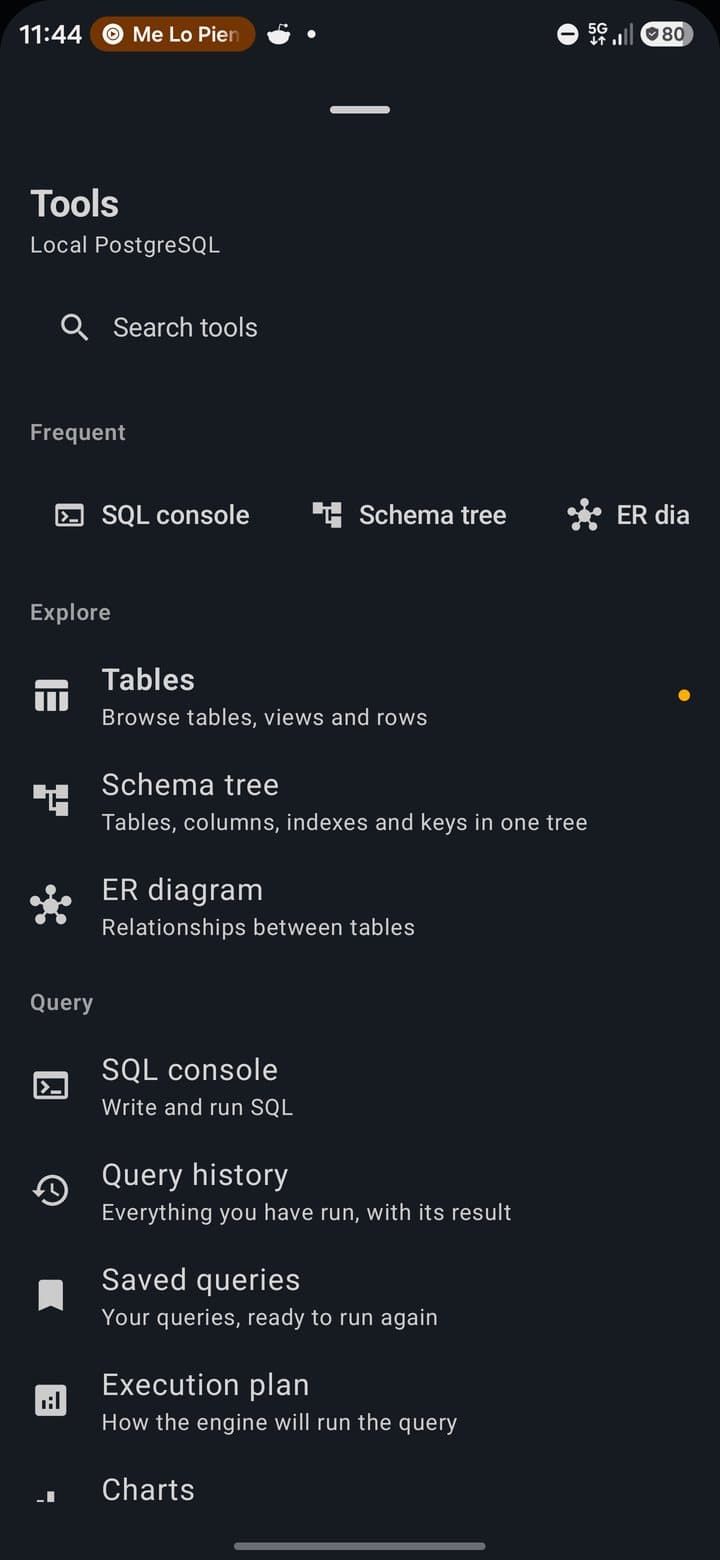
Where the tools are
| Where you are | What you tap | What you get |
|---|---|---|
| Phone or tablet, portrait | The grid icon (Tools) at the right of the header. | A bottom sheet with the search box, the Frequent row and the tools by section. |
| Phone, landscape | The grid icon (Tools) on the narrow rail that takes the header's place. | The same sheet. |
| Tablet, landscape | Nothing: the tool column is always on screen. | The same tools as a fixed column, 280 dp wide. Collapse the tool column folds it to icons (72 dp). Each section folds on its own, and the column folds by itself when the window is too narrow. |
| The start screen (Database Manager) | There is no header here, so no Tools sheet. It has two shortcuts of its own: Monitoring and Schema Designer. | The Monitor, and the schema designer (it needs no connection). |
Inside the sheet
- The title is Tools. Under it goes the name of the open connection, or No connection selected.
- Search tools filters by the tool's name in your language. With no match it says No tool goes by that name.
- Frequent is a row at the top, hidden while you search. It appears once you have opened tools 3 times in total, and then shows up to 4, the ones you open most. The counts stay on the device.
- Each row has an icon, the tool's name, a one-line description and, on the Free plan, a PRO badge when the tool is tied to a Pro feature. A dot marks the tool whose screen is open.
- The order never changes with use. The sections follow the order you'd use them in (look, ask, reshape, move data, server, permissions), so a tool stays where you left it.
The 25 tools
Six sections, 25 tools. The last column says when the tool is shown and what the plan does to it. “Database page” means the screen is explained there.
Explore (3)
| Tool | What it opens | Shown when · plan |
|---|---|---|
| Tables | The tables of the connection; on MongoDB, its collections. | Any connection. Empty on Redis and Firestore. |
| Schema tree | Tables, columns, indexes and keys in one tree (Database page). | SQL connection with at least one table. |
| ER diagram | The relationships between tables (Database page). | SQL connection with at least one table. |
Query (6)
| Tool | What it opens | Shown when · plan |
|---|---|---|
| SQL console | The console (Database page). | SQL connection. |
| Query history | Everything you ran from the console (see Query history and saved queries). | SQL connection. |
| Saved queries | Your saved queries and their folders. | SQL connection. Free: 5 saved queries. |
| Execution plan | The plan of the query in the console (Database page). | SQL connection. |
| Charts | A chart of the console's last result. | SQL connection. |
| Dashboards | Your dashboards of widgets. | Any connection, or the local engine while it runs. No plan limit. |
Design (4)
| Tool | What it opens | Shown when · plan |
|---|---|---|
| Schema designer | The schema designer (Database page). | Always, even with no connection. |
| New table | The form to create a table (Database page). | SQL connection. Free: 4 tables per database. |
| Compare schemas | The schema diff against a saved snapshot (Database page). On a PlanetScale project it opens the deploy request diff instead. | SQL connection. Pro for the snapshot diff (it shows PRO on Free); the PlanetScale diff is free. |
| Import schema | Brings the open database into the designer (Database page). | SQL connection with at least one table. |
Data (4)
| Tool | What it opens | Shown when · plan |
|---|---|---|
| Test data | The Mock Data Generator for the open table. | SQL connection with at least one table, and a table must be open. |
| Import | The system file picker, then the import preview. | SQL connection. Free: not once the database has 4 tables. |
| Export | The export sheet of the open table (Database page). | Any connection. With no table open it does nothing. |
| Backups | The backups screen (Database page). | Any connection. Only scheduling is Pro. |
Server (5)
| Tool | What it opens | Shown when · plan |
|---|---|---|
| Monitor | The Monitoring screen. | Any connection. |
| Engine settings | The engine screen, Health tab (Database page). | The local PostgreSQL, even stopped. |
| Extensions | The engine screen, Extensions tab (Database page). | The local PostgreSQL while it runs. |
| Server log | The engine screen, Log tab (Database page). | The local PostgreSQL, even stopped. |
| New database | A dialog to create another database inside the local engine. | The local PostgreSQL while it runs. Free: 1 database; it shows PRO. |
Security (3)
| Tool | What it opens | Shown when · plan |
|---|---|---|
| Security | Five tabs: Masking, Roles, Policies, Permissions and Biometric. | Any connection. |
| Audit log | What the module ran, with Run again. | Any connection. |
| Sharing | Copy a connection or a query, save, open or paste the configuration. | Any connection. |
Which tools each connection shows
The sheet counts what the open connection can do:
| Connection | Tools in the sheet |
|---|---|
| The local PostgreSQL, running, with tables | All 25. |
| The local PostgreSQL, stopped | Extensions and New database are hidden. The tools that need tables appear only when the connection has some. |
| PostgreSQL or MySQL servers, Neon, Supabase, PlanetScale, Turso, Cloudflare D1 | 21: the Explore, Query, Design and Data tools, Monitor and the three Security tools. No Engine settings, Extensions, Server log or New database; the tools that need tables wait until there are some. |
| Redis, Upstash opened as Redis, Cloud Firestore, a MongoDB server | 9: Tables, Dashboards, Schema designer, Export, Backups, Monitor, Security, Audit log and Sharing. All nine were built for SQL; read the note below. |
Other ways in
- A NoSQL connection skips the sheet. Opening a Redis connection shows the key browser, opening Cloud Firestore shows the document browser and opening a MongoDB server shows its collections. They are not in the catalog because each one is the screen of its connection.
- From the Backend Manager, an Open in Database action goes straight to a project, its tables, the SQL console, Security → Policies, the Supabase schema health (inside Monitor) or the schema diff. If the service isn't connected, PocketCode says so instead of opening an empty screen.
- From the tables list, the ⋮ menu has Import CSV (it takes six formats) and, on the local engine only, Import from Clipboard and Schema Diff.
You can't, and why
- See the tools that don't fit the open connection: they are hidden, not greyed out.By design
- Reorder the tools or pin your own: the order is fixed so a tool never moves. Only the Frequent row changes with use.By design
- Open the Tools sheet from the start screen: it has no header. Use its two shortcuts, or open a connection first.By design
Screen map
One row per screen of the tools on this page. The screens of the other tools (the console, the data viewer, backups…) are on the Database page.
| Screen | How you get there | What you can do |
|---|---|---|
| Tools sheet and tool column | The grid icon in the header (portrait), the rail (landscape phone) or the fixed column (landscape tablet). | Search the 25 tools, reopen the Frequent ones and jump to any screen. |
| Redis Browser | Open a Redis connection, or an Upstash database that returns a Redis password. | Filter keys, read their type, TTL, size and a preview, set a TTL, delete a key, load more, open the CLI and the monitor. |
| Redis CLI | The terminal icon of the Redis Browser. | Run any command, use the four shortcut chips and read replies in redis-cli format; dangerous commands ask first. |
| Redis Monitor | The monitor icon of the Redis Browser. | Watch memory, clients, operations per second and version, and the messages published on any channel. |
| Firestore Browser | Open the Cloud Firestore connection. | Pick a project, browse by path, read documents and, on your own project, edit and delete them. |
| Firestore Query | The filter icon of the Firestore Browser. | Build a query with WHERE Clauses, Order by and Limit, and read the results. |
| MongoDB collections | Open a MongoDB server connection. | Read the collections of the database, with a count each. |
| Monitoring | Monitor in Tools, or Monitoring on the start screen. | Four tabs (Sessions, Slow Log, Indexes, Alerts), plus Schema health on Supabase or Slow queries on PlanetScale. |
| Dashboards | Dashboards in Tools. | Create dashboards of query widgets with auto-refresh, and read the engine's Server tab. |
| Charts | Charts in Tools, after a console result with at least 2 columns. | Draw a bar, line, pie, scatter or heatmap chart; export it as PNG or add it to a dashboard. |
| Mock Data Generator | Test data in Tools, with a table open. | Insert generated rows, or rows an AI model writes from your description. |
| Import Preview | Import in Tools, or ⋮ → Import CSV in the tables list. | Preview a CSV, TSV, JSON, NDJSON, SQL or XLSX file and import it into a table. |
| Query History | Query history in Tools. | Read what you ran, reload a query into the console, clear the list. |
| Saved Queries | Saved queries in Tools. | Reload, delete and group saved queries in folders; read the Supabase snippets. |
| Security | Security in Tools, or Open in Policies from Schema health. | Five tabs: masking rules, roles, row level security policies, GRANT and REVOKE, and the biometric lock. |
| Audit Log | Audit log in Tools. | Read what the module ran and send a statement back to the console. |
| Sharing | Sharing in Tools. | Copy a connection or a query, save, open or paste the configuration. |
| Projects | Open a cloud account connection (Neon, Supabase, PlanetScale, Atlas, Turso, D1 or Upstash). | Search and open the account's projects. |
| Project sheet | Tap a Neon, PlanetScale, Turso or Supabase project. | Read branches, deploy requests, schema, connection string, regions or pooler, and browse the tables. |
| Schema Diff (PlanetScale) | Compare schemas with a PlanetScale project open. | Read the statements PlanetScale will run when the deploy request deploys. |
MongoDB
A MongoDB server connection (host, port, database, user, password, and TLS when the server needs it) opens the list of the database's collections. Test Connection does a real ping: it opens the socket, negotiates TLS and completes the SCRAM login, so a green answer means the credentials work. PocketCode talks to MongoDB with its own client, because the official Java driver needs a library Android doesn't ship, and it resolves mongodb+srv:// addresses with DNS over HTTPS (Google or Cloudflare). An Atlas cluster is listed under its account and opens a connection form: type the database user and password (Atlas doesn't give them out through its API) and save.
You can
- See the collections of the database named in the connection (
testwhen the field is empty). Each one has a count that the app labels rows; the number is the collection's document count. - Read the database users of an Atlas project, read-only, in Security → Roles (with a cluster selected).
- Copy the connection without its password with Sharing.
You can't, and why
- Read the documents of a collection: tapping a collection opens the data viewer with no columns and no rows. There is no shell, no aggregation builder and no screen to create collections, manage indexes or export them either.Not yet
- Get a count for every collection: only the first 40 collections of the list get one, to keep the list quick. The others show no number, which is not the same as zero.By design
- Read an Atlas database password from the account: Atlas doesn't hand it out through its API, so you type it in the connection form.Third party
Redis
A Redis connection (host, port, password, an optional user, TLS, and the database number, 0 by default) opens the key browser. Test Connection sends a real PING. PocketCode talks to Redis with its own client, over TLS when the connection asks for it. An Upstash database opens here as a real Redis database when Upstash returns its password; if it only gives a REST token, it opens through REST as a single read-only table, with no key browser.
Key browser
Redis Browser lists keys one page at a time with SCAN, which doesn't block the server the way KEYS would. Each key is a card, and the header shows how many keys are loaded.
You can
- Filter with Search keys…. When you stop typing for 350 ms the app sends
SCAN … MATCH *text*, a substring match done by the server. - Read each key: an icon and a badge for its type (
string,list,set,sorted set,hash,stream, or otro for a module type such as RedisJSON), TTL: (the seconds left, No expiry or Key no longer exists; red when 1 to 60 seconds are left) and its memory size, or size not reported. - Tap a key to open a preview of its value, cut at 200 characters (up to 40 lines on screen). By type: a string reads
GETRANGE 0..199, a list its first 10 items, a set 10 random members, a sorted set 10 items with scores, a hash the first 10 fields (HSCAN) and a stream 3 entries. - Change a TTL: the timer icon (Set TTL), seconds in TTL (seconds), then Save. A negative number removes the expiry (
PERSIST). - Delete a key: the trash icon (Delete). It goes through the Dangerous Operation dialog showing
DEL <key>; Execute Anyway confirms. The app tells you whether the server removed the key or it was already gone. - Tap Load more to get the next page. A page is 200 keys, and a page can take up to 40
SCANrounds of 250 before it stops. - Open the Redis CLI (terminal icon) or the Redis Monitor (monitor icon).
You can't, and why
- Change a value, create a key or rename one from the screen: there is no control for it. Use the CLI (
SET,RENAME…).Not yet - Choose the logical database (
SELECT n) in the browser: it comes from the database number saved in the connection.By design - See a key's size when the server doesn't support
MEMORY USAGEor the ACL forbids it: the card says size not reported instead of drawing 0 B.Third party - Read a whole value in the browser: the preview stops at 200 characters. Use the CLI for the rest.By design
CLI
Redis CLI sends what you type to the server as it is and prints the reply the way redis-cli does. The history on screen keeps the last 200 entries.
You can
- Type a command in the field (PING, GET key, SET key value…) and run it with the play button (Run).
- Use the four shortcut chips:
PING,KEYS *,INFOandDBSIZE.KEYS *asks for confirmation like any command that can block the server. - Confirm dangerous commands in the same Dangerous Operation dialog, with the reason in Spanish (the app writes it in Spanish in every language). They are:
FLUSHALL,FLUSHDBandSWAPDB; deletes and overwrites (DEL,UNLINK,RENAME,GETDEL,MOVE,COPY,LREM,SREM,HDEL,ZREM,SPOP,LPOP,RPOP,XDEL,XTRIM…, the*STOREcommands andSORT … STORE); server administration (CONFIG,ACL,CLIENT,DEBUG,SHUTDOWN,REPLICAOF,CLUSTER,SCRIPT,FUNCTION,MODULE,RESET…, except read-only subcommands such asCONFIG GETorACL WHOAMI); commands that block the server (KEYS,MONITOR,BLPOP…); andEXPIRE,PEXPIREandEXPIREAT.
You can't, and why
- Save favourite commands or scripts: there is no control for it.Not yet
- Subscribe to channels from the CLI: a subscribed connection can't run normal commands. The monitor opens a connection of its own for that.By design
Monitor
Redis Monitor starts by itself when you open it. Every 2 seconds it asks the server for INFO and, on a second connection of its own, it subscribes to every channel (PSUBSCRIBE *). On a quiet server you see the counters and Connected. Nothing has been published on any channel yet.
You can
- Read Memory, Clients, Ops (operations per second, shown as /s) and Version.
- Watch Events: each published message with its channel, its text (cut at 500 characters) and the time. The list keeps the last 200.
- Stop it with Stop and start it again with Start Monitor.
You can't, and why
- See the commands other clients run: the monitor doesn't use Redis's
MONITORcommand, onlyINFOand published messages.By design - See how the numbers changed over time: only the current values are shown.Not yet
Cloud Firestore
The Cloud Firestore connection appears in the connection list when you have set up your own Firebase project (in Integrations) or connected Firebase in the Backend Manager. There are two routes to the data, and what you can do depends on which one is open.
| Route (as the header says) | What you get |
|---|---|
| Read-only · Google connection from the Backend Manager | Uses your Google session from the Backend Manager. You pick a Firebase project (Choose a Firebase project, then Change project), and it lists the root collections and the subcollections of a document. It reads the project's (default) database with your Google account's permissions, and it never writes. |
| Project set up in Settings → Integrations → Firebase | Uses the keys of your own project (Project ID, App ID and API key, from its google-services.json) through the Firebase client SDK, as a separate Firebase app that is never PocketCode's own project. It reads, edits and deletes documents under your Firestore security rules. It can't list collections, so you type the path. |
Browser
Firestore Browser shows one level at a time: the root (Collections), a collection (its documents) or a document (its Subcollections). The path is shown at the top.
You can
- Choose a project when your Google account has several: Choose a Firebase project. The header shows Project: … and Change project.
- Type a path in Collection path (for example
users) and tap the arrow (Open path). A collection has an odd number of segments (users,users/alice/posts) and a document an even number (users/alice). - Tap a document to open its subcollections (Google route). The back gesture goes up one level before it leaves the screen.
- Read documents: up to 50 per collection, each card with the document id, its first 4 fields and +N more fields.
- On your own project, edit a document with the pencil (Edit): Edit Document opens a JSON field and Save writes it. Delete one with the trash icon; it goes through the Dangerous Operation dialog showing
DELETE <path>. - Tap the filter icon (Firestore Query) to build a query.
You can't, and why
- List the root collections, or a document's subcollections, on the SDK route: Firestore's client SDK has no call for it. Type the path of a collection instead.Third party
- Edit or delete on the Google route: it is read-only, so the edit and delete buttons aren't drawn. Set the project up in Integrations to write.By design
- Create a new document from the browser: it only edits and deletes existing ones.Not yet
- See more than 50 documents of a collection in the browser: use Firestore Query, which goes up to 500.By design
- Read a named Firestore database: only
(default)is read, on both routes.By design
"age": "31"), and Save writes that JSON back with set(), which replaces the whole document. A number, boolean, map or list that you don't retype as a JSON value is saved as text. Retype them ("age": 31) before saving, or edit the document in the Firebase console.Query
Firestore Query builds a real Firestore query that Firestore runs. It is not a filter over the documents already on screen.
You can
- Type the Collection path. If you leave it empty, the path you were browsing is used.
- Tap Add Clause under WHERE Clauses. Each clause has a Field, an operator chip (
==,!=,<,<=,>,>=,array-containsorin) and a Value. An icon removes a clause. - Values are typed for you:
null,true,false, integers, decimals and ISO dates (2026-10-04or2026-10-04T10:00:00Z) are recognised, and anything else is text. Put a value in quotes ('123') to force text. Within, separate the values with commas and quote a value that contains one. - Set Order by (a field) and Limit (25 by default; the app keeps it between 1 and 500).
- Tap Run Query. Under documents you get the count and one card per result with all its fields.
You can't, and why
- Sort descending: the screen has no switch for it, so results always sort ascending.Not yet
- Query a collection group (every collection with a given name): there is no control for it.Not yet
- Combine inequalities on different fields, or sort by another field, without an index: Firestore requires a composite index, and its error, with the link to create it, is shown as it is.Third party
Monitor
Open Monitoring from Monitor in Tools or from Monitoring on the start screen. The refresh icon in the header reloads everything (and, on Supabase, loads Schema health). If alerts have fired, a red strip at the top lists them: N alerts fired, the first 3, and Dismiss.
| Tab | What it shows |
|---|---|
| Sessions | Latency and counters of the connection, the server's sessions and the queries this app ran. |
| Slow Log | Your slowest successful statements, from the audit log. |
| Indexes | The indexes of the tables, with an estimate of their use (PostgreSQL dialect). |
| Alerts | Rules you define, checked when you open or refresh the monitor. |
| Schema health | Supabase only: the project's security and performance advisors. |
| Slow queries | PlanetScale only: the queries that read the most, from Insights. |
Sessions
The first tab has three sections.
You can
- Connection: Latency (the milliseconds of one
SELECT 1on your connection, measured when you open or refresh the monitor), Connections (the open connections to the database, on the local PostgreSQL only), Queries per second (always —), Queries Today and Avg Query Time (from the queries you ran in this app since midnight). - Server sessions, on the local PostgreSQL only: each client session of
pg_stat_activity(the monitor's own is left out) with itspid, state, wait event, Database, Application and its query (the first 200 characters). Two icons act on a session: Cancel query (pg_cancel_backend: it stops the query and keeps the session) and Terminate session (pg_terminate_backend: it closes the connection). - Queries from this app: the queries of the current session, each with its state and duration. The icon Kill Query cancels one that is running and Clear Completed empties the finished ones.
- Opened from the start screen, with no connection, the sessions come from the local engine.
You can't, and why
- See the sessions of Neon, Supabase, MySQL, Redis, Firestore or MongoDB: the module reads them only from the embedded PostgreSQL. Anywhere else it says “… does not report open sessions — only the embedded engine does.”By design
- Get queries per second: it isn't measured, so the card shows —.Not yet
Slow Log
The slow log is built from your audit log: your successful statements at or above the threshold, the 50 slowest. It is not the server's own slow query log.
You can
- Choose the Slow threshold with the chips 100 ms, 500 ms, 1000 ms and 5000 ms (500 by default). The list is rebuilt when you open the monitor or tap the refresh icon, so refresh after you change the threshold.
- Each entry shows its duration (red above 2000 ms), the time, the SQL (up to 200 characters, 3 lines) and the table.
- With nothing to show it says No slow queries detected.
You can't, and why
- Keep the threshold after the app restarts: it isn't saved.Not yet
- See slow statements that did not come from this app: the log is made of your own audit entries, not of the server's.By design
Indexes
The indexes of the connection's tables, for PostgreSQL-dialect connections only: the local engine, Neon, Supabase and PostgreSQL servers.
You can
- Read each index: its name, its table and columns, a UNIQUE badge when it is unique and N uses (est.).
- N uses (est.) is an estimate, not a counter: it counts the entries of your audit log for that table whose SQL mentions the index's first column. The badge is green above 0.
- With none it says No indexes.
You can't, and why
- See indexes on MySQL, SQLite or other engines: the tab stays empty.Not yet
Alerts
Alert rules are saved on the device and checked each time you open or refresh the monitor.
You can
- Tap Add Alert, give it an Alert Name, choose an Alert Type and a Threshold. Switch a rule on or off, or delete it, with its controls. N rules shows how many there are.
- An alert fires when the current value is above the threshold. Fired alerts appear in the red strip at the top of the monitor.
You can't, and why
- Get a notification with the app closed, or while you are not looking at the monitor: nothing runs in the background. Rules are checked only when you open or refresh it.Not yet
- Alert on Database Size where the engine doesn't report a size: that rule is skipped, not fired with a zero.Third party
| Alert type | What it measures |
|---|---|
| Table Row Count (rows) | The row count of the open table, when the count is known. |
| Query Duration (ms) | The average time of the queries you ran from this app since midnight. |
| Database Size (MB) | The size of the open database. Checked only where the engine reports it: PostgreSQL-dialect connections, Turso and Cloudflare D1. |
| Slow Queries Count (queries) | How many entries the Slow Log has at the current threshold. The log holds at most 50, so a threshold of 50 or more never fires. |
| Error Rate (%) | Failed statements as a percentage of all the entries in the audit log, not only today's. |
Schema health (Supabase)
Only on a Supabase project, and it appears after you tap the refresh icon of the monitor (or arrive from an Open in Database action that targets the schema health). It shows what Supabase already knows is wrong with the project, read-only: the security and performance advisors, in two sections.
You can
- Read each finding: its level, its title, the entity it Affects, the remediation and a Learn more link.
- On a row level security finding, tap Open in Policies to jump to Security → Policies.
You can't, and why
- Fix a finding from here: the tab only reads Supabase's advisors.By design
Slow queries (PlanetScale)
Only on a PlanetScale project, when Insights has data. “PlanetScale Insights: the queries that read or scan the most on this branch.”
You can
- Read each query with its table, its Time, its Count, the Rows read and the Rows examined, as the API gives them (the time is in microseconds).
You can't, and why
- See PlanetScale's figures in milliseconds or merged with the Slow Log: the two sources use different units, so they stay separate.By design
Dashboards and charts
Dashboards keep queries together as widgets, and Charts draws the last console result. Neither has a plan limit. Dashboards are saved on the device as the query and its shape, never as the result: the numbers are read again from the engine each time you open one.
Dashboards
Dashboards opens your dashboards as tabs. The + icon (New dashboard) creates one (Dashboard name). With none it says “Dashboards you create will show up here.”
You can
- Switch dashboards with the tabs. For each one you can Rename it or Delete it; deleting asks “Delete “X” and its N widgets? This cannot be undone.”
- Read the widgets in 1 column on a phone in portrait, 2 columns elsewhere and 3 columns on screens 1,200 dp wide or more. On a one-column grid, a 2-column widget simply fills the row.
- Refresh one widget with its own button; each one shows when it was read (Read at …).
- A widget can also say: The connection this widget was created with is no longer available., This widget has no query., The query returned no rows., No numeric column to plot. or the engine's own error.
You can't, and why
- Move a dashboard to another device: they live only on this one.Not yet
Widgets
A widget is a query, a shape, a width and a refresh interval. You add one from the chart icon (Add to dashboard) in the console's header, which is enabled only with a successful result, or from the same icon in Charts.
You can
- In the sheet, set the Widget title, see the SQL that will be saved (shown there, not editable), pick the target Dashboard or New dashboard, and choose the Shape, the Width and the Auto-refresh.
- Width: 1 column or 2 columns. Auto-refresh: Off, or every 5, 15, 30, 60 or 300 seconds while the dashboard is on screen.
- Each widget has a title, a refresh button and a menu (Widget options) with Edit widget, Move up, Move down and Delete. Edit widget changes the title, the SQL, the shape, the width and the interval.
You can't, and why
- Run a statement that writes: a widget runs on its own and on a timer, so only
SELECT,WITH,EXPLAIN,SHOWandDESCRIBErun. A writing statement stays unexecuted with “Not run: UPDATE writes, and a dashboard only runs read-only queries.”By design - Use
:nameparameters in a widget: it has nowhere to get the value from when it refreshes by itself.By design - Drag widgets to reorder them: use Move up and Move down.By design
- Refresh faster than every 5 seconds: a widget that re-queries every second is a
SELECTloop on someone's database.By design - Use a widget on Redis, MongoDB or Firestore: they have no SQL, so the widget shows the engine's error.By design
| Shape | What it draws |
|---|---|
| Table | The first 5 rows, with “N rows · M columns”. |
| Single value | The first cell of the first row, large. For a COUNT(*) or any one-figure aggregate. |
| Bars, Line and Pie | The first column as the label and the first numeric column as the measure, up to 24 points. Rows whose value isn't a number are left out. A line needs at least 2 points. |
Server tab
The first tab, Server, exists only while the local PostgreSQL runs. It reads the engine live; nothing about it is saved.
You can
- Read Sessions, Commits, Rollbacks, Cache hits, Data size, Version, Deadlocks and Checkpoints. They refresh every 5 seconds while the tab is on screen.
You can't, and why
- See this tab on any other engine: it comes from the embedded PostgreSQL, which runs only on 64-bit ARM phones.Device
- Edit or save this tab: it holds no query.By design
Charts
Charts draws the last result of the SQL console. Run a query first: it needs a successful result with at least 2 columns, or the app says “Execute a query with at least 2 columns first”.
You can
- Pick Bar, Line, Pie, Scatter or Heatmap (the chart type names are fixed English text).
- The X axis is the first column. The Y axis is the first numeric column after it, and the pie uses the same two columns with only positive values. Scatter crosses the first two numeric columns (with just one there is nothing to draw). Cells that aren't numbers are drawn as 0.
- Switch the legend and the grid with the two icons next to the chart (Toggle Legend and Toggle Grid).
- The refresh icon in the header redraws the chart from the console's last result.
- Tap the save icon (Export Chart) to write a PNG with a white background through the system file picker.
- Tap the chart icon (Add to dashboard) to keep the query as a widget.
- With no numeric column it says “No chart data. Execute a query with numeric columns first.”
You can't, and why
- Plot more than one measure at once: one numeric column goes on the axis, because several on a shared axis can't be read (hundreds next to units).By design
Test data
Test data fills the table you have open with rows it invents. The screen is called Mock Data Generator. It works column by column: each column has its own data type, guessed from the column's name, and you can change it. Open a table first, or the app says “Open a table first — the mock data goes into it.”
You can
- Choose how many rows with the chips 10, 50, 100, 500 or 1000 (Number of Rows).
- Switch Respect Constraints on to reuse the values that already exist in foreign key columns (“Use existing FK values when available”; up to 1,000 distinct values per foreign key column).
- Under Column Configuration, change the type of any column. The types come in groups: Identity, Security, Numbers, Dates, Text, Web, Places, Business and Other. The starting type is guessed from the column name in English, Spanish and Portuguese, so a column called
nombreorcidadegets a name or a city. - A primary key that the database fills in by itself (auto-increment or a default) is left out, so the
INSERTdoesn't name it. - Tap Generate N rows: it runs one
INSERTper row on the open connection, one after another. It stops at the first error with “Stopped after N rows: …”, and the rows already inserted stay. - Or use AI Generation: write what you want in Describe the data (for example “realistic e-commerce orders with products”) and tap Generate with AI. After you accept the provider's consent dialog, the model receives the table name, its columns (name, type, primary key, not null), the engine's name and your description, never your rows. It must answer a JSON array that matches the table exactly, and the rows are inserted one by one. If no provider answers, the app offers Use the built-in one.
You can't, and why
- Insert more than 100 rows on Free, or 50 with AI: choosing 500 or 1000 trims the number silently, and the button still reads “Generate 1000 rows”.Pro
- Choose more than 1000 rows: the biggest chip is 1000 and the AI stops at 200 on Pro. The code allows up to 100,000 on Pro, but the screen doesn't offer it.Not yet
- Generate rows on Redis, MongoDB or Firestore: the tool isn't offered there because they have no tables to insert into.By design
Import data
Import loads a file into a table of the open SQL connection. It opens the system file picker (any file type) and then the Import Preview. You reach it from Import in Tools, or from ⋮ → Import CSV in the tables list (the menu says CSV but it takes six formats).
| Format | How it is read |
|---|---|
| CSV and TSV | Delimited text. Quoted fields are fine, even with a comma or a line break inside. First row is the header names the columns; without it they are col_1, col_2… |
| JSON | An array of objects, or one object. Each object is a row and its keys are the columns. |
| NDJSON | One JSON object per line. |
| SQL | Only the INSERT INTO statements of a dump are read as rows. The column names come from the statement (col_1… when it has none). |
| XLSX | The first sheet of an Excel file. |
The preview
After you pick the file, the Import Preview shows what was read. The format is found from the content first and the file name second. Nothing is written until you tap Import.
You can
- See the detected format as a badge, the count (N rows · M columns, only when the whole file was counted) and the first 50 rows under Preview Data.
- Edit Table Name. It starts as the file's name, cleaned up (
clientes-2026.xlsxbecomesclientes_2026). - Tick or clear First row is the header (on by default; it only matters for CSV, TSV and XLSX), Create table (on by default: it runs
CREATE TABLE IF NOT EXISTS) and Truncate first (off by default: it runsDELETE FROMthe table first, and turns red when ticked). - Read the Detected Types chips. They come from the 50 sample rows (“Types are deduced from the preview rows, not from the whole file.”); Create table deduces the types again from the whole file.
- Tap Import. A message tells you how many rows went into the table.
You can't, and why
- Import into a database that already has 4 tables on the Free plan, even into an existing table: the limit is checked before the file is read, and the Database Pro window opens.Pro
- Import
.xls,.odsor any format outside the six, or read a sheet of an Excel file other than the first.By design - Import into Redis, MongoDB or Firestore: they don't speak SQL.By design
Transactions and batches
| Connection | How the rows go in |
|---|---|
| The local PostgreSQL | One transaction. If any batch fails, everything is undone, a table the import created included: “Import rolled back after N of M rows, so nothing was saved: …” |
| Every other SQL connection | Each batch is atomic on its own. If one fails, the earlier ones stay: “Imported N of M rows: …” The table creation and Truncate first run as separate statements before the batches, so they are not undone either. |
| Any of them | Rows go in INSERT … VALUES statements of up to 200 rows (or 60,000 characters). |
Import from Clipboard
On the local engine only, ⋮ → Import from Clipboard (in the tables list) runs the text you copied as a SQL dump.
You can
- Copy a dump, open the menu and tap Import from Clipboard. The text is split at each
;and the statements run one by one, with no transaction. If some fail, you see how many failed and the first three different messages. - The import is written to the Audit log as
IMPORT.
You can't, and why
- Keep a semicolon inside a string or a function body: the dump is split at every
;, so those statements break.By design - Import a dump that creates tables on the Free plan once the database has 4: the Database Pro window opens first.Pro
Query history and saved queries
Two tools, both about the SQL you ran from the console.
Query history
Query History lists what you ran, newest first. It is one list for every connection, saved on the device, up to 500 entries.
You can
- Read each entry: the SQL (3 lines), the number of rows or an error icon, the duration, the connection's name · the date and the error.
- Tap an entry to load its SQL into the console.
- Tap Clear All to empty the list. It doesn't ask first.
- Queries with parameters are stored as the template. The derived credentials of Turso and Upstash are blanked out of the text before it is saved.
You can't, and why
- See a query's result: only the SQL and its figures are kept, whatever the tool's one-line description says (“Everything you have run, with its result”).By design
- Search, filter or delete a single entry: there is only Clear All.Not yet
Saved queries
Saved Queries lists the queries you saved from the console (⋮ → Save Query), ordered by last use.
You can
- Tap a query to load it into the console. The bin icon (Delete) removes it with no confirmation.
- Keep queries in folders: New folder (Folder name), the chips All, No folder and one per folder, and Move to folder on a query (it appears once you have a folder). Delete folder removes only the folder: “Deleting the folder keeps the queries: they move out of it.”
- On a Supabase project, a From Supabase section lists the snippets of your Supabase dashboard, read-only, with Open in console and Save a copy.
You can't, and why
- Save a 6th query on Free: the limit is 5 saved queries (Save a copy counts too).Pro
- Edit a Supabase snippet here: they are read-only. Open one in the console or save a copy.By design
Security
Security has five tabs: Masking, Roles, Policies, Permissions and Biometric. Opening it from Tools always starts on Masking.
Masking
“Masking only changes what you see in this app. The data in the database is not touched.” The rules are saved on the device.
You can
- Tap Add Masking Rule, type a Column pattern and choose a Mask type. Switch each rule on or off, or delete it.
- The pattern is a piece of text that must appear in the column name, ignoring case:
mailmasksemailandmail_backup. It is not a regular expression, soemail|passwordwould look for that exact text. The first enabled rule that matches wins. - A masked column shows the masked value in the data viewer. To see the real value, open the Columns sheet and use Show in clear (Show in clear (fingerprint) when the biometric lock is on). It lasts until you leave the table.
You can't, and why
- Mask the SQL console, exports, copies or what the AI chat reads: masking applies only to the data viewer's grid.By design
- Use a regular expression in the pattern.By design
| Mask type | What you see |
|---|---|
| Full Mask | ******** |
| Partial Email | The first letter, *** and the domain: j***@example.com. A value with fewer than 2 characters before the @, or with no @, shows ********. |
| Partial Phone | The first 3 characters, -***-** and the last 2: 555-***-**67. A value of 4 characters or fewer shows ****. |
| First/Last Chars | The first and last character with *** between: J***n. A value of 2 characters or fewer shows **. |
| SHA-256 Hash | The first 16 hex characters of the value's SHA-256 hash, followed by .... |
| REDACTED | [REDACTED] |
Roles
Roles reads the real roles or users of the connection.
You can
- PostgreSQL (the local engine, Neon, Supabase or a server): each role of
pg_roles, without the systempg_*ones, with its privileges and the tables of thepublicschema they reach. - MySQL, MariaDB and PlanetScale: the accounts, from
mysql.useror, when that isn't readable (PlanetScale hides it), from the table privileges, with their tables. - MongoDB Atlas: the database users of the project, read-only, when a cluster is selected.
- Any other engine says “This engine has no users or roles.”
You can't, and why
- Create, edit or delete roles here: the tab only reads.By design
- See an Atlas user's password: Atlas doesn't expose it.Third party
Policies (row level security)
Policies shows Row Level Security for any PostgreSQL connection (Supabase, Neon, a direct Postgres, the local engine), read from pg_policies.
You can
- See each table marked RLS on or Unprotected and, for each policy, its name, command, roles,
USINGandWITH CHECK. - A table with RLS off says “Row Level Security is off: anyone with this connection can read every row.” With RLS on and no policy it says only roles that bypass RLS (the table owner,
service_role) can read or write it. - Tap Copy SQL to copy an
ALTER TABLE … ENABLE ROW LEVEL SECURITYor aCREATE POLICY …that you run yourself. - You also get here with Open in Policies from Supabase's Schema health, or with an Open in Database action from the Backend Manager.
You can't, and why
- Run anything from this tab: “Nothing here executes: Copy SQL only copies.”By design
- See policies on MySQL, SQLite or the NoSQL engines: Row Level Security exists only in PostgreSQL.Third party
Permissions
Permissions runs real GRANT and REVOKE statements on the open connection.
You can
- Tap Grant (Grant Permission), type the Role, pick the Table and tick the privileges under Select privileges: SELECT, INSERT, UPDATE, DELETE, CREATE, DROP, ALTER, INDEX or ALL PRIVILEGES. It runs
GRANT … ON … TO …. - The Revoke icon of an entry in that list runs
REVOKEfor the privileges the entry holds. Role and table names must be plain identifiers (letters, digits and underscores, not starting with a digit).
You can't, and why
- See or revoke the permissions that already exist: the list shows only what you granted in this session, so Revoke reaches only those. Use Roles to see the real ones.Not yet
Biometric lock
The Biometric Lock switch (“Require biometric authentication to access sensitive data”) is saved on the device.
You can
- With it on, opening the module shows Database locked (“Authenticate to open your databases”) and asks for your fingerprint or face, or the device's PIN, pattern or password.
- With it on, Show in clear (fingerprint) asks again before it reveals a masked value.
- With the lock off, the list says Free on every line and the note “With the lock off, none of these ask for anything.”
You can't, and why
- Count on the lock to confirm deleting a table, revealing a saved password or opening a PRODUCTION connection: the screen lists them as Asks, but the app doesn't ask yet.Not yet
| Line of Where it applies | What the app does |
|---|---|
| Delete, empty or drop a table | Marked Asks. The app doesn't ask for your fingerprint here. |
| See a masked value in clear | Asks, through Show in clear (fingerprint). |
| Reveal a saved password | Marked Asks. The app doesn't ask for your fingerprint here. |
| Open a PRODUCTION connection | Marked Asks. The app doesn't ask for your fingerprint here. |
Audit log
Audit Log keeps a list on the device of what the module ran: up to 1,000 entries, and nothing leaves the phone.
You can
- Read each entry: the operation (
SELECT,INSERT,UPDATE,DELETE,CREATE,DROP,ALTER,VACUUMorOTHER, taken from the statement's first word, and coloured for errors, destructive and writing operations), the date (dd/MM HH:mm:ss), the SQL (3 lines), a table badge, the number of rows when it is above 0, the duration when it is above 0, and the error. - What gets recorded: every statement run from the SQL console, an SQL dump imported from the clipboard (as
IMPORT) and the tables created with the New table form (asCREATE). - Tap the replay icon (Run again) to send the entry's SQL back to the console. It does not run it.
- Tap the sweep icon (Clear All) to empty the log. It doesn't ask first.
- The table badge is the table that was open when the statement ran, not one read out of the SQL.
- An entry keeps the SQL as it ran, with the values of any
:nameparameters filled in. The query history keeps the template instead.
You can't, and why
- See which connection each entry ran on: it is stored, but the screen doesn't show it.Not yet
- Search, filter or export the log.Not yet
- Audit actions on Redis, MongoDB or Firestore: they don't go through the console's executor, so they leave no entry.By design
Sharing
Sharing (the header says Sharing) takes a connection, a query or the module's configuration out of the app. It is not collaboration: nobody else gets access, and there is no cloud sync.
You can
- Under Quick share, Share Connection copies the open connection as JSON (
name,type,host,port,database,user, never the password) and Share Query copies the console's current query. With an empty console it says so. - Under Configuration (N connections · M saved queries), Save to… writes
pocketcode-db-<date>.jsonthrough the file picker with every connection in the list (a stored password becomes***), your saved queries (name and SQL) and the Safe mode preference. Copy puts the same JSON on the clipboard. - Open… reads such a file and adds the connections it has that you don't. Duplicates (same type and
host:port/database) are skipped and***passwords are left empty, so you type them when you connect. It reports “Config imported: N connection(s)”. - Paste (next to Copy) imports the JSON that is on the clipboard, the same way as Open…: the same rules for duplicates and
***passwords, and the same report. With no text on the clipboard it says “The clipboard has no text to import.”
You can't, and why
- Import more connections than the plan allows with Open… or Paste: on Free the count includes the connections you saved and the ones added earlier in this session, so with one in all the rest are skipped and the Database Pro window opens.Pro
- Bring back saved queries with Open… or Paste: they import only the connections, and the queries in the file are ignored.Not yet
- Keep the connections that Open… or Paste add once the module reloads: they are held in memory only, like a session.Not yet
- Move the configuration to another device through the clipboard: the screen itself says the clipboard is for pasting into a chat and the file is for moving it.By design
Cloud projects
Opening a cloud account connection (Neon, Supabase, PlanetScale, MongoDB Atlas, Turso, Cloudflare D1 or Upstash) shows the account's projects in Projects.
The list
Projects lists what the provider's account holds.
You can
- Search with Search projects… (it appears only when there is more than one project).
- Read each project: its name, its status · region, its id in monospace and a green dot when it is active.
- Tap one. Neon, PlanetScale, Turso and Supabase open the project sheet; D1 goes straight to its tables; Atlas opens the connection form (see MongoDB); Upstash opens as a Redis database when it returns a password, and otherwise through REST as a read-only table.
You can't, and why
- Create or delete projects: the list only shows them. With none it says “Create one from the provider dashboard”.By design
The project sheet
Each provider fills the sections it has. The main button is Browse tables.
| Provider | What the sheet shows |
|---|---|
| Neon | Connection string, masked. The Show or hide icon reveals it and shows Copy (the copy is marked sensitive on Android 13 and later), with the warning “Contains the database password in clear text.” Revealing it doesn't ask for your fingerprint. Also Branches. |
| PlanetScale (MySQL) | Branches, Deploy requests, Schema (the SQL of the active branch, up to 14 lines, with a copy button) and Schema check (the schema-lint warnings with their severity). |
| Turso | Available regions, the catalogue of the account. |
| Supabase | Project (region, Postgres version, status), Connection pooler (always masked; copy copies what you see) and Direct connection with Use a direct connection. That opens the connection form with the pooler filled in as a PostgreSQL connection with TLS; type the database password once and it is saved as a connection of its own, named “(direct)”, with real EXPLAIN and the schema designer. |
You can't, and why
- See the database password of Supabase or Atlas: their APIs don't give it out.Third party
- Edit branches or deploy requests from the sheet: it only reads.By design
PlanetScale deploy diff
On a PlanetScale (MySQL) project, Compare schemas doesn't open the snapshot diff: it shows what PlanetScale will run when the first deploy request in the project's list is deployed. The screen is Schema Diff, with the section Deploy request diff. It is free.
You can
- Read it statement by statement: the table, the operation (a badge) and the DDL. A red Drops data — irreversible marks a destructive statement. If nothing changes it says “This deploy request doesn't change anything.”
- Reach it with Compare schemas while the project is open, or with an Open in Database action from the Backend Manager that targets the schema diff.
You can't, and why
- Pick another deploy request: it is always the first one in the Deploy requests list of the project sheet.By design
- Approve, merge or deploy from here: the screen only reads.By design
Free and Pro
Nearly everything on this page is free. These are the limits the plan puts on it, taken from the plan's definition, and the two Pro features that touch these tools.
| Limit or feature | Free | Pro |
|---|---|---|
| Tables per database (it also stops Import and an SQL dump that creates tables) | 4 | No limit |
| Saved queries | 5 | No limit |
| Saved connections of your own (the local engine and cloud accounts do not count; connections added with Open… or Paste in Sharing, and opened PlanetScale branches, do) | 1 | No limit |
| Console tabs | 2 | No limit |
| Databases in the local engine (New database) | 1 | No limit |
| Test data per run | 100 rows (50 with AI) | Up to 100,000 rows, but the screen's biggest chip is 1000 (200 with AI) |
| Compare schemas (the snapshot diff) | Not available. The PlanetScale deploy request diff is free. | Yes |
| Scheduled backups | Not available. Creating, exporting, importing, restoring and deleting backups are free. | Yes |
No plan limit
- The Redis, Firestore and MongoDB screens.
- Monitor and its alerts, Dashboards and Charts.
- Test data and Import, apart from the limits in the table.
- Query history, Security, Audit log, Sharing, the project sheet and the PlanetScale deploy diff.
Privacy and security
What is stored, where, and what leaves the device:
- No PocketCode server: the tools talk to your host, to the provider's API or to the local engine. Redis and MongoDB use PocketCode's own clients straight to your server.
mongodb+srv://addresses are resolved with DNS over HTTPS, and that lookup goes to Google or Cloudflare. - Firestore is read through your Google session (the read-only route) or through the Firebase client SDK with your own project's keys. The SDK runs as a separate Firebase app, never inside PocketCode's own project.
- On the device: the query history (up to 500 entries), the audit log (up to 1,000), saved queries, masking rules, alert rules, dashboards and schema snapshots are files of the module in the app's private storage, per account (
history.json,audit.json,saved_queries.json,masking_rules.json,alert_rules.json,dashboards.json,schema_snapshots.json). They hold the SQL you ran, which can contain literal values. The derived credentials of Turso and Upstash are blanked out of that text before it is saved. - Dashboards hold queries, never results: the numbers are read again each time and kept only in memory.
- Passwords are not in those files: they live in Android's encrypted storage. Share Connection leaves the password out, and Save to… and Copy replace it with
***. The Neon connection string in the project sheet does contain the password in clear text, and revealing it doesn't ask for your fingerprint. - AI: nothing is sent before you accept the provider's consent dialog. Generate with AI sends the table name, its columns (name, type, primary key, not null), the engine's name and your description, never your rows.
- Masking changes only what the data viewer shows. The SQL console, exports and the AI chat tools are not masked.
- The biometric lock covers entering the module and revealing a masked value, and nothing else yet.
- Analytics are off until you turn on Allow analytics in Settings. When on, a query records the engine type, its duration and the number of rows. A failed query records only the category of the error, never its text.
Limitations
What doesn't work yet or works differently from what you might expect, so it doesn't catch you by surprise:
- MongoDB shows collections and counts, not the documents inside. There is no shell and no aggregation builder.Not yet
- Redis values can't be edited from the key browser, only through the CLI. The browser changes a TTL and deletes keys.Not yet
- Firestore can't list collections through the SDK route, because the client SDK has no call for it.Third party
- Firestore is read-only through the Google connection of the Backend Manager.By design
- Firestore edits write every value you don't retype as JSON back as text, and replace the whole document.Not yet
- Sessions with cancel and terminate exist only for the local PostgreSQL.By design
- Index use is an estimate from your audit log, and the Indexes tab only works on PostgreSQL-dialect connections.Not yet
- Alerts are checked only when you open or refresh the monitor. Nothing runs in the background.Not yet
- Dashboards run read-only statements only, and never faster than every 5 seconds.By design
- Test data is capped at 100 rows (50 with AI) on Free, trimmed without a warning.Pro
- Import stops at 4 tables on Free, even into an existing table, and takes six formats.Pro
- Permissions lists only what you granted in this session. Roles shows the real ones.Not yet
- The biometric lock doesn't ask before deleting a table, revealing a saved password or opening a PRODUCTION connection, although the screen says it does.Not yet
- Sharing: Open… and Paste import only connections, in memory.Not yet
- Query history and the audit log can't be searched, filtered or trimmed one entry at a time, and the audit log doesn't show the connection.Not yet
- Redis, Firestore and MongoDB connections list nine SQL-oriented tools; Backups and Export don't work for them and there is no export of collections or keys.By design
- Some messages of the Redis, Firestore and MongoDB screens and a few toasts are written in Spanish or English whatever the app's language.Not yet
Troubleshooting
The messages of these tools as the app writes them (angle brackets mark a value the app fills in), and what to do about each. A couple of entries describe a situation instead of a message.
Firestore does not allow listing collections from a client app. Type a collection path to browse it.
You are on the SDK route, where Firestore can't list collections. Type the path (for example users) in Collection path and tap the arrow. To get the list of collections and subcollections, connect Firebase in the Backend Manager: that route is read-only, but it lists them.
Read-only: <project> is open through your Google connection from the Backend Manager. To edit documents, set this project up in Settings → Integrations → Firebase.
The edit and delete buttons are hidden on the Google route. Add the project's Project ID, App ID and API key under Firebase in Integrations: that project then opens through the SDK and can be edited.
Google refused to read Firestore in <project> (403). The session may lack Firestore access, or the Firestore API may be off in this project.
Turn the Cloud Firestore API on for the project in Google Cloud, or reconnect Firebase in the Backend Manager. If the project is also the one you set up for the SDK, the browser already falls back to the SDK after a refusal.
Your Google session for Firebase expired or was revoked. Reconnect Firebase in the Backend Manager.
Reconnect Firebase there and open the Cloud Firestore connection again.
Nothing can read <project>: connect Firebase in the Backend Manager, or set this project up in Settings → Integrations → Firebase.
The project you chose has neither route. Pick another project, or add one of the two.
<project> has no Firestore database named (default).
Only the (default) database is read. Create it in the Firebase console or pick another project.
An error that starts with FAILED_PRECONDITION and carries a link
Firestore needs a composite index for that query (inequalities on several fields, or a sort on another field). Open the link in the error to create the index, wait for it to build and run the query again.
PERMISSION_DENIED — Your Firestore security rules rejected this operation.
Your own security rules refuse the read, the edit or the delete. Change the rules in the Firebase console, or read the project through the Google route, which doesn't depend on them.
<engine> does not report open sessions — only the embedded engine does.
Sessions come from pg_stat_activity of the local PostgreSQL. Neon, Supabase, MySQL and the NoSQL engines don't report them here.
Not run: <VERB> writes, and a dashboard only runs read-only queries.
A widget runs on its own and on a timer. Edit the widget and change its SQL to a SELECT; run writing statements from the console.
The connection this widget was created with is no longer available.
A widget keeps the connection it was created on. Delete the widget and add it again from the console with the right connection open.
Execute a query with at least 2 columns first
Charts draws the last result of the console. Run a query that returns a label column and at least one more, then open Charts.
Open a table first — the mock data goes into it.
Test data inserts into the table you have open. Open one from Tables and use the tool again.
Stopped after N rows: …
The generator inserts one row at a time and stops at the first error, for example a unique or foreign key constraint. The rows already inserted stay. Check the column types, turn on Respect Constraints or generate fewer rows.
No AI provider answered. The built-in generator can fill the table instead.
No model answered. Check your AI provider in the AI settings, or tap Use the built-in one to fill the table with the generator that needs no AI.
Import rolled back after N of M rows, so nothing was saved: …
On the local PostgreSQL the whole import is one transaction, so one bad row undoes everything, a table the import created included. Fix the row named in the message and import again.
Database Pro opens when I pick Import
Free allows 4 tables per database and checks the limit before it reads the file, even when you import into an existing table. Pro removes the limit.
TTL de 0 segundos borraría la clave al instante. Usa DEL si eso es lo que quieres.
Redis deletes a key whose TTL is 0, so the app refuses it (the message is in Spanish in every language). Use a negative number to remove the expiry, a positive one to set it, or delete the key.
<host>:<port> cerró la conexión. Si el servidor exige TLS, activa SSL en la conexión (y al revés).
A TLS mismatch: the server wants TLS and the connection has it off, or the other way round. Edit the connection and switch SSL.
Contraseña rechazada por Redis. Revisa la contraseña de la conexión.
The password or the user is wrong. If the server asks for a password and the connection has none, the message is “Este Redis exige contraseña y la conexión no tiene ninguna.”
Upstash didn't return a password or a REST token for this database.
The account's token can't read this database's credentials. Opening it falls back to a read-only REST table, or fails.
This engine has no users or roles.
Roles reads PostgreSQL, MySQL, MariaDB, PlanetScale and Atlas only. If you see “The roles could not be read from this connection.”, the connection's user can't read them.
Type the database username and password — Atlas doesn't give them by API — then save.
Atlas never returns a database password. Fill in the user and password in the connection form, Test Connection, then save.
Config imported: N connection(s)
Open… or Paste adds those connections to the session only. After the module reloads they are gone, so save them again with the connection form. If the Database Pro window opens as well, Free keeps one connection of your own and the rest of the file was skipped.
The clipboard has no text to import.
Paste found no text on the clipboard. Copy a configuration first (Copy on the same screen, or from another device) and tap Paste again. To bring a file, use Open….
Database locked
The biometric lock is on. Tap Unlock and authenticate with your fingerprint, your face or the device PIN. If you see “Screen lock is not available in this window.”, the system prompt can't be shown there and the module opens without the lock: use the module from the app's normal window if you want the lock.