
Home
Home is the first page of PocketCode: a greeting with your profile, a row of quick-action tiles and a feed of widgets that read out your recent work, your AI spend, your Git state and the tools you use. There are 21 widgets and all of them are free; you choose which to show, in what order and how wide. The sheet that does it is Configure widgets, and Settings calls the same feature Dashboard Widgets, which is why this page keeps the address /docs/dashboard.
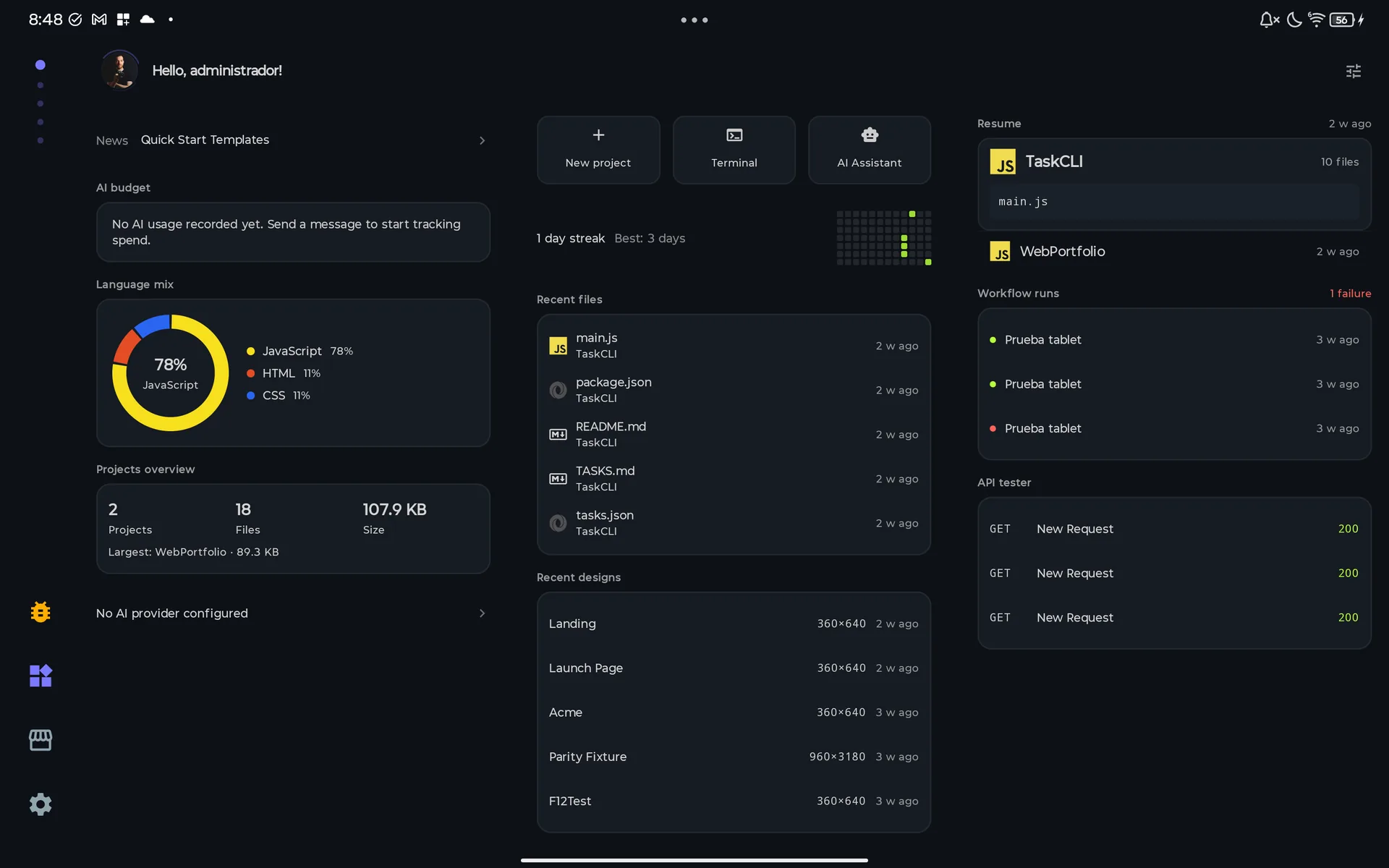
What Home is and how to open it
Home is page 1 of the 5 pages of the main pager (Home, Projects, Files, IDE and AI Chat). It is where PocketCode starts after a clean launch; if the app restores your last session it can reopen on the page you were last on.
- 1Swipe sideways between pages. The dots in the navigation bar (a side rail when the screen is in landscape) show where you are; the first one is Home.
- 2Pull down on the feed to reload it.
- 3From Settings: open Settings, go to Advanced Tools and tap Dashboard Widgets. Settings closes, Home opens and the Configure widgets sheet comes up over it.
Home has no keyboard shortcuts and no deep links of its own.
Screen map
Home is one scrolling page with a few parts and one sheet.
| Screen | How you get there | What you can do there |
|---|---|---|
| Home (the feed) | Page 1 of the pager; the page the app starts on. | Read the widgets, pull down to reload, tap a row to jump to the tool behind it. |
| Header | Always at the top of Home. | Open your profile, see the badge with your pending messages and requests, read the greeting and bio, open the widget sheet. |
| Support PocketCode card | Between the header and the widgets; Free plan only, and only from time to time. | Open the Pro plans screen or dismiss it with Not now. |
| Quick actions | The row of tiles under the news line. | Jump to the Projects page, the Terminal, AI Chat, the Marketplace, Settings, Database, the Designer, the Backend Manager, the API Tester or Media Tools. |
| The 21 widgets | The feed, in the order you chose. | Read recent work, AI spend, Git state, tools and news; tap a row to open the project or tool it comes from. |
| Configure widgets sheet | The tune icon in the header, or Settings → Advanced Tools → Dashboard Widgets. | Show, hide, reorder and widen widgets, reset the layout and pick up to 6 quick actions. |
| Where taps lead | From a tile or a widget row. | Files, Projects, AI Chat, Terminal, Workflows, API Tester, Database, Designer, Backend Manager, Marketplace, Settings, your profile and, for News, your browser. Each has its own docs page. |
Header and profile
The header sits at the top of Home, at full width, whatever the window.
You can
- Tap your avatar to open your profile. It shows the avatar you picked, otherwise your profile photo, otherwise your initials.
- Read the red badge on the avatar: unread messages plus pending friend requests you received, shown as 99+ above 99. It is the only place on Home that reports them.
- Read the greeting, Hello, …!, with your public alias, your alias or your name, or Developer when there is none.
- Read your bio on a second line, when you have one.
- Tap the tune icon (Configure widgets) on the right to open the widget sheet.
You can't
- Read messages or accept friend requests from Home: the header only counts them, the details are in your profile.By design
- Edit your bio on Home: it is written from your profile and Home only displays it.By design
- See the badge when you are signed out: messages and friend requests come from PocketCode's backend and need an account.Needs network
- See the bio on a phone in landscape: the header folds into one line without it.Device
The 21 widgets
The feed is a list of widgets, each a short read-out of another part of PocketCode. There are 21 and 20 are on by default: Installed extensions starts hidden. A widget with nothing to show draws nothing and takes no space. Six always draw something: Quick actions (a hint when none is selected), Resume (No projects yet), AI budget (its empty message), Coding Streak, News and AI providers. Resume has its own section below.
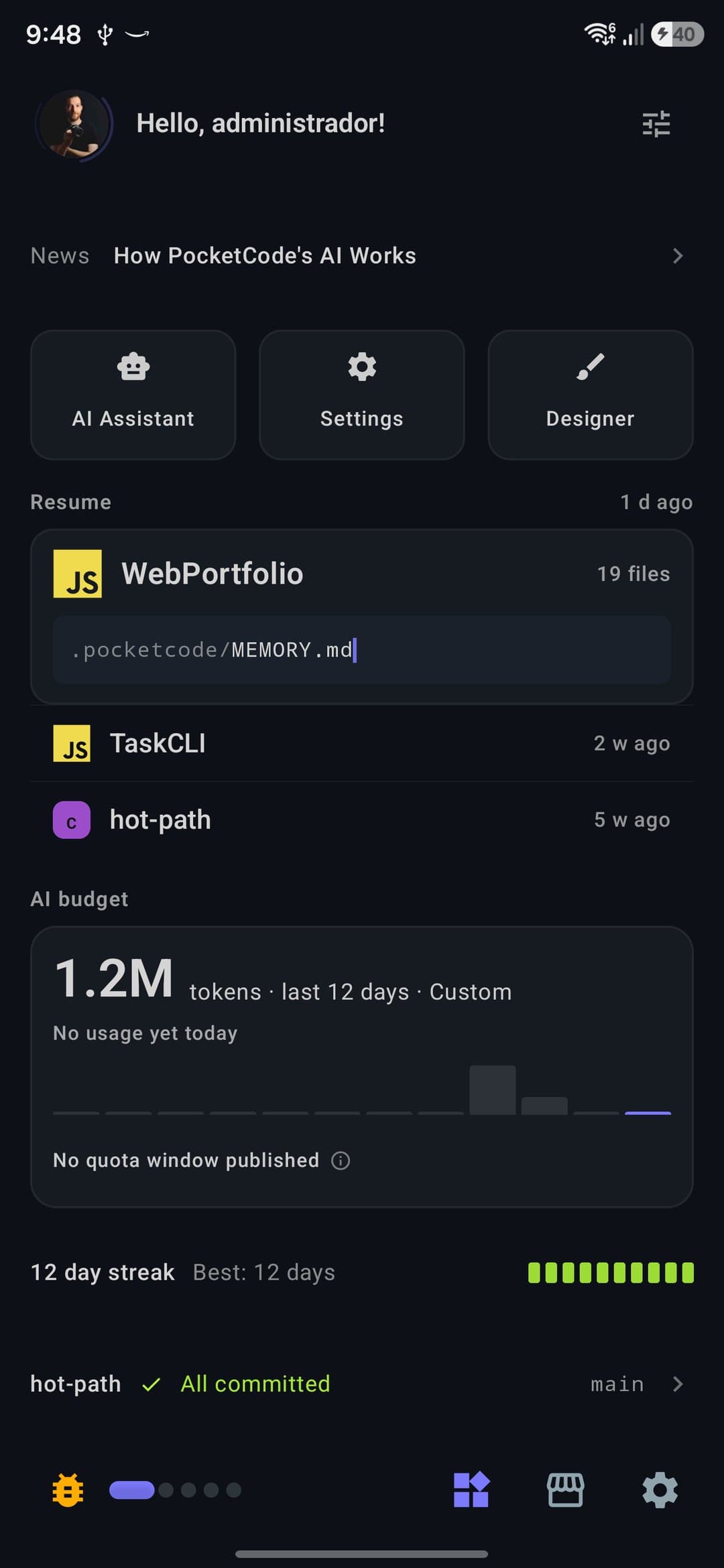
Names in the sheet and in the feed
Three widgets carry a different name in the Configure widgets sheet than on the feed. The tables below give the sheet name first.
| In the sheet | In the feed |
|---|---|
| Community | News |
| Statistics | AI budget |
| Recent projects | Resume |
Your code and projects
These read your project folders, your Git repositories, the editor's Run history and your designs, all on the device.
| Widget | What it shows | When you tap it |
|---|---|---|
| Recent files | The source files you edited most recently across your projects: a language icon, the file name, its project and how long ago. 5 rows, or 8 when the widget takes two lanes. | Opens the project that contains the file, in Files. It does not open the file. |
| Projects overview | How many projects and files you have and how much disk they take (Projects, Files, Size), and the largest project (Largest). It adds up all your projects. A figure that could not be measured is left out instead of showing 0. | Opens the Projects page. |
| Language mix | The share of each language across your projects, counted by number of files, not lines: a thin bar with a legend of the top 3 languages in a single-column feed, a ring with up to 5 in one lane, a ring with a bar per language in two lanes. The rest is grouped as Other. | Nothing: it is not tappable. |
| Uncommitted changes | Of your three most recently edited projects, the ones that are Git repositories: the project, N files uncommitted or All committed, and the branch. It cycles every 4.5 seconds through the ones with changes (it stays on the first one when animations are reduced or off); when all are clean it shows one fixed line. | Opens that project in Files. |
| Recent commits | The last 3 commits of the project shown in Resume: 7-character hash, subject line and how long ago, plus the author when the widget takes two lanes. | Nothing: the rows are not tappable. |
| Runs | The last files you ran with the editor's Run button: a green dot when it exited with code 0, red otherwise, the file name, the runtime, the duration and how long ago, plus the folder in two lanes. 3 rows in a single-column feed, 5 elsewhere. Running a file again moves it to the top instead of adding a second row, and cancelled runs are not recorded. | Opens the project that contains the file, if Home has loaded that project; otherwise nothing happens. |
| Recent designs | The designs you edited most recently: name, canvas size such as 360×640 when the design has one, and how long ago. 3 rows in a single-column feed, 5 elsewhere. Text only: there are no thumbnails. | Opens the Designer, not that design. |
You can
- Tap a row of Recent files, Uncommitted changes or Runs to jump to its project.
- Tap Projects overview to open the Projects page.
- Pull down to recalculate every widget in this group.
- Widen a widget to two lanes to see more: 8 files in Recent files, the author in Recent commits, the folder in Runs.
You can't
- Open the file you tapped: the app has no destination that takes a file, so these rows open its project.By design
- Commit from Uncommitted changes: the line only opens the project, Git lives in the editor.By design
- See the commits of any project other than the one in Resume.By design
- Get thumbnails in Recent designs: the Designer does not produce them.By design
- Measure Language mix in lines of code: it counts files, and only 18 languages are recognised (Kotlin, Java, JavaScript, TypeScript, Python, Go, Swift, C, C++, C#, Ruby, Rust, Dart, PHP, Shell, HTML, CSS and SQL).By design
AI
These four are free for everyone: you bring your own provider keys, so no plan gates them.
| Widget | What it shows | When you tap it |
|---|---|---|
| Statistics in the sheet, AI budget in the feed | The tokens you spent today with your own AI providers and, below, a 12-day sparkline and one row per provider. Details under Reading the AI budget. | Nothing, except the ⓘ on a row that has no quota bar. |
| Recent AI chats | Your 3 latest AI conversations: title, the label of the model and how long ago, plus the last message in two lanes. | Opens the AI Chat page, on the conversation that was already active, not on the one you tapped. |
| AI to-dos | N pending tasks and the first two titles: the open tasks the chat proposed in your 5 most recent conversations. Finished and cancelled tasks do not count. | Opens the AI Chat page, same as Recent AI chats. |
| AI providers | N AI providers configured and their names, for the providers that have a key or sign-in saved (OpenAI, Google Gemini, Anthropic Claude, GitHub Copilot, ChatGPT (Plus/Pro OAuth) and Custom endpoint). With none it says No AI provider configured. | Opens Settings, where you add a key. |
You can
- Tap AI providers to go to Settings and add a key.
- Watch AI budget follow your chats: it recalculates a moment after a chat turn is recorded.
You can't
- Open the conversation you tapped in Recent AI chats or AI to-dos: they open the AI Chat page on the active conversation.Not yet
- Count tasks from every conversation in AI to-dos: it reads only the 5 most recent ones and names 2 titles.By design
- Tell from AI providers whether a saved key still works: it only says a key is saved.By design
- See a quota bar for a provider whose plan publishes no quota window.Third party
Reading the AI budget
The card is built from a ledger of AI turns kept on the device, so it counts what you did in PocketCode with your own keys. It measures tokens, input plus output, not requests.
The big number
Tokens spent today. If you have not used AI yet today it shows the total of the last 12 days instead, labelled tokens · last 12 days (with the provider's name when you only use one) and with the line No usage yet today.
Against your average
With usage today and at least two earlier days with usage, a line compares today with your daily average: ×1.5 your daily average from 1.35 times up, N% below your daily average from 30% below, In line with your daily average in between.
The 12 bars
One bar per day, oldest to newest. Today is the last bar and the only one in the accent colour.
One row per provider
A row for each provider with usage in those 12 days or a published quota: OpenAI, Gemini, Claude, Copilot and Custom. The provider name heads each row when there are two or more.
The quota bar
Shown only when the provider publishes a quota window. The caption reads Plenty left below 65%, Running out from 65% and Exhausted from 90%.
When there is no bar
A provider that publishes no window gets no bar: the row shows its plan, or No quota window published, and an ⓘ that opens No bar: that plan publishes no quota, so any total would be invented.
Empty and live
With nothing recorded the card says No AI usage recorded yet. Send a message to start tracking spend. Once you have history it stays even on a day without usage.
Tools and services
These read a summary from another part of the app. They never carry passwords, keys or tokens (see Privacy).
| Widget | What it shows | When you tap it |
|---|---|---|
| Workflow runs | The last runs of your workflows: a dot (green completed, red failed, grey otherwise), the workflow name and how long ago. 3 rows in a single-column feed, 5 elsewhere. With failures among the last 10 runs the header shows N failures; in two lanes a failed run also shows its error. | Opens Workflows, not the detail of that run. |
| SSH hosts | Your saved SSH hosts, most recently connected first: name, user@host and how long ago you connected (nothing if you never did). 3 rows in a single-column feed, 5 elsewhere. | Opens the Terminal, not that host. |
| API tester | N collections · N requests in the header and the last 3 requests you ran: method, name and HTTP status (green for 2xx, red from 400, none when there was no response). In two lanes it adds the URL. It is run history: a request you saved but never sent does not appear. | Opens the API Tester, not that request. |
| Databases | A line, N connections and the name of the latest, or in two lanes a card with a row per database: name, engine and how long ago the service was connected, up to 3. It counts connected database services (Neon, Supabase, PlanetScale, MongoDB Atlas, Turso and Upstash) plus your own Firestore project if you set one up. | Opens Database. |
| Backend | Up to 3 of your connected backend projects: a status dot (red when failed, another colour when degraded or suspended, the accent colour while building, grey when live or unknown), the project name and its provider. Broken ones come first, then the most recently checked. View all sits in the header. | Opens the Backend Manager on its Status tab, from a row or from View all. |
| Installed extensions (off by default) | N extensions installed and the name of the latest one you installed. | Opens the Marketplace. |
You can
- Tap a row to jump to the tool: Workflows, Terminal, API Tester, Database, Backend Manager or the Marketplace.
- Switch on Installed extensions in the sheet; it starts hidden.
- Watch the numbers follow your work: all six update on their own when the data behind them changes.
You can't
- Run a workflow, or open a single run, host or request, from Home: a tap opens the tool, not the item.By design
- See how many extensions have updates in Installed extensions: the sheet describes it as Installed extensions and available updates, but the update count is not calculated, so the N with updates line never appears.Not yet
- Count in Databases the connections you added by hand in Database: only connected services and your Firestore project are counted.By design
- Make Backend check your providers itself: it shows the state the Backend Manager already holds and makes no network calls of its own.By design
Streak and news
Two single-line widgets.
| Widget | What it shows | When you tap it |
|---|---|---|
| Coding Streak | N day streak and, when there is one, Best: N days, with a mark for each recent day: 10 days in a single-column feed, 12 weeks in one lane and 24 weeks in two lanes, seven rows per week. A day counts when Home loaded on it. | Nothing. |
| Community in the sheet, News in the feed | One line labelled News with a headline that rolls to the next every 4.5 seconds (it stays on the first one when animations are reduced or off). The headlines are PocketCode blog articles and a tip of the day, fetched from pocketcodeapp.com and kept for an hour; if the site returns nothing, the app tries PocketCode's own backend. While it loads it says Loading news…; with nothing to show, No news. | Opens the article in your browser (http and https links only). |
You can
- Tap the headline to read the article in your browser.
- Check your streak at a glance: Best keeps the longest run of consecutive days.
You can't
- Measure how long or how much you coded: the streak counts the days on which Home loaded, not lines or minutes.By design
- See a list of headlines, or new AI models: News is a single line of PocketCode's own articles.By design
- Load headlines without a connection: with the last fetch under an hour old, or any saved copy when the request fails, it shows those; with none, No news.Needs network
- Get the headlines in your language when it is not English: the feed exists in English and Spanish, and any other app language receives the Spanish ones.By design
Phone, tablet and landscape
Home reads the size of the window and decides how many columns the feed has, how many quick tiles fit and how the header looks.
| Window | Feed | Quick tiles and header |
|---|---|---|
| Phone, portrait (narrower than 600 dp) | 1 column, up to 720 dp wide | 3 tiles; normal header |
| Phone, landscape (600 dp wide or more, under 480 dp tall) | 2 columns, no width limit | 3 tiles; one-line header without the bio |
| Tablet, portrait (600 to 839 dp wide) | 2 columns, up to 900 dp wide | 6 tiles; normal header |
| Tablet, or any window 840 dp wide or more and 480 dp tall or more | 2 columns, 3 from 1200 dp, up to 1180 dp wide | 6 tiles; normal header |
How a widget changes shape
Each widget sits in a lane. A lane is about as wide as a phone, so a widget in one lane of a tablet looks like it does on a phone, with more rows where there is height to spare. A widget you widen with Two columns wide gets twice the width and rearranges.
- Language mix: a bar, a ring, or a ring with a bar per language.
- Resume: the hero above the list, or beside it in two lanes when at least three projects follow it.
- Databases: a single line, or a card with a row per database.
- More rows with more room: Recent files 5 or 8, and Workflow runs, SSH hosts, Runs and Recent designs 3 or 5.
- More detail in two lanes: the author in Recent commits, the last message in Recent AI chats, the URL in API tester, the folder in Runs, the error in Workflow runs, two columns of providers in AI budget.
- Coding Streak marks: 10 days, 12 weeks or 24 weeks.
- Quick actions: 3 tiles per row, 6 per row in two lanes.
When the data updates
Some widgets repaint by themselves; others are read when Home loads. Pull down to reload everything.
| Kind | Widgets |
|---|---|
| Live | AI budget, Recent AI chats, AI to-dos, Workflow runs, Installed extensions, SSH hosts, API tester, Databases (connected services), Runs, AI providers and Backend repaint by themselves when the data behind them changes. |
| Read when Home loads | Resume, Recent files, Projects overview, Language mix, Uncommitted changes, Recent commits, Recent designs and Coding Streak. Home loads when it starts, when you create or delete a project, when your messages or friends change and when you pull down. |
| News | Asked for when Home starts, from a cache that lasts one hour. |
Quick actions
Quick actions is the row of tiles under the news line. By default it shows New project, AI Assistant and Terminal. You pick up to 6 of the 12 tiles in the Configure widgets sheet; a phone shows the first 3 of your choice and a tablet up to 6. The order is the one in the table below, not the order in which you ticked them.
| Tile | What happens when you tap it | Default |
|---|---|---|
| New project | Opens the Projects page, where you create the project. It does not open a dialog. | Yes |
| Import | Opens the Projects page; importing is done there. | — |
| Terminal | Opens the Terminal. | Yes |
| AI Assistant | Opens the AI Chat page. It does not start a new conversation. | Yes |
| Marketplace | Opens the Marketplace. | — |
| Settings | Opens Settings. | — |
| Database | Opens Database. | — |
| Designer | Opens the Designer. | — |
| Deploy | Opens the Backend Manager on its Projects tab, filtered to Hosting. | — |
| Monitoring | Opens the Backend Manager on its Projects tab, filtered to Observability. | — |
| API Tester | Opens the API Tester. | — |
| Media | Opens Media Tools. | — |
You can
- Tick up to 6 tiles in Quick Actions, and untick any of them at any time.
- Tap a tile to jump straight to the page or tool.
You can't
- Reorder the tiles by hand, or pick more than 6.By design
- See more than 3 tiles on a phone: a phone shows the first 3 of your choice, a tablet 6.Device
- Add your own tiles, or run the last workflow or start a new chat from a tile: the catalogue is exactly these 12.By design
- Open a creation or import dialog from New project or Import: both only take you to the Projects page.By design
Resume
Resume (Recent projects in the sheet) is the card to pick up where you left off: your most recently edited project as a larger card, with the other recent projects as lines under it.
- The hero shows the project's language icon, its name, its number of files (hidden when it could not be counted) and the path of the last code file you modified, with a blinking cursor. The time since that edit sits to the right of the Resume label.
- The lines under it show a language icon, the project name and how long ago its last code file changed: 2 lines in a single-column feed, up to 5 in one lane and up to 6 in two lanes. Home loads at most 5 projects, so in practice the hero plus four.
- Two lanes: with at least three projects after the hero, the hero sits beside the list instead of above it.
- Order: by the modification time of the most recently changed code file in each project. There is no notion of last opened.
- What counts as code: 30 file extensions;
.git,node_modules,build,dist,.gradleand.ideaare skipped, and each project is read up to 4000 files. - Samples: on a fresh install the app creates two sample projects,
WebPortfolioandTaskCLI. They are ordinary folders, so they show up here like any other project. - Empty: with no projects the card says No projects yet.
You can
- Tap the hero or any line to select that project and open the Files page. It does not open the editor.
- Pull down to recalculate the order after editing elsewhere: Resume is read when Home loads, not live.
You can't
- Long-press a project to rename or delete it, or see a thumbnail: Resume only responds to taps and shows no previews. Renaming and deleting are on the Projects page.By design
- Reopen the file or the line: the hero names the last file you changed, but a tap opens the project in Files and the cursor position is not stored.By design
- See more than 5 projects. With more than five, only five are read for recent edits, so a project outside them cannot appear in Resume or Recent files.By design
Configure widgets
The Configure widgets sheet is where you decide what Home shows. Every change is saved the moment you make it.
- 1Tap the tune icon (Configure widgets) at the right of the header.
- 2Or go to Settings → Advanced Tools → Dashboard Widgets: Settings closes and the same sheet opens over Home.
- 3Use the controls on each row, then drag the sheet down to close it.
What is in the sheet
| Control | What it does |
|---|---|
| Title, Enable or disable dashboard widgets, 2× takes two columns on a tablet | The header of the sheet and a reminder of what the width switch does. |
| Section Widgets | One row for each of the 21 widgets, with an icon, the widget's name, a one-line description and its position number. |
| ▲ ▼ (Move up, Move down) | Swap the widget with its neighbour. The arrows dim at the top and bottom of the list. |
| Width switch (One column wide, Two columns wide) | Makes the widget take two lanes in a feed with two or more columns. It is always saved, even on a phone in portrait where nothing changes. |
| Switch on the right | Shows or hides the widget. The last visible widget cannot be switched off. |
| Reset layout | Returns order, widths and visibility to the defaults, without asking. It does not touch your quick actions. |
| Section Quick Actions | Select up to 6 quick actions (3/6) and the 12 tiles with a checkbox. At 6 the others dim and cannot be ticked; you can always untick. |
The layout, the chosen quick actions, your bio and your streak days are stored per account on this device. A saved layout is merged, not replaced: if a later version adds a widget it goes to the end of your list with its default visibility, and an unreadable saved layout falls back to the defaults.
You can
- Show or hide any widget, in any combination, as long as one stays visible.
- Reorder with the arrows and widen a widget to two columns.
- Return to the defaults with Reset layout.
- Choose which quick actions appear.
You can't
- Switch off the last visible widget: the tap is ignored, so Home is never empty.By design
- Reorder by dragging: only the arrows move a widget.By design
- Create, rename or add widgets of your own: the 21 are a fixed catalogue.By design
- Choose more than 6 quick actions.By design
- Get two columns on a phone in portrait: the width switch is saved and takes effect on a wider window.Device
The Support PocketCode card
Between the header and the widgets, a card titled Support PocketCode with the line Built by an independent developer. Pro keeps it going. can appear. It is an invitation, not a feature: it does not unlock or block anything.
You can
- Tap the text of the card to open the Pro plans screen.
- Tap the X (Not now) to dismiss it.
You can't
- Turn the card on or off yourself: it has no setting. Pro removes it, and so does choosing Not now three times.By design
When it appears
- Only on the Free plan: it never appears while you have Pro, a trial or a grace period.
- Only after you have opened the app at least 5 times and at least 3 days have passed since your first launch, and at most once every 14 days.
- After you tap it or choose Not now it stays hidden for 30 days. After the third Not now it does not come back.
- It shares one prompt slot per session with the app tour and the review request, and PocketCode can switch it off remotely, so meeting the rules does not guarantee you will see it.
Free and Pro
Home has no plan gates. All 21 widgets, the Configure widgets sheet and the 12 quick actions are available on the Free plan. What Pro changes is how much the tools behind the widgets can hold, and whether the Support card shows.
| Feature | Free | Pro |
|---|---|---|
| The 21 widgets, the Configure widgets sheet and the 12 quick actions | All included | All included |
| AI budget and AI providers (you bring your own keys) | Included | Included |
| Support PocketCode card | Can appear from time to time | Never appears |
| Projects of your own you can create or add | 1 (the two sample projects do not count) | Unlimited |
| SSH hosts listed in SSH hosts | 1 | Unlimited |
| API collections counted in API tester | 1 | Unlimited |
| API history kept for API tester | 10 entries | Up to 200 |
Privacy and what stays on your device
Home takes read-only summaries from other tools, and most of what it shows never leaves the device.
- What is stored: the widget layout, the chosen quick actions, your bio and the days counted for your streak live in Home's own preferences, separately for each account on this device. Switching account shows that account's layout.
- What does not sync: Cloud Sync does not carry the widget layout, the quick actions or the streak, so they stay on the device even with Pro and Cloud Sync switched on.
- What Home reads from other tools goes through narrow read-only summaries. SSH hosts never carries passwords, passphrases, private keys or proxy settings. API tester shows URLs without query string, fragment or embedded credentials, and never headers, bodies, authentication or cookies. Databases carries a name, an engine and a date, never a token or connection string. AI providers only knows which providers have a key saved, never the key.
- What leaves the device: News asks pocketcodeapp.com for headlines (it sends the language, en or es, not your account). The badge reads your unread messages and friend requests from PocketCode's backend when you are signed in. Quota windows in AI budget are what each provider reports: the headers of its responses to your chats, or a quota endpoint it offers.
- Everything else (Git status, commits, files, language mix, designs, runs, workflows, chats and the AI ledger) is computed on the device from files and databases that are already there.
Limitations
What Home does not do, with the reason.
- Home never shows fewer than one widget.By design
- A widget with no data is hidden instead of showing an empty card.By design
- Quick actions: at most 6 chosen, 3 shown on a phone, in the order of the catalogue.By design
- Recent edits are read from at most 5 projects, 4000 files each, 30 code extensions, skipping
.git,node_modules,build,dist,.gradleand.idea. Resume orders by the last modified code file, not by last opened.By design - Taps open the page or tool, not the item: the project for a file, the Terminal for a host, the API Tester for a request, the Designer for a design.By design
- Recent AI chats and AI to-dos open the AI Chat page, not that conversation.Not yet
- Installed extensions never shows an update count.Not yet
- AI budget counts tokens over the last 12 days and shows a quota bar only when the provider publishes a quota window.Third party
- News needs a connection and exists in English and Spanish only.Needs network
- The streak counts days on which Home loaded, not time spent coding.By design
- The layout, the quick actions and the streak are not carried to your other devices.By design
- The feed has one column on a phone in portrait.Device
Troubleshooting
No projects yet
Resume shows this when there is no project folder. Tap New project or Import (if you picked those tiles) to reach the Projects page, where you create or import one.
No AI usage recorded yet. Send a message to start tracking spend.
AI budget fills from AI Chat turns made with your own provider keys. Send a message in AI Chat and the card updates shortly after the turn is recorded.
No quota window published
Not an error. That provider or plan does not publish a quota, so the card draws no bar. Tap the ⓘ to read why.
No AI provider configured
No key or sign-in is saved. Tap the line to open Settings and add one. Once a provider is listed, the line only says a key is saved, not that it works.
No news or Loading news…
News needs a connection to pocketcodeapp.com. It shows what it fetched in the last hour or, if the request fails, the last saved copy. No news means there is nothing saved and nothing could be fetched, neither from the site nor from PocketCode's backend.
Configure quick actions in settings
No quick action is selected. Open Configure widgets and tick some in the Quick Actions section.
A widget I expect is not there
A widget with no data draws nothing: for example Recent commits needs a Git repository in the project shown in Resume. Or it is switched off in the sheet; Installed extensions is off by default.
Only 3 of my quick actions show
A phone shows the first 3 of your selection, in catalogue order. A tablet shows up to 6.
Resume does not show my latest edit
Resume is read when Home loads, not live. Pull down to recalculate. With more than five projects, only five are read for recent edits.
Tapping a chat or a task does not open that conversation
Recent AI chats and AI to-dos open the AI Chat page on the conversation that was already active.
I cannot switch a widget off
It is the last visible one. Switch another widget on first.
My layout is not on my other device
The layout, quick actions and streak are stored per account on each device and are not carried by Cloud Sync.