
SSH, SFTP & remote tools
Save SSH servers, connect with a password, a key or a one-time code, check each server's host key, browse its files over SFTP and forward ports, all from the Terminal. This page covers the SSH side; the local shell has its own page. Where a button exists but the feature isn't finished (remote desktop, parts of SFTP), the page says so and gives the reason.
What it is and how to open it
The Terminal opens as a full-screen layer with a start screen, a local-shell screen and the SSH screen. Everything on this page happens on the SSH screen, where each tab is one remote session. Closing the layer, or going back to the start screen, doesn't close your sessions.
- 1Tap Tools in the bottom bar, then Terminal. You can also run Open Terminal from the command palette, or tap the SSH hosts card on Home (it appears once you've saved a host).
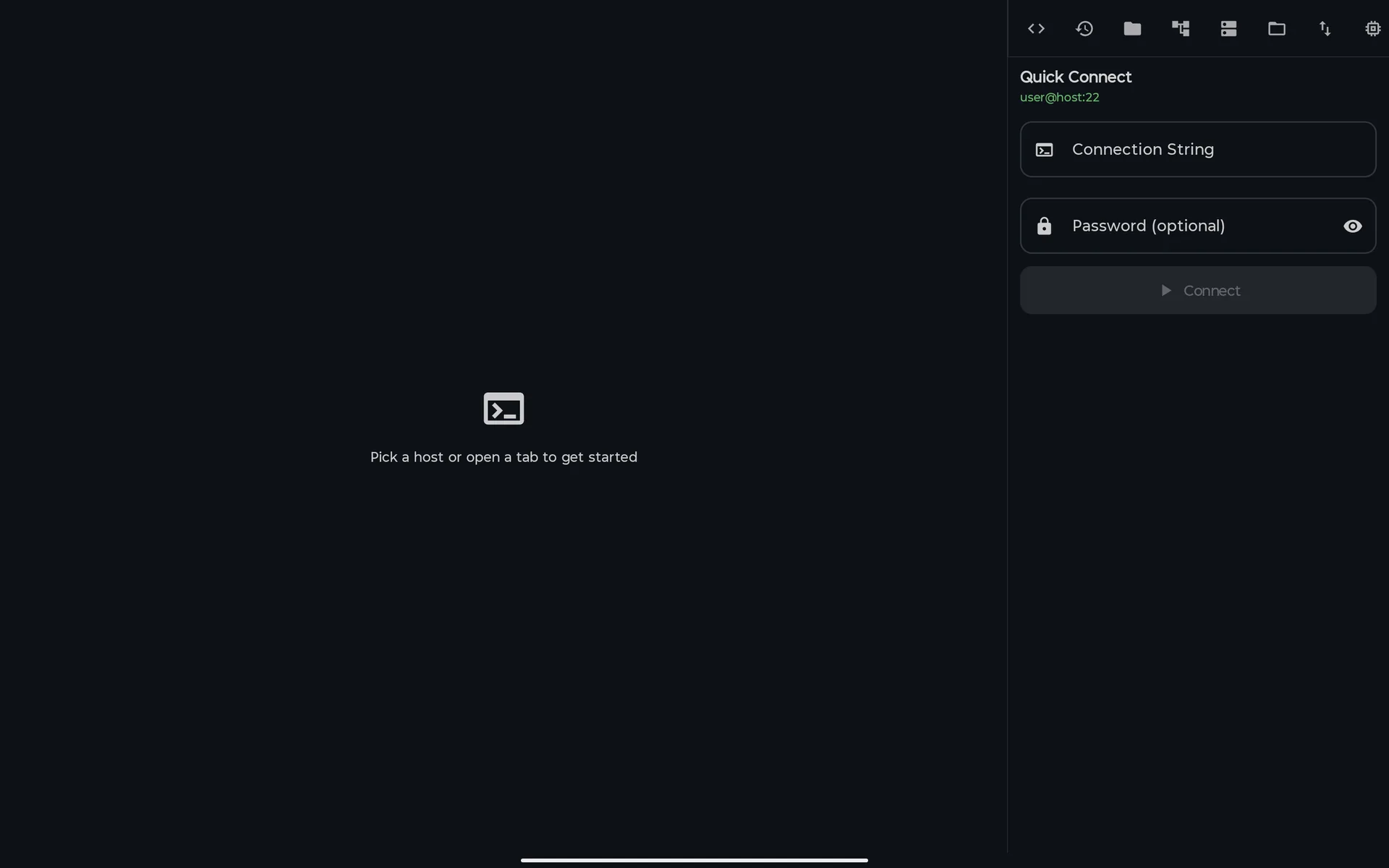
- 2On the start screen, tap Quick Connect to type a
user@host, or Browse Hosts to open your saved servers. Both lead to the SSH screen. Open sessions appear as chips above the cards so you can jump back into them. - 3On the SSH screen each tab is one remote session. + in the tab bar opens Hosts, and with no session open Hosts appears by itself.
- 4The tools: on a tablet (about 660 dp wide or more, with no split view) a panel on the right shows the 32 SSH tools as a strip of icons. On a phone, tap the wrench in the tab bar (More options) to open the same tools in a menu.
Screen map
| Screen | How you get there | What you can do |
|---|---|---|
| Terminal start screen | Tools → Terminal, the command palette (Open Terminal), or the SSH hosts card on Home | Local Shell, Quick Connect, Browse Hosts, and chips to resume open sessions. |
| SSH screen | Quick Connect or Browse Hosts on the start screen | Tabs with remote sessions, a status bar with Disconnect or Reconnect, and the tools panel or menu. |
| Hosts | Browse Hosts, + in the tab bar, or the Hosts tool | Search, filter by group, Connect all, favorites, Add Host, Edit, Delete, and the group manager. |
| New Host / Edit Host | Add Host or Edit in Hosts | Address, authentication, identities, group and tags, proxy, jump host. |
| Quick Connect | The start screen, the Quick Connect tool, or Quick in Hosts | Connect to user@host:port with a password; the host is saved. |
| Verify Host Key / Host Key Changed! | Automatic, when you connect to an unknown server or one whose key changed | Compare the fingerprint, then Trust & Connect or Reject. |
| Authentication Challenge | Automatic, with Keyboard Interactive authentication | Answer one-time-code and similar prompts. |
| SSH Keys and Generate Key | The SSH Keys tool (Security group of the menu) | Generate, import, copy the public key, deploy it to a server, delete. Includes device-bound keys. |
| SFTP Browser | The SFTP Browser tool (Connection group), with a connected session | Browse the server, create folders, rename, delete (also several at once). |
| Dual-pane view | Dual-pane view inside the SFTP browser | See your phone's folder and the server side by side. Copying by dragging isn't working yet. |
| Transfer Queue | The Transfer Queue tool (Connection group) | Lists queued transfers. Nothing adds to it yet. |
| Port Forwarding | The Port Forward tool (Connection group), with a connected session | Add local and remote forwards for the session in focus. |
| VNC / RDP | The VNC / RDP tool (Connection group) | Save VNC and RDP connections and connect. The remote screen isn't drawn yet. |
| Serial / UART | The Serial / UART tool (Connection group) | Save USB-serial configurations and connect; Android asks for permission to use the USB device. |
| Cloud Providers | The Cloud Providers tool (Security group) | Run a provider's CLI on your server, or paste instances as JSON to save them as hosts. |
| Watchdog Monitor | The Watchdog Monitor entry of the Automation group (Pro) | Run a command on the server every few seconds and get a warning when the output changes. |
| Webhooks | The Webhooks entry of the Automation group (Pro) | Create a link that, once you confirm, runs one command on one host. |
| Packages | The Packages tool (Linux Tools group), SSH only | List, update, install and remove apt packages on the host. |
| Sync & Teams | The Sync & Teams tool (Settings group) | Make a local backup of hosts and snippets, and host or join a team room on your network. |
| Import / Export | The Import / Export tool (Settings group) | Copy your hosts as JSON, and import JSON, ~/.ssh/config, known_hosts or CSV by pasting. |
Hosts and connecting
A host is a saved server: where to connect, who you are and how you prove it. Your hosts are stored on the device, per PocketCode account.
Hosts
The list of saved servers, with each one's name, hostname:port and last connection. Open it with Browse Hosts, + in the tab bar or the Hosts tool.
What you can do
- Search with Search hosts…: it matches the name, the hostname and the tags.
- Filter with the group chips: All, then one chip per group and subgroup (a group's chip includes its subgroups). Manage groups opens the group manager.
- With a group selected, Connect all (N) connects every host in it and in its subgroups.
- Starred hosts are listed under Favorites, the rest under All Hosts.
- Tap a host to connect. The menu on each card has Connect, Favorite, Edit and Delete.
- Add Host opens the form; Quick opens Quick Connect.
- In the group manager, New group takes a Name, a Parent group, a Theme (inherited by hosts) and Auto-record sessions: hosts in that group and its subgroups start the session log (the LOG badge) as soon as they connect. Delete group leaves its hosts without a group.
What you can't do, and why
- Save a second host on Free, by any door: Add Host, Quick Connect, the imports (JSON, SSH config, CSV) and the cloud-instance import all stop at 1 saved host and show the Terminal Pro wall. The limit is 1 saved host.Pro
- Give a whole group a proxy, a default identity or environment variables: only the theme and Auto-record sessions can be set on a group.Not yet
New Host and Edit Host
The form holds your password or key, so it is protected from screenshots and screen recording. Save turns on once Hostname and Username are filled in and the port is between 1 and 65535.
What you can do
- Connection: an optional Label, the Hostname, the Port (22 by default) and the Username.
- Authentication → Auth Method: Password, Key Pair or Keyboard Interactive. The password is stored encrypted; when you edit a host the field reads (unchanged).
- With Key Pair, pick a key from SSH Keys (device-bound ones are marked), or choose Paste manually and paste the private key, with its Key Passphrase if it has one. The passphrase field isn't shown for device-bound keys.
- With Keyboard Interactive the server asks for what it needs during the connection, for example a one-time code: You will be prompted during connection.
- Use identity fills in the username and the credential from a saved identity; Save as identity saves the current ones. An identity is a template copied into the host, not a live link: changing it later doesn't change hosts that already used it.
- Organization: pick a Group and add comma-separated Tags.
- Advanced: Proxy / Jump Host with a SOCKS5 or HTTP proxy (host and port); Jump host, another saved host used as a bastion, up to 3 hops, which appears once you have another saved host; and the Agent Forwarding switch.
- Pick a Color and star the host as a favorite.
What you can't do, and why
- Set a startup command or saved port forwards on a host: the form has no field for them, and saving a host from the form clears both.Not yet
- Use the SSH Jump Host chip on its own: it is kept for old data and does nothing. The working jump is the Jump host list.Not yet
Quick Connect
For a server you haven't saved. Type the address, add the password and connect.
What you can do
- Type
user@hostoruser@host:portin Connection String; an IPv6 address goes in brackets,user@[::1]:22. A preview shows the user, the host and the port. - Type the password in Password (optional) and tap Connect. The button stays off until the text contains an
@. - The host is saved in Hosts before connecting, when the plan has room. On Free with 1 host already saved, it still connects, but the new host isn't saved and the Terminal Pro wall opens.
What you can't do, and why
- Connect with a key or a one-time code: Quick Connect always makes a Password host, and without a password the tab says
Error: No password stored for this host. Use Add Host for keys and Keyboard Interactive.Not yet
Verify Host Key and Host Key Changed!
The first time you connect to a server, and whenever its key changes, the connection waits for your decision. PocketCode remembers the keys you trusted (trust on first use).
What you can do
- Read the Host, the Key Type and the Fingerprint (in
SHA256:format) and compare it with the one your server shows. - A new server shows Verify Host Key: Trust & Connect saves the key and continues; Reject cancels.
- If the saved key and the server's key differ, the dialog is titled Host Key Changed!, shows the Previous fingerprint and warns of a possible man-in-the-middle attack. Continue only if you know the server was reinstalled or reconfigured.
- If you don't answer within 60 seconds, the connection is refused.
What you can't do, and why
- See or remove the list of trusted servers: there is no screen for it. You can add entries by importing a
known_hostsfile.Not yet
Authentication Challenge
Appears with Keyboard Interactive authentication when the server asks for something, such as a one-time code. The dialog is protected from screenshots.
What you can do
- Answer each prompt in its Response N field (the text is hidden or shown as the server asks) and tap Submit. Cancel drops the attempt.
- You have 120 seconds to answer.
What you can't do, and why
- Save the answers: every connection asks again.By design
SSH keys
SSH Keys is the list of key pairs you can sign in with. Open it from the SSH Keys tool (the Security group of the tools menu). Use a key in a host by choosing Key Pair in the host form.
SSH Keys
One card per key: label, type and size, fingerprint and public key.
What you can do
- Spot device-bound keys by their Device-bound badge.
- Import a private-key file from your phone with the system file picker; the file name becomes the label.
- Generate Key creates a new pair (next section).
- Copy Public Key puts the public key on the clipboard.
- Deploy appends the public key to
~/.ssh/authorized_keyson the server of the session in focus, creating the folder with mode 700 and the file with mode 600. The button appears while a session is open. The tab prints[Key deployed to authorized_keys]once the command has run; PocketCode doesn't check its result, so try the key afterwards. - Delete removes the key; for a device-bound key it also deletes it from the Android Keystore.
What you can't do, and why
- Copy or deploy the public key of an imported key: the app keeps no public key for imports (the card shows
importedinstead of a fingerprint). An imported key only signs connections.Not yet - Export the private key of a device-bound key: it never leaves the Android Keystore.By design
Generate Key
Opens from Generate Key in the key list.
What you can do
- Fill Key Label and pick a Key Type with its Bit Size: RSA (2048 or 4096, 4096 preselected), ED25519 (256), ECDSA (256, 384 or 521), DSA (1024) or DEVICE-BOUND.
- Add an optional Passphrase to the private key (not for DEVICE-BOUND).
- DEVICE-BOUND creates an ECDSA P-256 key inside the Android Keystore. The private key can't be exported, copied or synced; only the public key leaves the phone. Require recent biometric/PIN to sign is on by default: the key then signs only within 30 seconds after you authenticate with your biometrics or device PIN. PocketCode doesn't show a prompt of its own when connecting.
What you can't do, and why
- Use a device-bound key on another phone or restore it from a backup.Device
The SSH session and its tools
A connected host is a tab on the SSH screen. A remote tab that isn't connected shows a status bar with Disconnect or Reconnect.
Tabs, reconnecting and closing
Each tab is one connection. Connecting times out after 15 seconds, and the connection is checked every 30 seconds.
What you can do
- A long press on a tab opens Rename, Duplicate session (for tabs that came from a saved host) and Close other tabs (when there is more than one).
- Closing a tab that is still connected asks Close active session?: closing disconnects it and stops its port forwards. Close other tabs always asks.
- When the network comes back, PocketCode reconnects dropped sessions by itself. The switch is Settings → Terminal → Terminal auto-reconnect, on by default. The tab prints
[Network connection lost]and later[Network restored — reconnecting…].
What you can't do, and why
- Have more than one session open on Free: opening another tab, connecting a second host, Duplicate session and Multiplexed Shell show the Terminal Pro wall. The limit is 1 live SSH session; a local shell on the Terminal screen is counted separately.Pro
- Keep sessions running in the background without help from Android: it may pause or drop SSH sessions and port forwards when you switch apps unless PocketCode is excluded from battery optimization. The app asks once: Keep SSH sessions alive in the background → Open settings.Device
Multiplexed Shell and Broadcast
Both are in the tools menu (the wrench), under Session, and both need a connected session.
What you can do
- Multiplexed Shell opens another shell on the same SSH connection in a new tab named
<host> (mux). - Broadcast sends every command you type to all connected tabs at once; local-shell tabs that are connected receive it too. While it is on, the BROADCAST badge shows; tap Broadcast OFF to stop.
What you can't do, and why
- Use Broadcast on Free: it shows the Terminal Pro wall.Pro
- Reach Broadcast and Multiplexed Shell from the docked panel on a wide screen: they exist only in the tools menu, which the docked layout hides. Make the window narrower than about 660 dp, or switch split view on (Pro), to get the menu back.By design
The tools
The SSH screen has 32 tools. In the tools menu they are grouped into seven categories; the docked panel shows them in one strip. The ones shared with the local shell are covered on the Linux Terminal page.
| Category | Tools on the SSH screen |
|---|---|
| Connection | Quick Connect, Hosts, SFTP Browser, Port Forward, Share your dev server, Serial / UART, VNC / RDP, Transfer Queue |
| Session | Split Horizontal / Split Vertical (Pro), Multiplexed Shell, Broadcast, Command History, Alias Manager, Background Jobs, Copy Output, Clear Terminal, Start Recording |
| Linux Tools | File Manager, Processes, Network, Packages, Disk Usage, System Info, Environment Variables, Git Panel |
| Snippets | All Snippets and eight category shortcuts |
| Automation | Keyboard Macros, Quick Scripts, Expect Rules, Watchdog Monitor, Webhooks |
| Security | SSH Keys, Cloud Providers, Profiles |
| Settings | Session Logs, Sync & Teams, Import / Export, Volume Keys OFF / ON |
SFTP
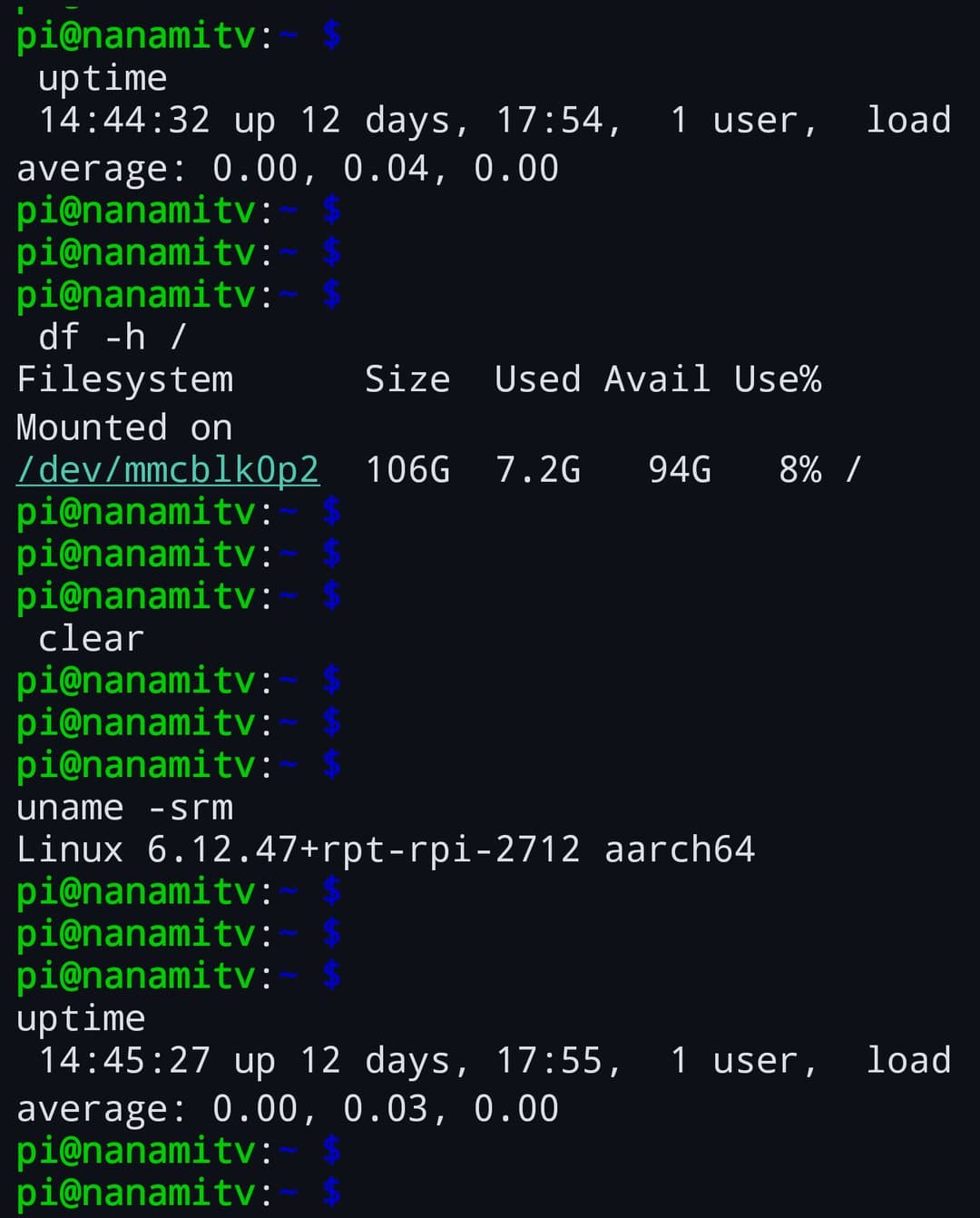
SFTP works on the session in focus, so it needs a connected host. Open SFTP Browser from the tool strip or from the Connection group of the tools menu. The only upload that works from the interface today is Attach file, described last.
SFTP Browser
Starts at the server's root /.
What you can do
- Browse the server: folders first, then files, each row with its permissions and, for files, its size. Tap a folder to open it and use the back arrow to go up.
- New Folder, and from the More options menu of a row, Rename or Delete.
- Long-press a row to start selecting, tap to add more, then delete them together. You are asked Delete N selected items? This can't be undone. Each item is deleted on its own, so one failure doesn't stop the rest.
- Dual-pane view switches to the two-panel layout.
What you can't do, and why
- Download, upload or open a file from this view: tapping a file does nothing, only folders open.Not yet
- Delete a folder that still has files in it: folders are removed with the SFTP
rmdircall, so empty them first.By design - See why an operation failed: errors aren't shown. A folder that can't be read looks empty (This directory is empty), and a failed rename or delete leaves the list as it was.Not yet
Dual-pane view
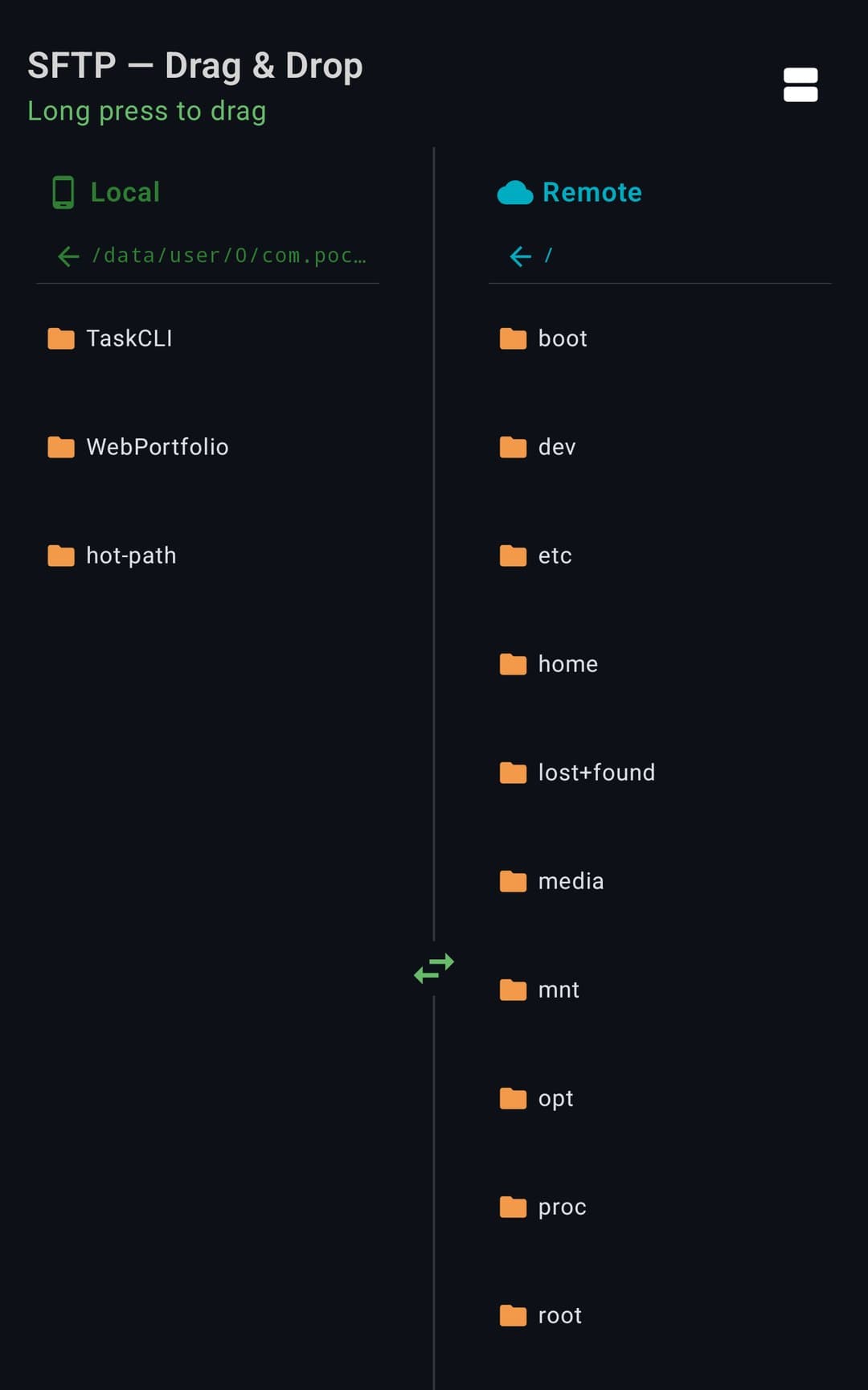
SFTP — Drag & Drop shows your phone and the server side by side. The hint under the title says Long press to drag.
What you can do
- The Local pane starts in the folder that holds your projects; the Remote pane starts at
/. Tap a folder to open it and use the arrow at the top of a pane to go up. - Go back with Single-pane view.
What you can't do, and why
- Copy a file between the panes by dragging it: the sheet offers it, but the drop isn't connected to the transfer yet, so nothing is copied.Not yet
Transfer Queue
A list of transfers with a progress bar, Cancel and Clear Completed. When it is empty it says No active transfers.
What you can do
- See queued transfers (Waiting, Complete, Failed), cancel one, or clear the finished ones with Clear Completed.
What you can't do, and why
- Add a transfer to the queue: nothing in the app sends files to it yet, so it always reads No active transfers.Not yet
Uploading a file from your phone
The Attach file button of the input bar, in an SSH session.
What you can do
- Tap Attach file and pick a file: it is uploaded over SFTP to
/tmp/<file name>on the server, and the path is typed into the input bar, ready for your next command.
What you can't do, and why
- Choose the destination or keep an existing file: the file always goes to
/tmp, and one with the same name is overwritten.By design
Port forwarding
Port forwarding carries traffic through the SSH connection. Rules belong to the session in focus. Open Port Forward from the tool strip or the Connection group of the tools menu; it needs a connected session.
Port Forwarding
Lists the rules of the session in focus (N rules).
What you can do
- Add Rule opens a form: Type (Local (L), Remote (R) or Dynamic), Label, Local Port, Remote Host (preset to
localhost), Remote Port and Auto-Start. - Local (L) listens on a port of your phone and sends the traffic through the server to Remote Host:Remote Port, as the server sees it. For example, reach a database on the server through
localhost:5432. - Remote (R) listens on Remote Port on the server and sends the traffic to Remote Host:Local Port, reached from your phone (
localhostby default). For example, expose a dev server running on the phone. - Each rule shows Active or Stopped; start or stop it, or delete it.
- Closing the tab or disconnecting ends the session's forwards.
What you can't do, and why
- Have more than 1 rule at a time on Free (counted on the session in focus).Pro
- Use Dynamic as a SOCKS proxy: the rule is labelled SOCKS Proxy and logs
SOCKS5 proxy on localhost:N, but the app implements it as a plain forward of that port tolocalhoston the same port number, not as a SOCKS5 proxy.Not yet - Keep rules between sessions: they aren't saved with the host, so Auto-Start has nothing to start on the next connection.Not yet
Remote desktop (VNC and RDP)
The VNC / RDP tool (Connection group) opens a list of saved remote-desktop connections. Today it connects, but it can't show the remote screen.
VNC / RDP
The sheet is titled Remote Desktop. Some of its buttons (Conectar, Guardar, Eliminar) are in Spanish whatever the app language.
What you can do
- New connection: protocol VNC (port 5900) or RDP (3389), a label, host, port, a username (RDP) and a password, a quality level and View only.
- Conectar opens a direct connection to that host and port (not through SSH), does the VNC handshake (no authentication, or a VNC password) and prints
Connected:with the server's name and screen size in a new tab, plus any bell or clipboard text the server sends.
What you can't do, and why
- See or control the remote screen: the connection reads the screen updates and discards them, and there is no view and no mouse or keyboard input.Not yet
- Use RDP: choosing RDP runs the same VNC code and there is no RDP client.Not yet
Serial / UART
The Serial / UART tool (Connection group) is for USB-serial adapters: Arduino boards, routers, IoT devices.
Serial / UART
Subtitle: USB serial port connection (Arduino, routers, IoT).
What you can do
- See Detected devices, the USB devices Android reports.
- Add configuration: Device (empty = auto), Baud (115200 by default), Bits (8), Stop (1) and a parity menu labelled Paridad (Ninguna, Impar, Par, Mark, Space). That menu and the Guardar and Cancelar buttons are in Spanish whatever the app language.
- The play button of a saved configuration connects: it looks the device up through Android's USB host API, opens its serial data interface and sets the line coding; the tab says
Connected to …on success. - The first time, Android's own dialog asks for permission to use the USB device (the tab says
Requesting USB permission for <device>…). Allow it and the connection goes on; PocketCode waits up to 60 seconds for your answer.
What you can't do, and why
- Connect after refusing the USB permission, or after 60 seconds without answering its dialog: the tab prints
USB permission not granted for <device>and the session ends in error. Tap play again to retry.Device - Use an adapter that doesn't expose a CDC or vendor-specific data interface with bulk endpoints: the tab prints
USB device does not have expected CDC serial endpoints.Device
Cloud providers
Cloud Providers (Security group) shows six chips: Amazon AWS, Google Cloud, Microsoft Azure, DigitalOcean, Kubernetes and Docker. It makes no calls to cloud APIs and doesn't use the accounts you connect under Platform Services.
Cloud Providers
The sheet is titled Cloud Services.
What you can do
- Tap a chip to run that provider's CLI on the server of the session in focus (
aws ec2 describe-instances,gcloud compute instances list,az vm list,doctl compute droplet list,kubectl get pods,docker ps). The CLI has to be installed on the server. The tab prints[Cloud discovery (AWS): N bytes received]. - Import instances (JSON): paste a JSON array such as
[{"provider":"AWS","name":"…","publicIp":"…"}]. Every instance with an IP address is saved as a host (userroot, port 22, tagged with its provider) and appears under Instances (N) with Connect. On Free only as many as the 1-host limit allows become hosts, but every instance still appears under Instances (N); the Terminal Pro wall opens for the rest.
What you can't do, and why
- Import instances automatically: discovery only prints how many bytes the CLI returned and doesn't turn the output into instances. The JSON has to be pasted.Not yet
- Connect to an imported instance without adding credentials first: imported hosts are Password hosts with no password saved. Edit the host to add a password or choose a key.Not yet
Watchdog and webhooks
Both tools are in the Automation group and need a connected host. Creating either one needs Pro: on Free you get the Terminal Pro wall.
Watchdog Monitor
Runs a command on the server at a fixed interval and warns you when the output isn't what you expected.
What you can do
- Add watchdog: Label, Command (preset
systemctl is-active nginx), Expected output (presetactive) and Interval (seconds) (preset 60). - Start or stop a monitor with its switch, or delete it. The first check runs after one interval.
- Each check runs the command over the session that was in focus when you started the monitor. If the output doesn't contain the expected text (case is ignored), the tab prints
⚠ Watchdog alert: <command> → <output>and the monitor is marked as failed.
What you can't do, and why
- Create a watchdog on Free.Pro
- Get a system notification: alerts are lines in the terminal tab, and monitors only run while the app is running.By design
- Tie a monitor to one host: it runs on whichever session is in focus when you start it.By design
Webhooks
A webhook is a link that asks PocketCode to run one saved command on one saved host. Another app can open it, for example a launcher or an automation app.
What you can do
- Create webhook: Name, Select host and Command. Each webhook shows its link,
pocketcode://terminal/webhook/<id>?secret=<secret>, masked on screen with a copy button, plus an Active / Inactive switch, N executions and Delete. - When something opens the link, PocketCode checks the id and the secret. Only if the webhook is on and both match does it ask Run automation? (A link asked to run the rule “X” on HOST.). Run connects to the host and sends the command; Cancel does nothing. A wrong secret gets no reply at all.
What you can't do, and why
- Create a webhook on Free.Pro
- Run a webhook unattended: every trigger asks for your confirmation first.By design
- Trigger a webhook from the web: there is only the
pocketcode://link. The app doesn't open a listening port on your phone to run commands on your servers.By design
Package manager
Packages (Linux Tools group) appears on the SSH screen only, because the local shell has no package manager.
Packages
Subtitle: System packages, in English whatever the app language. Every action is typed into the session, so you see its output in the terminal.
What you can do
- List the installed packages of the host (it reads
pkg list-installedand, if that fails,dpkg -l, keeping the installed ones), search them with Search packages… and refresh. - Update All (
apt update && apt upgrade -y), List All, Clean (apt autoclean) and Install (asks Enter a package name: and runsapt install <name> -y). - On a package: its info (
apt show) and remove (apt remove <name> -y).
What you can't do, and why
- Use another package manager (yum, dnf, apk…): the commands are fixed to
apt.Not yet - Run commands with
sudoautomatically: they run as your SSH user as typed, so on a server where that user isn't root they can fail with a permission error.By design
Sync and team rooms
Sync & Teams (Settings group) has two halves, Sync and Teams. Neither needs Pro.
Sync
The sheet is titled Sync & Team.
What you can do
- Sync builds a backup of your hosts, your snippets and a few terminal settings; the switches under Data to sync choose what goes in. Last sync shows when it ran.
- Connections in your account (a separate path from this backup): with Enable Sync on in the Settings Sync dialog of Settings (Cloud Sync, a Pro feature) and Connections (SSH/DB) ticked, saving, editing, starring or deleting a host sends its details to your PocketCode account: name, address, port, username, authentication type, tags, favorite, group, proxy and the agent-forwarding setting. Passwords, keys, passphrases and the startup command stay on the phone. Hosts that arrive through the JSON, SSH config or CSV imports are not sent. The same box also carries the connections of the Database module, but only with their own, smaller set of details (name, host, port, engine and group): never a username or a password. With Cloud Sync off, or that box unticked, nothing is sent.
- End-to-End Encryption → Enable encryption asks for a Master password and encrypts the backup with AES-256-GCM, with a key derived from the password (PBKDF2, 100,000 rounds). It cannot be recovered if you lose it.
What you can't do, and why
- Get the synced hosts back on another device: the app keeps the list it downloads, but nothing turns it into hosts.Not yet
- Send this backup to another device or a cloud: the backup is written to a file inside the app (
terminal_sync_backup.json) and nothing is uploaded; the app has no way to restore from it.Not yet - Include SSH keys: the SSH Keys switch exists, but the backup never contains keys.Not yet
Teams
Team rooms let people on the same network join a room with a code.
What you can do
- Host a room: give it a Room name and share the 6-digit code it shows.
- Join a room: nearby rooms are found on the local network, or you type the 6-digit code. The host sees New request (N wants to join) and taps Accept or Reject.
- The member list shows each role: Read only, Read & write or Admin. The host can change roles and remove members; anyone can Leave room and the host can End room.
- The traffic between devices is encrypted (ECDH key agreement and AES-GCM). On Android 13 and later, the first time you host a room, look for rooms or join one, Android asks for the nearby-devices (local network) permission; until you grant it, those three actions stay blocked.
What you can't do, and why
- Share hosts or snippets in a room: the hint says to host or join a room to share them live, but only members and roles work today.Not yet
- Use a room outside your local network: discovery and the connection are LAN only.Needs network
- Keep a room after the app restarts: a room exists only while it is active.By design
Import and export
Import / Export (Settings group) moves your list of hosts between devices or in from other tools. It works with text you copy and paste.
Export Configuration
Tap Export, then Copy.
What you can do
- The JSON has your hosts (name, address, port, username, authentication type, tags, color, favorite and startup command), your groups (name, color, icon) and your own snippets, not the predefined ones.
What you can't do, and why
- Export passwords, keys or settings: they are never in the JSON. Importing it back recreates the groups but doesn't put hosts back in them.Not yet
- Encrypt the export with a password, save it as a file or show it as a QR code: the text is plain and copy and paste are the only way in and out.Not yet
Import Configuration
Pick the format, Paste the text and tap Import. The result reads Imported N items. On Free the import stops at the plan's limits: 1 saved host (JSON, SSH config and CSV) and 10 snippets of your own (JSON; the 98 predefined ones don't count). What doesn't fit is left out, Imported N items counts only what went in, and the Terminal Pro wall opens. known_hosts entries have no limit.
What you can do
- JSON: the export above. Hosts already saved (same hostname, port and username) are skipped.
- SSH config: each
Hostblock becomes a host; blocks with a wildcard pattern such asHost *are skipped. A block withIdentityFilebecomes a Key Pair host without the key, andProxyJumpbecomes a Jump host when it points to a host that exists. - known_hosts: plain-text entries become trusted servers; hashed entries (the OpenSSH default) can't be recovered and are skipped.
- CSV: needs a header row. Recognized columns:
label(orname),hostname(orhost,address),port,username(oruser) andgroup(orfolder); only the hostname is required. A group is found by name or created.
What you can't do, and why
- Import from a file or a QR code: the sheet takes pasted text only.Not yet
- Import passwords or keys: no format carries them, so imported hosts need credentials added in Edit Host.By design
Free and Pro
These are the plan checks the app makes on the SSH side, taken from the plan definitions (UserPlan, PlanFeature). Anything not listed has no plan check.
| Feature | Free | Pro |
|---|---|---|
| Saved hosts (Add Host form, Quick Connect, imports and cloud-instance import) | 1 | No limit |
| Live sessions at once on the SSH screen (SSH tabs, VNC / RDP, Multiplexed Shell, Duplicate session; serial uses the Terminal screen's slot) | 1 | No limit |
| Port-forward rules (on the session in focus) | 1 | No limit |
| Broadcast | Not included: shows the Terminal Pro wall | Included |
| Watchdog Monitor (creating one) | Not included: shows the Terminal Pro wall | Included |
| Webhooks (creating one) | Not included: shows the Terminal Pro wall | Included |
| SFTP Browser, SSH Keys (device-bound too), host-key verification, Cloud Providers, Packages, Sync & Teams | Included (no plan check) | Included |
Privacy and security
- Where your secrets live. Passwords, private keys (generated, imported or pasted) and key passphrases are stored in Android's encrypted preferences: AES-256-SIV for the names and AES-256-GCM for the values, with the master key held by the Android Keystore. They are kept per PocketCode account, so signing in with another account on the same phone doesn't expose them. Deleting a host removes its password, key and passphrase.
- What isn't covered by that layer. Host names, usernames, groups, tags and the fingerprints of trusted servers are kept in the app's private storage without the extra encryption.
- Device-bound keys. The private key is generated inside the Android Keystore and can't be exported, copied or synced. Only the public key leaves the phone, and it is in no export or backup.
- Screens hidden from screenshots. The host form, the identity dialog and the authentication challenge are marked secure: Android blocks screenshots and screen recording while they are open.
- Servers. Connections go from your phone straight to your server; there is no PocketCode server in between. An unknown server always needs your decision, and a connection is refused if the fingerprint can't be read or you don't answer within 60 seconds. SSH is handled by the JSch library (version 0.2.18).
- Analytics. If you turned on Usage Analytics, the app records that a connection was attempted, its authentication type and how long it took. Host names, usernames, passwords and keys are never part of it.
- Export and Sync backup. The exported JSON and the local backup contain host addresses and usernames and are not encrypted unless you set a master password for the backup; neither contains passwords or keys.
- Connections in Cloud Sync. Only with Cloud Sync on and Connections (SSH/DB) ticked, a host's name, address, port, username, authentication type, tags, favorite, group, proxy and agent-forwarding setting go to your PocketCode account; passwords, keys, passphrases and startup commands never do. The same box also syncs the connections of the Database module, with only their name, host, port, engine and group.
- Webhooks. A webhook link contains its secret, so keep it private. Opening it never runs anything without your confirmation.
- AI chat. Its SSH tools only act on hosts you've connected in a tab, and by default they ask for approval first.
- No lock of its own. The Terminal has no PIN or biometric lock of its own; it relies on your phone's lock screen. A device-bound key can require biometrics or the device PIN to sign.
- Plain-text VNC. VNC connects over plain TCP, outside SSH. Use it only on networks you trust.
Limitations
What the SSH side can't do today, and why. A line tagged Pro is a plan limit, Not yet means the feature isn't finished, By design is a deliberate choice, and Device is a phone or Android limit.
- Open a Telnet connection: the app contains a Telnet client, but nothing opens it (not Quick Connect, not the host form).Not yet
- View or control a remote desktop (VNC, RDP): the connection works but the screen isn't drawn and there is no input. RDP runs the VNC code.Not yet
- Download, upload or edit remote files from the SFTP views, copy by dragging between panes, or fill the transfer queue. Only Attach file uploads, to
/tmp.Not yet - Use Dynamic forwarding as a SOCKS5 proxy, or keep port-forward rules after the session ends.Not yet
- Set a startup command or saved port forwards on a host from the form, or give a group a proxy, identity or environment variables.Not yet
- Use Quick Connect with a key or a one-time code: it always makes a Password host.Not yet
- Get a public key from an imported private key, or list and remove trusted host keys.Not yet
- Use a package manager other than
apt, or import cloud instances without pasting JSON.Not yet - Send the Sync & Teams backup to a cloud or another device, get hosts back on another device from Cloud Sync, share hosts or snippets in a team room, encrypt an export or import from a file or a QR code.Not yet
- Reach Broadcast and Multiplexed Shell from the docked panel on a wide screen: they are only in the tools menu.By design
- Chain more than 3 jump hosts.By design
- Choose or inspect key-exchange, cipher or host-key algorithms: the SSH library's defaults are used and there is no setting. This page makes no claim about post-quantum key exchange.By design
- Use more than 1 saved host, 1 session or 1 port-forward rule at a time on Free; use Broadcast, Watchdog Monitor or Webhooks on Free.Pro
- Keep sessions alive in the background without excluding PocketCode from battery optimization.Device
- Use team rooms outside your local network.Needs network
Troubleshooting
Error: No password stored for this host
The host uses Password but none is saved. Open Hosts → Edit and type it under Authentication. It also happens after Quick Connect without a password, and for hosts you imported, which arrive without credentials.
Error: No private key stored for this host
The host uses Key Pair but has no key. In Edit Host, pick one under Key or choose Paste manually and paste it. Hosts imported from an SSH config with an IdentityFile arrive this way.
Error: Authentication failed
The server rejected the credentials; the tab also shows [Connection failed: Authentication failed]. Check the username, the password or key and the passphrase. If the server asks for a one-time code, set Auth Method to Keyboard Interactive. With a device-bound key that requires biometrics or PIN, authenticate and connect again right away: outside the 30-second window the key signs nothing and the server rejects the attempt.
Error: Connection timed out / Error: Connection refused
Nothing answered within 15 seconds, or the port is closed. Check the address and the port (22 by default), that the phone has network access and that the SSH service is running. If the host uses a Proxy / Jump Host, check that too.
Error: Unknown host key — trust the host and retry
The server's key hasn't been trusted yet. Connect again and, if the fingerprint matches, answer Verify Host Key with Trust & Connect.
Host Key Changed!
The server's key is different from the one you trusted: it may have been reinstalled or reconfigured, or someone may be intercepting the connection. Compare the Fingerprint with the Previous fingerprint and only tap Trust & Connect if you know why it changed.
[Security] Could not verify host key fingerprint — connection refused.
PocketCode couldn't read the server's fingerprint and refuses to continue rather than trust an unknown key. Try connecting again.
[Network connection lost]
The device lost its connection and the session ended. With Terminal auto-reconnect on (Settings → Terminal) the tab reconnects by itself when the network returns and prints [Network restored — reconnecting…]. Otherwise tap Reconnect in the status bar.
Jump host chain deeper than 3 hops
A Jump host chain can have at most 3 jumps; shorten it. Two related messages: the chain loops back on itself (change the Jump host of one of the hosts) and Jump host no longer exists (…) (the jump host was deleted; pick another).
Terminal Pro
You reached a Free limit: a second session, a second saved host from Add Host, Quick Connect, an import or the cloud-instance import, a second port-forward rule, Broadcast, Watchdog Monitor or Webhooks. Continue with basic plan closes the wall; Unlock Terminal Pro opens the plans screen.
This directory is empty (SFTP)
The folder is empty, or it couldn't be read, for example because of permissions: the browser doesn't show errors, so an unreadable folder looks empty.
[Error: file upload failed]
Attach file couldn't upload the file to /tmp on the server. Check that the session is still connected and that /tmp is writable.
A host or snippet didn't get saved (Quick Connect, imports)
On Free the plan keeps 1 saved host and 10 snippets of your own (the 98 predefined ones don't count). Quick Connect still opens the session but doesn't save the host; the imports and the cloud-instance import bring in only what fits, and Imported N items counts just that. Each time something is left out, the Terminal Pro wall opens. Delete one to make room, or unlock Terminal Pro.
USB permission not granted for … / No USB serial device found. Available: …
The first means you refused Android's USB permission dialog, or didn't answer it within 60 seconds; tap play again and allow it. The second means no connected USB device matched; the message lists what Android sees.
VNC server only offers unsupported security types (…); refusing to connect.
PocketCode speaks VNC with no authentication or with a VNC password only; servers that require TLS or other types are refused. VNC authentication failed means the password was rejected. Even when the connection works, the remote screen isn't drawn.
No packages found
The list is empty when the host has neither pkg nor dpkg, or when the session isn't connected. Package actions suit Debian-based hosts and run as your SSH user, without sudo.
Keep SSH sessions alive in the background
Android may pause or drop SSH sessions and port forwards when you switch apps unless PocketCode is excluded from battery optimization. Open settings takes you to the system screen; Not now keeps things as they are.
The Connect button in Quick Connect is off
It turns on once the text contains an @. Type user@host, for example [email protected].
Could not import key file
The file was empty or couldn't be read. Pick the private key file itself.