
Platform Services
Platform Services is where you connect your own accounts on 33 providers: Git hosts, hosting, databases, backends, monitoring, payments and messaging. PocketCode has no accounts or credits of its own. It keeps your key on the phone, encrypted, and talks to the provider's API. This page is about the credential: connecting it, checking it, replacing it and removing it. What you then see of each service lives in the Backend Manager, Database and Projects.
What it is and how to open it
There are four ways in. They all end in the same credential sheets.
| From | How |
|---|---|
| Settings | Settings → Integrations → Connected Services opens the full-screen Platform Services list. It asks for your biometrics or screen lock first, and Back returns to Settings. |
| Backend Manager | Tap Tools in the bottom bar, then Backend. The module opens on its welcome screen: Connect your first service (or Connect another service once you have some) opens the Services tab with the search field ready. The tab is also one tap away in the Status · Projects · Services switch. A Backend screen of a provider with no credential yet takes you to that provider's connect sheet. |
| Projects | In the clone-from-service list, Not connected — tap to connect next to GitHub, GitLab or Bitbucket opens Platform Services with that service already open. This route skips the biometric prompt, and Back doesn't go through Settings. |
| A service sheet | Open in Backend Manager, on the sheet of a connected service, opens the Backend Manager on that provider. |
Screen map
Every screen of the module, from the list down to the Backend Manager's own sheets.
| Screen | How you get there | What you can do |
|---|---|---|
| Platform Services (the list) | Settings → Integrations → Connected Services, or Not connected — tap to connect in Projects. | Search the 33 services, see which are connected and whether they work, get a notice when one is close to its request limit, and open any service. |
| Service sheet | Tap a row in the list. | Connect the service if no account is stored, or manage it if there is at least one. Firebase always opens the connect sheet. |
| Connect sheet | From the service sheet, and from Replace key and Add account. | Step 1 says where to get the credential, step 2 is where you give it to PocketCode, then a verdict and one main button. It comes in four shapes: a token, a short form, a code or a browser sign-in. |
| Credential card | Opens instead of the connect sheet once an account is stored. | See health, the key's fingerprint, the last check, requests and permissions. Check now, Replace key, Disconnect, switch account, Add account, Open in Backend Manager. |
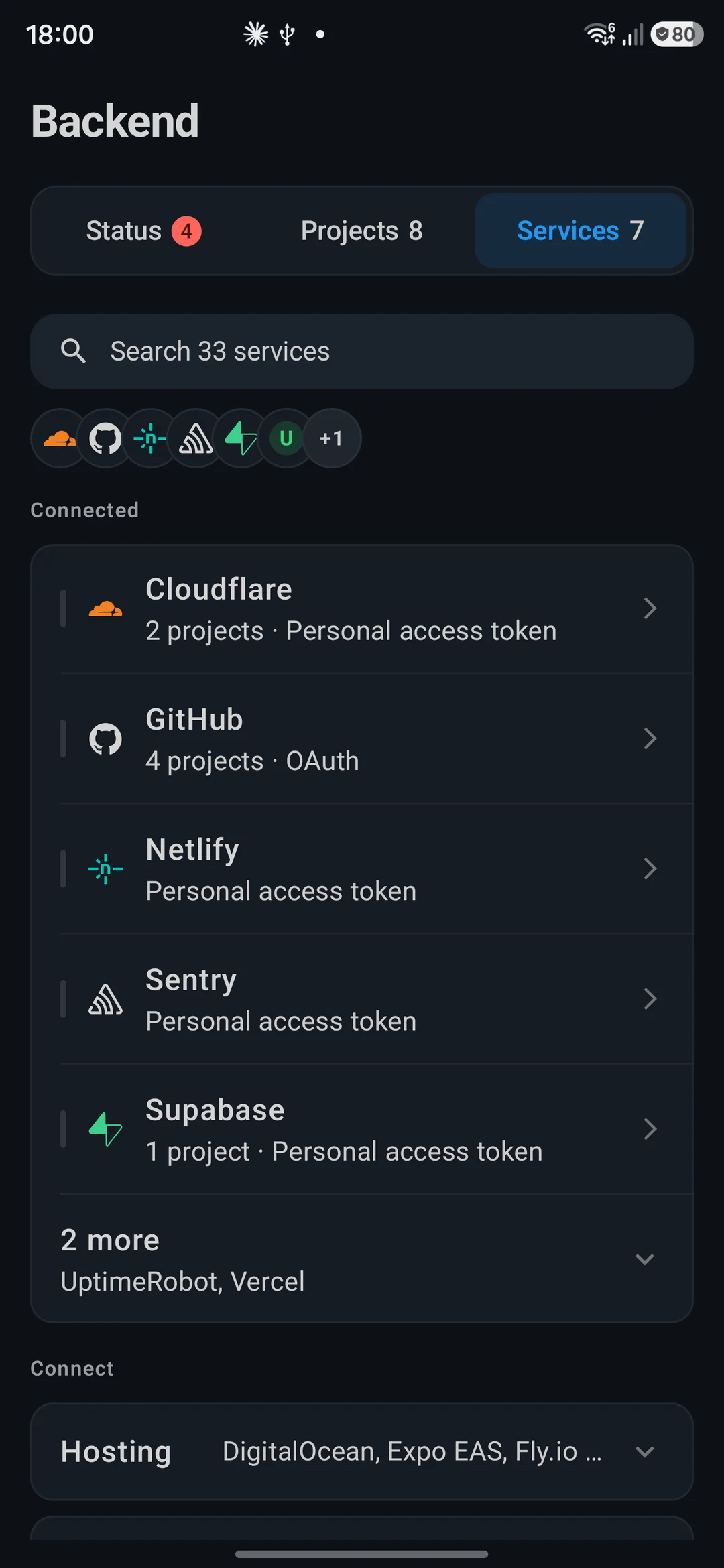
| Backend → Services tab | Tools → Backend → Services. | Search, see Connected (five at a time) and the Connect catalog by category, as a two-column grid of cards. |
| Backend connect sheet | Tap a service card in the catalog. | Confirm with biometrics or your screen lock (Confirm it is you), then the same connect sheet as above. |
| Backend manage sheet | Tap a connected service (phone), or Manage connection (wide window). | The same credential card, with Add account in the header. |
| Account pane (wide window) | Tablet or landscape: the list on the left, the pane on the right. | Pick a service on the left. Then Open account (when that provider has an account screen in the Backend Manager) and Manage connection. |
The 33 services
33 services in 8 categories, grouped as the Platform Services list groups them. What PocketCode asks for depends on the service.
Four ways to connect
- Token — 18 services. You paste one value into one field.
- Short form — 11 services. Two or three fields; secrets are masked.
- Code — GitHub and GitLab. They show a short code that you type on their page.
- Browser — Railway, and Firebase with your Google account. You approve on the provider's page.
Code and browser sign-in need PocketCode's sign-in registration with that provider to be inside the app you installed. If it isn't, the same sheet says so and asks for the token (or, for Firebase, the three fields) instead.
Version Control · 3
| Service | How you connect it |
|---|---|
| GitHub | Code, or a token as fallback |
| GitLab | Code, or a token as fallback |
| Bitbucket | 2 fields: your Atlassian Email and an API token |
Hosting & Deploy · 8
| Service | How you connect it |
|---|---|
| Render | Token |
| Vercel | Token |
| Netlify | Token |
| Railway | Browser sign-in, or a token as fallback |
| Fly.io | Token |
| Cloudflare | Token |
| DigitalOcean | Token |
| Expo EAS | 2 fields: Access token and App ID or slug |
Databases · 7
| Service | How you connect it |
|---|---|
| Firebase | Browser sign-in with Google, or 3 fields as fallback: Project ID, App ID, API key |
| Neon | Token |
| Supabase | Token |
| PlanetScale | 2 fields: Service token ID and Service token |
| MongoDB Atlas | 2 fields, in two variants: Service account (Client ID, Client secret) or API key (Public key, Private key) |
| Turso | Token |
| Upstash | 2 fields: Email and API key |
Backend & BaaS · 4
| Service | How you connect it |
|---|---|
| Appwrite | 3 fields: API endpoint, Project ID, API key |
| Convex | Token |
| PocketBase | 3 fields: Server address, Superuser email, Superuser password |
| Clerk | Token (the secret key) |
Monitoring · 5
| Service | How you connect it |
|---|---|
| Sentry | Token |
| PostHog | Token |
| UptimeRobot | Token |
| Axiom | 2 fields: API token and Dataset |
| Healthchecks.io | Token |
Payments · 2
| Service | How you connect it |
|---|---|
| Stripe | Token (a restricted rk_ key is the safest) |
| RevenueCat | Token (a v2 secret key) |
Media · 1
| Service | How you connect it |
|---|---|
| Cloudinary | 3 fields: Cloud name, API key, API secret |
Communication · 3
| Service | How you connect it |
|---|---|
| Resend | Token (Full access) |
| OneSignal | 2 fields: App ID and App API key |
| Twilio | 3 fields: Account SID, API Key SID, API Key secret |
The Platform Services screen
A full-screen list. Back, or the Android back gesture, closes it.
You can
- Search by name or by description with Search 33 services. The descriptions are in English in every language and the search reads them too.
- See Connected first: every service with a stored credential, with its logo, the account name, when it was last checked, and a health pill: Working, Fix (the last check failed, or the key works but can't write; a failure's reason replaces the subtitle) or Checking.
- Get an amber notice, <Service> is close to its request limit. Open it to see how much is left., once a service has used 80 % of its provider limit in the last hour. Tap it to open the service.
- Browse the rest of the catalog under category headings with a count. Each row says how it connects: API key, Access token, 2 fields, Sign in with a code or Sign in with Railway, with “· full account” added when the provider can't limit a key.
- Tap any row to open its sheet. No services found appears when the search matches nothing.
You can't
- See a service in both lists: a connected service, even one that shows Fix, appears only under Connected. Only disconnected services stay in the catalog.By design
- Open the list from Settings without biometrics or a screen lock. Settings shows Set up a screen lock or biometric to access API keys. (the message says API keys although the row is Connected Services).Device
- Take a screenshot or record the screen: the window is marked secure.By design
Connect an account
Tap the service's row in Platform Services, or its card in the Backend Services tab; there is no Connect button next to each service. The sheet that opens always has the same parts in the same order.
What the connect sheet has
- Header. The logo, the name and a one-line summary of the shape, such as API key · stays encrypted on this phone, 3 fields · secrets stay encrypted on this phone or Sign in with GitHub · a code, not a token.
- A notice first, only when PocketCode meant to open the browser and can't: PocketCode has no OAuth app registered for <Service> yet, so the browser sign-in isn't available. The token or the fields follow.
- Step 1, where to get it. The provider's hint, a warning or a suggestion, the permission chips and a link to the page where you create the key.
- Step 2, give it to PocketCode. The field or fields, the code to type, or the instructions to approve in the browser.
- The verdict and one main button.
Paste a token
- 1Open the service. Step 1, Get a key from <Service>, shows the provider's hint; a warning when the key can't be limited to part of the account, or a suggestion when the provider can issue read-only keys; the Minimum to read and Also needed to write chips where the provider has them; and Open the token page, a link to where you create the key. Convex, Turso, Healthchecks.io, Clerk and RevenueCat have no direct link: the hint says where to find the key.
- 2Create the key at the provider with those permissions.
- 3In step 2, Paste it here, tap Paste or paste into the masked field. A button shows or hides the value and another copies it.
- 4PocketCode cleans what you paste and tells you what it did: spaces or line breaks, quotes, a leading “Bearer”, a
NAME=valueline (it keeps the value) or a value inside pasted JSON appear as Cleaned up before checking: …. It also shows what it recognised, such as Restricted key, Live mode or Fine-grained token. - 5Tap Connect and check. PocketCode calls the provider's API with the key and shows the verdict.
Fill in a short form
- 1Open the service. Step 1, Find them in <Service>, tells you where each value lives and links to the provider's console where there is a page for it.
- 2Step 2, Fill them in, has one field per value, with a human name and the technical name in monospace. A thin bar fills as fields look right (a screen reader announces it as 2 of 3 fields look right). MongoDB Atlas first asks you to pick Service account or API key.
- 3Tap Connect and check. Some services join the fields into one credential behind the scenes (Bitbucket, PlanetScale and others); you only ever see the separate fields.
- 4Firebase without the Google sign-in shows the same kind of form with Project ID, App ID and API key from your own
google-services.jsonor the Firebase console, plus Open Firebase console. Its button reads Save because this form doesn't check anything against Google (your Firestore rules may still deny reads). Clear empties the three fields.
Sign in with a code (GitHub, GitLab)
- 1Open GitHub or GitLab. Step 1, GitHub gives you a code, explains the flow: no token to copy, you type a short code in the browser and PocketCode finishes on its own. It lists the permissions it will ask for:
repo,read:useranduser:emailfor GitHub;api,read_userandread_repositoryfor GitLab. - 2Tap Get a code from GitHub. The code appears large, with Copy code.
- 3Tap Open GitHub, type the code on the page that opens and approve. Keep PocketCode open: it shows Waiting for you to approve it… and connects by itself.
- 4The verdict appears. If the code expires, ask for a new one.
Sign in in the browser (Railway, Firebase)
- 1Open Railway or Firebase. Step 1, What Railway will ask you, lists the permissions PocketCode requests; the provider shows the same list before you approve.
- 2Tap Connect with Railway. For Firebase the button reads Connect with Firebase and the sign-in is with your Google account.
- 3Approve in the browser. PocketCode brings you back by itself and shows the verdict.
- 4If it fails, Try again repeats the sign-in.
- Railway asks for read-only viewer permissions (
workspace:viewer,project:viewer). - Firebase asks Google for read-only access (
firebase.readonly,cloud-platform.read-only). It is your own Firebase project, not PocketCode's, and it feeds the Firestore browser in the Database module.
The verdict
When you connect, PocketCode makes a real call to the provider and answers on one of three levels.
| Verdict | What it means |
|---|---|
| It works | It works · <name> when the provider tells your username. Everything PocketCode can read is available. |
| It works, but can't write | The key reads, but a write permission is missing: Missing: workflow. Anything that needs it shows up as not read yet. Only GitHub can tell: it reports the scopes of the token, and fine-grained GitHub tokens don't, so they show It works. |
| That key didn't work, or Couldn't connect to <Service> (code and browser) | The provider's real reason follows. See Troubleshooting. |
Which permissions to give the key
For a pasted token, the sheet lists what to tick, so you don't have to guess. Ten services list a minimum to read and five list what writing needs.
| Service | Minimum to read | Also needed to write |
|---|---|---|
| GitHub | repo, read:user, user:email | workflow |
| GitLab | read_api | api |
| Bitbucket | — | write:pipeline:bitbucket |
| Railway | workspace:viewer, project:viewer | — |
| Cloudflare | The Read all resources template | — |
| DigitalOcean | app:read, billing:read | — |
| Sentry | org:read, project:read, event:read, alerts:read | event:write |
| PostHog | 13 read scopes, from user:read and project:read to query:read and survey:read | feature_flag:write, error_tracking:write, annotation:write |
| Axiom | query | — |
| Stripe | Balance, Charges, PaymentIntents, Events (a restricted key) | — |
| Resend | Full access | — |
- Read-only is possible at 15 services, and the sheet suggests it (This provider can issue read-only tokens…): GitHub, GitLab, Railway, Fly.io, Cloudflare, DigitalOcean, Appwrite, Upstash, Sentry, PostHog, UptimeRobot, Axiom, Healthchecks.io, Stripe and Twilio.
- A key can't be limited at 9 services: Render, Netlify, Supabase, Resend, Clerk, RevenueCat, PocketBase, OneSignal and Cloudinary. The sheet warns before you paste: whatever you paste grants full access to your account, so revoke it at the provider when you no longer need it.
On the connect sheet
You can
- Paste, show or hide, and copy the value; see what PocketCode recognised and what it cleaned up.
- Open the provider's token page or console from step 1.
- After a result: Done, Try another key, Try again, or Use this key anyway when the shape of the key looks doubtful but isn't impossible.
- Connect with nothing but the key: you don't name the account. The account name shown later is the one the provider returns.
You can't
- Connect with a value whose shape can't be right (an address where a key goes, for example): the button stays disabled until it does.By design
- Connect PocketBase over
http://. It says PocketCode only connects over https://: over http:// your password would travel unencrypted.By design - Sign in with the code or the browser when your build of the app lacks PocketCode's registration with that provider. The sheet says so and offers the token or the fields.Not yet
- Keep a key that failed its check. Nothing invalid is saved: Nothing was saved. If you were replacing an account's key, that account is removed from this phone and you connect it again.By design
Manage a connection
Once at least one account is stored, tapping the service opens the credential card instead of the connect sheet. Firebase is the exception: it has no card and always opens the connect sheet, with the three fields filled in and Clear.
What the card shows, top to bottom
| Part | What you see |
|---|---|
| Accounts | Only with more than one account: one chip per account, named with the provider's username (or Main account). Tap a chip to switch. |
| The key | The health pill (Working, Fix or Checking) and the credential type: API key, Personal access token, API credentials or Signed in with OAuth. Then the fingerprint: for example rk_live_••••••••9Qf2 with the detected chips, or •••• (N chars), or Signed in with OAuth. There's no key to replace here., or Saved before PocketCode kept a preview. Replace the key to see it here. |
| Account · Added · Checked · Requests | The account name, the date, the last check with its latency (or Not checked yet) and N requests in the last hour with Provider limit: …. When the provider shares the limit with your own web dashboard it says You share this limit with your own web dashboard. |
| What this key can do | The Minimum to read and Also needed to write chips, with Missing: … when the last check in this session found a gap; or the full-account warning; or PocketCode doesn't have this provider's permissions documented yet. |
| Check now · Replace key | Check now repeats the check call and records the date, the latency and the result. Replace key opens the connect sheet; for an account that signed in with OAuth it reads Reconnect. |
| Disconnect <Service> | Asks Remove the <Service> key from this phone? with Keep it and Disconnect, and a link to the page where you revoke the key at the provider. |
| Below the card | Add account (Add account · Pro with a lock), the service description (English in every language), Capabilities chips, a short “what it's for” card with a quick start for most services (English only), Open in Backend Manager, Website and Docs. |
You can
- Re-check a stored key at any time with Check now; a failed check keeps the key and shows the reason, so you can fix it in place.
- Swap the key for a new one with Replace key, or sign in again with Reconnect.
- Remove the key from this phone with Disconnect. That also removes its refresh token and OAuth grant. With two accounts, only the one you're looking at goes and the other takes over.
- Switch between accounts you already connected. This needs no Pro.
You can't
- Revoke the key at the provider from the app. Disconnect only deletes PocketCode's copy: It keeps working at <Service> until you revoke it there. The confirmation links to the provider's revoke page.By design
- Add a second account of the same provider on Free. Add account · Pro opens the paywall instead.Pro
- See the whole key again or recover it. The fingerprint never shows more than 8 characters of the secret, and nothing for keys under 16 characters or for passwords beyond their length.By design
- See which permissions the key really has, unless the last check in this session found out: otherwise the card shows what PocketCode declares for that provider, not what the key was granted.By design
Several accounts on one provider
- The first account of each provider is free. From the second on, Add account · Pro shows a lock and opens the paywall.
- With Pro, Add account opens the connect sheet for a new account; you don't name it, and its chip carries the username the provider returns.
- Switching between accounts you already have makes no network call and needs no Pro.
- In the Backend Services tab, a service with more than one account shows the chips right under its row.
In the Backend Manager
- The manage sheet is the same card. The credential type comes from the service (Personal access token, API key, OAuth or Google account).
- It has no Requests row, no session permissions, no description, Capabilities, quick start, Website or Docs, and Add account sits in the header of the sheet.
- Disconnect closes the sheet when it finishes.
- When the paywall opens from here it is the Backend Manager's general Pro screen; from Settings it is the one for Multiple accounts per provider.
Where each connection is used
Platform Services stores the credential. These are the places that read it.
| Where | What it does with the connection |
|---|---|
| Backend Manager | All 33 services are defined there; what each one shows is on the Backend Manager page. It is the main consumer. Reading is free; destructive changes at a provider are Pro and reversible ones are free. |
| Database | Opens projects of Supabase, Neon, PlanetScale, MongoDB Atlas, Turso, Upstash, Cloudflare (D1), DigitalOcean (managed databases) and Firebase (Firestore) with the connection you already gave. |
| Projects | Lists and clones your repositories from GitHub, GitLab and Bitbucket. Cloning from the GitHub sheet counts as a new project: on Free, with no room left, it closes the sheet and opens the projects paywall. |
| Code editor and AI chat — Git | Push and pull over HTTPS use the token of the connected service that matches the remote's host. |
| Status feed | Opening a project with a CI remote adds its CI status to the Backend Manager feed once per selection, without polling. |
| AI chat | Its backend tools read through the same connections and the same checks as the screens: confirmations, and the Pro gate for destructive changes. |
Free and Pro
Platform Services has one Pro gate: a second account on the same provider. There is no cap on how many services you connect.
| Function | Free | Pro |
|---|---|---|
| Connect any of the 33 services | Yes: the first account of each provider | Yes |
| Several accounts on the same provider (Add account · Pro) | No: a lock opens the paywall | Yes |
| Switch between accounts you already connected | Yes | Yes |
| Check now, Replace key, Reconnect, Disconnect | Yes | Yes |
| Reading what each service shows in the Backend Manager | Yes | Yes |
| Destructive changes at a provider from the phone (environment variables, DNS records, domains, scaling, suspending) | No | Yes (a Backend Manager feature) |
| Reversible changes at a provider (redeploy under the deploy cap, cancel, Fly.io machine start and stop, Sentry issue actions, purging Cloudflare's cache) | Yes | Yes |
Privacy and security
What PocketCode does with a key you give it.
- Where it lives. On this phone, in Android's encrypted preferences: AES-256-GCM, with the key held in the Android Keystore. If that store can't be created, PocketCode never falls back to plain storage.
- One store per PocketCode user. Signing out doesn't delete it and another account never sees it. Switching PocketCode account switches the set of connected services.
- What it keeps per account. The credential, the date it was added, the provider's username and email, the extra values some services need (a Vercel team ID, Firebase's three fields, the refresh token of an OAuth sign-in) and a fingerprint: the recognised prefix and the last 4 characters, or the first 4 and the last 4; never more than 8 characters of the secret, and nothing for keys under 16 characters.
- Not in backups. The app turns Android backup off, so your connections aren't copied by a cloud backup or restore. On a new phone you connect them again.
- No middleman. The key goes only to the provider's own API, in its Authorization header or the provider's equivalent. PocketCode has no server in between for these calls. The exceptions are the ones you point at yourself: PocketBase and self-hosted Appwrite talk to the server address you type, and PocketBase only over https://. The code and browser sign-ins exchange their code with the provider.
- Screens that hide it. Platform Services, the service sheet and the Backend Manager's connect sheet block screenshots, screen recording and the recent-apps thumbnail. The Backend Manager's manage sheet and Services list show only the masked fingerprint and aren't protected that way.
- Biometrics, unevenly. Opening Platform Services from Settings asks for biometrics or your screen lock. On Android 11 and later the PIN, pattern or password works; on older versions it needs a strong biometric. The Backend Manager's connect sheet asks too, with Confirm it is you and You are about to see and change the credentials of a service., but opens without asking when the phone has neither. The manage sheet, the Services list and the route from Projects don't ask.
- Clipboard. A copied token is flagged as sensitive on Android 13 and later, so the system preview hides it. The sign-in code isn't flagged, so you can check it's yours.
- Disconnect only forgets. It deletes the local copy, including the refresh token, and doesn't revoke anything at the provider.
Limitations
What Platform Services can't do, and why. The badge says whose rule it is.
- A second account on the same provider needs Pro. The first one is free.Pro
- Connecting needs a network and an account at the provider: the check is a real call, and code or browser sign-in has to be approved on the provider's site. A code expires if you take too long.Needs network
- Disconnect doesn't revoke the key at the provider; do that on its site.By design
- Payments, messaging and media services are read-only. There is no way to send an email, an SMS or a push notification, or to move money, from them.By design
- Firebase has a single connection: no card, no extra accounts.By design
- Vercel doesn't issue read-only tokens: limit yours to one team or project and give it an expiry date.Third party
- Fly.io's dashboard issues only full tokens. For a read-only one, run
fly tokens create readonlyon a computer.Third party - Resend: only a Full access key works. A sending-only key can't read domains and is rejected.Third party
- Neon: use a personal or organization API key. A project-scoped key can't list projects.Third party
- Supabase: use the access token of your account (
sbp_…), not a project'sanonorservice_rolekey.Third party - PlanetScale: a new service token has no access; grant it read access to the databases (or to all current and future databases) at PlanetScale.Third party
- MongoDB Atlas: if your organization requires an API access list, add the phone's IP address there. Your database user and password don't go here; Database asks for them when you open a cluster.Third party
- Turso: the platform token is made with the CLI (
turso auth api-tokens mint pocketcode); there is no web page for it.Third party - Twilio: never the Auth Token; use an API Key SID and its secret, and keep the Account SID handy. PocketCode only reads with it because the credential can spend real money.By design
- Expo EAS: its API is unofficial and read-only, so the connection can end up unconfirmed.Third party
- Bitbucket: use your Atlassian email and an API token created at id.atlassian.com, not the Bitbucket username.Third party
- Nine services can't limit a key, so what you paste is full access: Render, Netlify, Supabase, Resend, Clerk, RevenueCat, PocketBase, OneSignal and Cloudinary.Third party
Troubleshooting
Most titles are the messages the app shows; <Service> stands for the provider's name.
<Service> rejected this token: it is invalid, expired or has been revoked. Create a new one and paste it again.
The provider answered 401. Create a new key at the provider (the sheet links to the page when it has one) and paste it again. PocketCode already removes spaces, line breaks and a leading “Bearer”, so check that you copied the whole key.
<Service> accepted the token, but it doesn't have the permissions PocketCode needs. Create it again with read access to your account.
The provider answered 403. Step 1 lists what to tick in Minimum to read for the services that have a list; create the key again with those permissions.
<Service> answered 404: the host or the account path is wrong, not the token.
The key isn't the problem. Check any address or ID the form asked for, such as PocketBase's Server address or Appwrite's API endpoint.
<Service> is rate limiting right now. Wait a minute and try again.
The provider answered 429: you have used its request allowance for now. The Requests row of the card shows how much you've used in the last hour.
Couldn't reach <Service>. Check your connection and try again.
There was no answer from the provider. The check is a real call, so it needs a network.
<Service> answered HTTP <n>.
Any other status is shown as it came. Try again in a moment, and check the provider's status page if it keeps happening.
PocketCode has no OAuth app registered for <Service> yet, so the browser sign-in isn't available. Paste a token instead — it works exactly the same.
Your build of the app doesn't carry PocketCode's sign-in registration for that provider. The same sheet asks for the token instead (for forms: Fill in the fields below instead.).
This Resend key can only send email. Create one with Full access so PocketCode can read domains and emails.
Resend keys are either sending-only or full access. Reading needs Full access.
There is no project with that ID at this endpoint. Check the project ID and the region in the endpoint.
Appwrite: keys belong to one project and one region. Check Project ID and API endpoint. If the answer is Appwrite does not recognise this API key. Check that it was created in the project whose ID you entered., the key was made in another project.
PocketCode only connects over https://: over http:// your password would travel unencrypted.
PocketBase: write the full address of your server starting with https://.
Token saved. Expo's API is unofficial and didn't confirm the account, so listing builds may still fail.
The token was saved but Expo didn't confirm the account. Open the Backend Manager and see whether builds load.
The code expired before it was approved. Ask <Service> for a new one.
Tap Try again to get a fresh code, and approve it before it runs out.
The request was rejected on <Service>. Nothing was saved.
You denied the sign-in on the provider's page. Start again if it was a mistake.
MongoDB Atlas refused the request because this device's IP address is not on the API access list of your key or service account.
Add the phone's IP in Atlas → Applications, or turn off the access list requirement for the organization.
No reason came back. Check you copied the whole key.
The provider didn't say why. Copy the key again from its page and paste it whole.
It works, but can't write
Only GitHub reports this: the token works but a write permission is missing, as in Missing: workflow. Create the token again with that permission ticked.
A service shows Fix
The last check failed, or the key works but can't write. The key is still stored. Open the service, read the reason, and tap Check now (or Replace key).
Set up a screen lock or biometric to access API keys.
Settings won't open Connected Services on a phone with no screen lock or biometric. Set one up, or connect from the Backend Manager.
Next